Klimax DS /Organik Update(2022 variant)
|
Linn Klimax DS (Organik upgrade variant) Digital music player 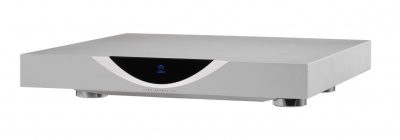
|
| ||||||






Product info
- Product Name: Klimax DS Organik Upgrade (2022 variant)
- Other variants of this product can be found at Klimax DS Variants
- Other variants of this product can be found at Klimax DS Variants
- Date of Introduction: 2022
- Type: ARM Linux - digital music player
- New additional features included in the Organik upgrade from the original Klimax:

- ARM-Linux hardware
- New clock circuitry
- Organik DAC plays up to 384k-24bit files from streamed ethernet sources.
- DSD 256 support
- Apple Airplay 2 support
- Features NOT included in the Organik upgrade compare with Klimax DSM/3
BluetoothWIFIOptical Ethernet network connectionGigabit Ethernet connectionUSB audio supportNew ADC stageFront panel buttons, Dial, Proximity sensorsAdditional back panel connectionsSwitchable Analogue Output
Hardware Upgrades
- UTOPIK Power Supply upgrade: Improved power supply
- Note: It should be noted that this upgrade information may at times be out of date and should not be used as a current list of what upgrades are available.
Initial Configuration
- Considerations before installation, make sure that you have
-
- A mains power socket
- Stable mains supply
- 100-120V rms 50~60Hz,
- 220-240V rms 50~60Hz
- An Ethernet/LAN connection to your broadband Router. (You may need to connect it to a wired network connection to allow setup and configuration.
- The HDMI connection from your TV is not too long and is the correct specification of cables.
 Linn recommend using Premium High Speed Certified HDMI cables for an optimal experience.
- The product has adequate ventilation for operation.
- Positioning
Unpacking
- Remove product from packaging and place on a flat surface
- Please retain all packaging for future transport of Klimax DSM
- Check you have all of the accessories.
Wiring
BACKPANEL
Klimax DS ORGANIK upgrade
Back Panel connections

- MAINS INPUT - To connect to the mains electricity supply.
- EXAKT LINK - To connect to Exakt compatible devices (Exaktbox, Exakt Speakers, Urika II etc)
- ETHERNET - To connect to a network (100Base-T)
- RS232 PORTS1 - For connection to Linn source products without ethernet ports.
- FALLBACK - Used when reprogramming the unit.
- EARTH GROUND - For connecting the unit to an earthing terminal if no mains earth is available or for joining the earths of other products in the system to improve performance in areas of poor/noisy electrical earth conditions.
- UNBALANCED OUT RIGHT, LEFT - To connect to a preamplifier (or power amplifier when internal volume control is enabled) with unbalanced (RCA) analogue inputs.
- BALANCED OUT RIGHT, LEFT - To connect to a preamplifier (or power amplifier when internal volume control is enabled) with balanced (XLR) analogue inputs.
- 1 For RS232 setup examples check HERE
EXAKT LINK connection

Cables
Exakt Link uses readily available network cables:
- CAT 5/5e UTP/FTP
- CAT 6/6a UTP/FTP
Note: There is no change in the audio performance of the Exakt Link between Cat 5 or Cat 6 Cables.
Configurations
Exakt Systems can be configured either a star from the system master or as a daisy chain configuration. Examples of each configuration is shown below.


Note: There is no change in audio performance between the star configuration or the daisy chain configuration.
For more examples and information, check HERE
To enable Exakt options on the Exakt DS ensure that the internal volume control is turned ON in Manage Systems.
Download App
Initial Installation
- Linn App
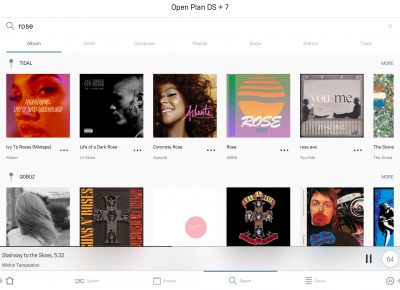
Linn DS/DSM is best controlled using the Linn mobile app

or

Setup and changes
Manage Systems
Configuring your Linn DS/DSM player/Speakers etc:
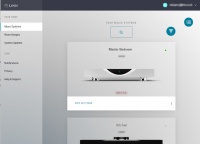
Before you do anything you will need to have a Linn Account. This is a simple process and can only be performed using the Kazoo App or Linn App.
Details on how to create your Linn Account and how to use Manage systems can be found in the Manage Systems page.
Space Optimisation
- Linn Space Optimisation is a digital room-correction and acoustic modelling technology built into all Linn network music players and systems. It removes the unwanted distorting effects of your listening environment to reveal cleaner music.
How It Works
- Acoustic Modelling: Instead of using a calibration microphone, it uses mathematical and physical modelling to analyse how your speakers and room interact.
- Room Parameters: Scan your room using LinnDAR or enter your room dimensions, construction materials, ceiling shapes, and features like windows, doors, and furnishings into a web tool.
- Speaker Matching: Select your specific speaker model from a large database (supporting hundreds of models from both Linn and third-party brands).
- Low-Frequency Control: It targets frequencies below 80 Hz where room boundaries and dimensions cause energy peaks, muddy bass, and prolonged decay, cutting down that distortion.
- Practical vs. Ideal Placement: It allows you to place your speakers in practical positions for your living space while making them sound as though they are sitting in their acoustically ideal locations.
Detailed setup instructions are available HERE.
Using the Linn Klimax DS
Front panel operation
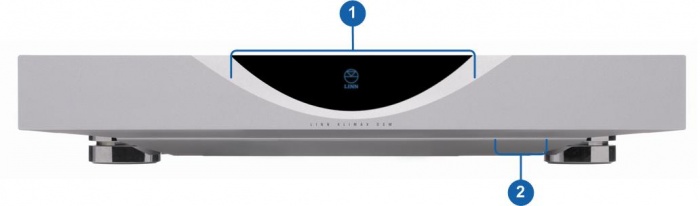
- DISPLAY
- ON / OFF SWITCH
Controlling your Linn DS/DSM using an infrared handset
To control your Linn DS/DSM you can you the infra-red handset supplied with the product as well as the Linn App, Kazoo. This can be downloaded & installed
The infra-red handset supplied has;-
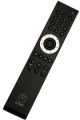
* Volume control, Mute
* Input control with PIN selection
* Radio station selection using the handset joystick,
* Playlist navigation using the handset joystick,
* Transport control (Play, Stop, Pause, Skip & Search) &
* Music information.
The Technical Specifications of the IR handset can be found HERE
Control of the Linn DS/DSM using a PC/MAC/Tablets & Phones
Initial installation
- Linn App
Linn DS/DSM is best controlled using the Linn mobile app
or
Using the Linn DS/DSM control software
These manuals should only be used as a basic guide for what the buttons can do. We would recommend just using the App/Software and only using the guide if you are having difficulty or want to see what more features are available.
- iPad / iPhone / Android Linn App
Features
Tidal

- Tidal is supported in countries listed HERE on the Tidal website
Qobuz

- Qobuz Streaming CD or Hi-Res quality music

- Check for Qobuz FAQ's with Linn DS/DSM
Calm Radio


- Calm Radio "Music that helps you get through the day "
Check FAQ Calm Radio for anymore information
Spotify Connect


- Spotify Connect can now be used on Linn products using firmware Davaar59 (Aug 2017) or later firmware. (That is, if your Linn Klimax DSM has had a software update after Aug 2017 then you can use Spotify connect)
- This allows you to select and play your Spotify music on your Linn DS/DSM players and use the internal volume control on the Linn DS/DSM.
- To connect your Spotify account to the Linn Klimax DSM :
- On your control device, iPad/Android/PC/MAC etc, connect to the same computer network as your Linn DS/DSM
- Start your Spotify app, (if it is already open then close the App, wait a few seconds, and open the App)
- Now check the Spotify Speakers icon to find your Linn DS. (In some cases you may have to power cycle your Linn Klimax DSM before this is seen)
- Select your Linn product, and you can now play to the Linn Klimax DSM from the Spotify account and control the Linn Klimax DSM volume.
This is web controlled and if your Linn Klimax DSM has already been paired with your Spotify account you will be able to control even if you are not on the same ethernet network.(So be careful that if you accidentally select the Linn Klimax DSM as a Spotify speaker and put the volume up high, and you are not at home)
- Check FAQ Spotify Connect for more information.
|
September 2025:We do intend to support Spotify Lossless:
|
WiiM solution to Spotify Lossless, Amazon Music, (also ChromeCast, Tidal Connect...)
Currently, a solution for Spotify lossless on the Linn DSM's, or Amazon Music for older products, you can use a WiiM media streamer .
This can also be used for other unsupported services such as CHROMECAST, Tidal Connect..., but check if your WiiM variant supports your service first WiiM Support .
This setup will play at the quality of your Linn DSM – playback uses the Linn DSM’s audio clock, meaning that jitter from the source device’s clock will be removed.
Note: This will ONLY work with Linn DSM, not a Linn DS.
Plug a TOSLINK optical cable from the WiiM media streamer SPDIF OUT digital output directly into a Linn DSM TOSLINK digital input, and use the superior audio DAC of the Linn DSM. This will give you the full Spotify lossless, and any other WiiM supported streaming services into the Linn DSM.
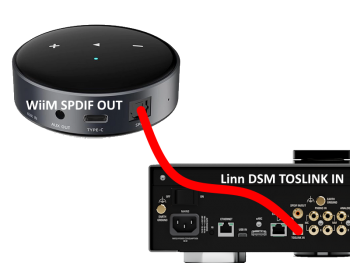
Set up of the WiiM for use with the Linn DSM is easy
- 1. On the WiiM control app, go into Devices, select your WiiM and the select the gear cog on the bottom right, this will bring you into the WiiM setup page.
- 2. In the Sound submenu:
- a).Audio Settings:
- i) We would advise turning "Fixed Volume Output:" ON. This will give the Linn DSM full volume control options
- ii) Optical Output Resolution: (Spotify Lossless is ONLY 44.1kHz but the higher sample rate will do other Streaming services)
- set to "Sample rate:" 192kHz & Bit depth: 24bit for newer products
- or "Sample rate:" 96kHz & Bit depth: 24bit on earlier products
- set to "Sample rate:" 192kHz & Bit depth: 24bit for newer products
- b) .Audio Output:
- i) Change to Optical Out
- a).Audio Settings:
To use the WiiM with the Linn DSM and Spotify:
- 1. Select the TOSLINK input on the Linn DSM
- 2. Open Spotify and Connect to the WiiM *** or the name you have given the WiiM.
- 3. Double check, in your Spotify User profile setting that "Audio Streaming quality" is set to Lossless, Up to 1GB/hr
- 4. Now play Spotify music.
To use the WiiM with the Linn DSM and Amazon Music:
- 1. Select the TOSLINK input on the Linn DSM
- 2. Go to the Browse tab on WiiM app and select Amazon Music from the Music Services section.
- 3. This will open your Amazon login page. Sign in with your Amazon Music account.
- 4. Open Amazon Music Settings and toggle on Amazon Music HD/UHD
- 5. Now play Amazon Music.
Roon


|
Click HERE for Linn products that support Roon Ready RAAT is also included with Linn DS/DSM's updated to Organik DAC's |
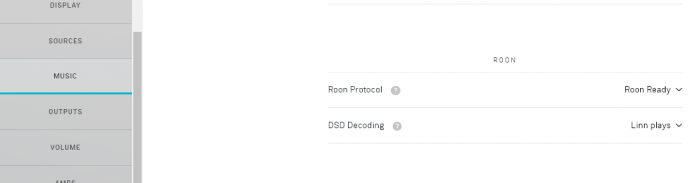
- Roon Protocol to Roon Ready in Manage Systems > Music tab.
- Roon Ready: Only applicable to newer, CORE4, Linn products. This allows audio to be shared to/from non-Linn products in the Roon system. If you have this enabled, you CANNOT share the audio to/from older Linn products.
- Linn Streaming: This allows you to share the audio to/from ALL Linn DS/DSM products. But will not allow you to share audio to non Linn Products.
- Roon Protocol to Roon Ready in Manage Systems > Music tab.
- DSD Decoding: This will also allow you to decide, if the Linn DS/DSM has a DAC that supports DSD playback, which products to decode the DSD. Either Roon decoding or Linn DS/DSM direct playback.

All Linn DS/DSM ARE ROON CERTIFIED devices
The Linn DS/DSM requires Davaar63 (May 2018) or later firmware to work with Roon V1.5 and above.(That is, if your Linn DS/DS/HUB has had a software update after May 2018 then you can use Roon)
This allows full hi-res audio, (384k/24bit) playback controlled by the Roon system
Roon Tested Setup
- On Linn DS proxy setups, Linn DS with Linn Kontrol preamplifier connected with RS232, the Roon volume control will not control the Linn Kontrol volume.
- A Roon Core is required in your network system to allow Roon to control your Linn DS/DSM.
- ENABLE the Linn DS/DSM player in the Roon - Settings - Audio - NETWORKED section.
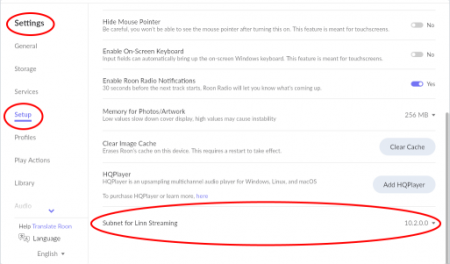
- In the Settings > Setup make sure that the "Subnet of Linn Streaming" is the same as the network that the Linn DS is on. Otherwise, they will not show in the Audio
- On Linn DS proxy setups, Linn DS with Linn Kontrol preamplifier connected with RS232, the Roon volume control will not control the Linn Kontrol volume.
Control
Primary control is through Roon.
Transport IR is disabled on the Linn DS/DSM when the Roon input is selected from Linn DS firmware release Davaar80 (Nov 2020)
Issues
Roon uses the Linn DS/DSM as a media player, the control interface IS Roon.
- • I cannot see any Linn DS in the Audio list...
-
- If you cannot see any Linn DS product in the Audio list then check that with the setup the correct Linn Streaming subnet (network address range).
- E.g. if your Linn DS has IP address 192.168.1.34 then its subnet is 192.168.1.0
- In the Settings > Setup make sure that the "Subnet of Linn Streaming" is the same as the network that the Linn DS is on. Otherwise, they will not show in the Audio tab. You can find the IP address by pressing the * button on the IR handset
- • I am only getting Airplay quality audio from the Linn DS using Roon
-
- In Roon: Settings - Audio setup page, you will have devices listed with "via Linn Streaming" and devices listed with "via Airplay".
- Pressing this "ENABLE" button on "via Linn Streaming" will bring this Linn DS player alive.
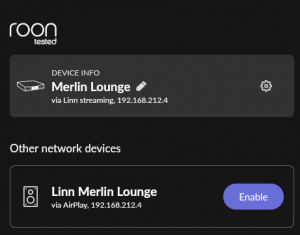
- When you press ENABLE, this will then allow you to rename this Linn DDS; otherwise it will be its default name. E.g. below the "Linn Akurate DSM" - "via Linn Streaming" has been enabled, and I have renamed it "Merlin Lounge".
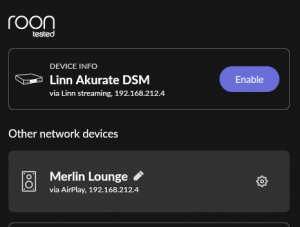
- The Linn DS/DSM products have to be declared as "Roon Tested", networked devices in the Roon Core settings. (The "AIRPLAY" option for the Linn DS/DSM must be disabled within the Roon Core).
- Click on the Roon Ready - Enable and give a name to the Linn DS/DSM. (In the example below, this has been named Merlin Lounge)
- The Linn DS/DSM products have to be declared as "Roon Tested", networked devices in the Roon Core settings. (The "AIRPLAY" option for the Linn DS/DSM must be disabled within the Roon Core).
- • I press STOP and the Roon starts playing again...
-
- Transport (play / pause / stop) and Volume can be controlled using Kazoo or Ir handset. Although later versions of Roon will counteract these commands. Only use the Roon controller software to control what is playing.
- Linn DS Firmware Davaar80 onwards will disable transport controls whilst on the Roon input of the Linn DS/DSM
- • If I select an external source whilst playing Roon, I need to re-select the source to get it playing.
-
- This can be due to a confusion, as the Roon will send a stop command to the Linn DSM as you exit the Roon source. However, as the Linn DSM will probably have changed to this new source, then this new source is stopped by Roon. On external sources, this can only be recovered by selecting another source and going back to the originally selected source.
- The solution is to Stop or Pause the Roon source BEFORE you change to a different input on the Selekt DSM.
- This can also be reduced by going into Konfig or Manage systems and disabling the "AutoPlay" option.
Deezer

- This can now be used on Linn products using firmware Davaar82 (July 2021) or later firmware.

- To create and add Deezer tracks to a Linn DS/DSM playlist you require the Linn App
- This function is NOT available in the Kazoo or Kinsky apps.
- Deezer streams from the internet directly to the Linn DS/DSM.
- From firmware Davaar 110, Jan 2025, Deezer has been updated to the latest driver.
- See the Deezer FAQ's for Linn DS/DSM for more information and assistance.
Amazon Music


- Requirements:
-
- Linn DSM products using the ARM-Linux hardware, see below or click this link),
- Davaar 118 firmware. (This can be updated using the Manage Systems webpage)
- To create and add Amazon Music tracks to a Linn DS/DSM playlist, you require
- Amazon Music service enabled on Linn App. See below for details open how to enable this service. (Linn DSM MUST have at least Davaar 118 installed first).
- Linn DS/DSM products supported
Amazon Music is only supported by the ARM-Linux_hardware
- Products using the older PPC (Power_PC) hardware, from firmware Davaar 117, we have reached the capacity, of flash memory size, and incompatible modules for this Power PC hardware and therefore cannot support this service.
- (Note: This does not stop you from SONGCASTING from a ARM-Linux_hardware Linn DS/DSM and ANY other Linn DS/DSM. That is, you can Songcast Amazon Music playing on a Linn Selekt DSM to say a Sneaky DS.)
Click HERE for Linn products that support Amazon Music
- Enable Amazon Music service
-
- This option can be added/removed from the Linn App Browse options by:
- In the Linn App
- 1. Go into the EXPLORE page
- 2. Click on the top right gear cog/settings icon
- 3. Under Amazon Music - ENABLE this Service
- 3a. After you ENABLE you will be taken to an Amazon log in page, (if you have previously connected this DS to your Amazon account),
- 3b. Sign in to your Amazon account & authenticate, linking this to airable/Linn DS/DSM
- 4. Exit the settings and Amazon Music is now in the Explore page.
- In the Linn App

Presto Music

-
 prestomusic Streaming CD and Hi-Res quality music
- Requirements:
-
- Linn DSM products using the ARM-Linux hardware, see below or click this link),
- Davaar 118 firmware. (This can be updated using the Manage Systems webpage).
- To create and add prestomusic tracks to a Linn DS/DSM playlist, you require
- Presto Music service enabled on Linn App. See below for details open how to enable this service. (Linn DSM MUST have at least Davaar 118 installed first).
- Linn DS/DSM products support
pestomusic is only supported by the ARM-Linux_hardware
- Products using the older PPC (Power_PC) hardware, from firmware Davaar 117, we have reached the capacity, of flash memory size, and incompatible modules for this Power PC hardware and therefore cannot support this service.
- (Note: This does not stop you from SONGCASTING from a ARM-Linux_hardware Linn DS/DSM and ANY other Linn DS/DSM. That is, you can Songcast pestomusic playing on a Linn Selekt DSM to say a Sneaky DS.)
Click HERE for Linn products that support prestomusic
- Enable Presto Music service
-
- This option can be added/removed from the Linn App Browse options by:
- In the Linn App
- 1. Go into the EXPLORE page
- 2. Click on the top right gear cog/settings icon
- 3. Under Presto Music - ENABLE this Service
- 3a. After you ENABLE, you will now be taken to a prestomusic log in page,
- 4. Exit the settings and prestomusic is now in the Explore page
- In the Linn App

AIRPLAY

- AirPlay is a Apple protocol that allows wireless streaming media.

- The Linn DS/DSM/HUB can take the audio stream via the "Netlink" input.
- Check <HERE> for any issues with Airplay
AIRPLAY2

- AirPlay2 is an Apple protocol that allows wireless streaming media.

- It is only available in Linn DS products with CORE4, or higher, processors.
- The Linn DSM/HUB can take the audio stream via the "NetAux" input.
- Airplay2 allows you to Group multiple Airplay2 devices (including Linn DS HomePod, Apple TV) to play in sync using iOS, Siri, HomeKit, iTunes desktop (Windows & MacOS)....
- From Linn DS/DSM firmware Davaar 108 this will no longer allow you to Songcast an Airplay stream to other Linn DS/DSM products. . (Airplay2 supports mixing and matching with other Airplay2 devices and not required to Songcast).
- It is only available in Linn DS products with CORE4, or higher, processors.
- Note: MAC's running Tahoe, MacOS 26, has issues with Airplay volume levels being low. This is an Apple issue and not a Linn DS issue.
Products supporting Airplay2 from Davaar 110 (February 2025)
DSD

Products that will play stereo DSD audio:
- Linn DS/DSM players with Katalyst DACs, running firmware from Davaar 60, can play stereo DSD audio files.
- All ORGANIK DACs within the Linn DSM can play DSD audio files.
- Klimax DSM (2020 variant)
- ANYSelekt DSM variant with ORGANIK (Dual Mono or Stereo variant), Katalyst or Standard DAC
- > Only supported in SLOT #1 of the Selekt DSM using aStereo DAC:: Selekt DSM slots 2 & 3 will not play DSD audio.(Exakt crossover and Space Optimisation only work with PCM.audio.)
- Or
- > Only supported in SLOTS #1 & #2 with Dual Mono ORGANIK DAC's: : Selekt DSM SLOT 3 will not play DSD audio.(Exakt crossover and Space Optimisation only work with PCM audio.)
- Linn DS/DSM players with Katalyst DACs, running firmware from Davaar 60, can play stereo DSD audio files.
- Majik DSM (2025 variant)
- Some important points on DSD playback on the Linn DS/DSM:
- DSD audio is ONLY available on the analogue outputs
- DSD audio is NOT supported on:
- DSD audio is ONLY available on the analogue outputs
- Supports DSD64 (2.8224MHz) and DSD128 (5.6448MHz) sample rates.
- DSD256 playback is only supported on
- Klimax DSM (2020 variant),
- Majik DSM (2025 variant) and
- All Selekt variants.
- These in the following formats:
- DSF - Sony format that supports ID3 tags
- DFF - old Philips mastering format (aka DSDIFF)
- DSF - Sony format that supports ID3 tags
- Supports DSD64 (2.8224MHz) and DSD128 (5.6448MHz) sample rates.
- DSD is NOT supported on external inputs such as HDMI, Toslink or USB
- No digital signal processing is possible. This means:
- On some DAC's there is NO balance control is possible to DSD audio file playback.
- No Space Optimisation is applied to DSD audio file playback
- Maximum volume is restricted to 80 (unity gain) on DSD audio file playback. However, if you have raised to volume to a higher level e.g. 90, this higher volume is applied to any tracks that are NOT DSD audio files.
- On some DAC's there is NO balance control is possible to DSD audio file playback.
- No digital signal processing is possible. This means:
- Linn DS/DSM volume control MUST be enabled
- If the DSM volume control is disabled you will hear “click”s on the loudspeaker when Play/Pause buttons are pressed or a change in bit-rate on change in tracks
- Linn DS/DSM volume control MUST be enabled
- Linn Kazoo Server supports the index and serving of DSD files. Non-indexed DFF files that have no metadata can be browsed by file name using the Kazoo Server Removable drives option.
- Asset UPnP server and Minimserver support DSD index and serving to the Linn DS/DSM.
General products manuals and information
Top Of Page Index
Controlling the product User Guide
Product setup:Manage Systems user manual
Third Party Software Copyright
FAQs
Check:
Technical Specifications
| Overview |
| |||||||||||||||||||||
| Dimensions |
(H) 60 mm x (W) 350 mm x (D) 355 mm | |||||||||||||||||||||
| Weight | 10 kg / 22 lb | |||||||||||||||||||||
| Mains supply voltage | (auto ranging)
| |||||||||||||||||||||
| Power consumption | 13 W | |||||||||||||||||||||
| Supported file types | FLAC, WAV, MP3, AAC, AIFF/AIFC, ALAC, OGG/VORBIS, WMA, DSD (DSF and DFF) | |||||||||||||||||||||
| Audio sample rates | 7.35 k, 8 k, 11.025 k, 12 k, 14.7 k, 16 k, 22.05 k, 24 k,29.4 k, 32 k, 44.1 k, 48 k, 88.2 k, 96 k, 176.4 k, 192 k, 384 k | |||||||||||||||||||||
| Word depths | 16–24 bits | |||||||||||||||||||||
| Control protocol | Compatible with UPnP™ media servers, UPnP™ AV 1.0 control points | |||||||||||||||||||||
| Sources | LAN Internet radio Tidal Qobuz Calm Radio Spotify Connect NetAux Amazon Music <Presto music | |||||||||||||||||||||
| Ethernet | 100Base-T RJ45 | |||||||||||||||||||||
| Local Proxy control | RS232 x 2 | |||||||||||||||||||||
| Output Electrical | ||||||||||||||||||||||
| Exakt-link | 2 x RJ45 (CAT-5a) | |||||||||||||||||||||
| Analogue audio outputs |
|
