
Majik DSM /5 (2025 Variant)
Majik DSM (2025 variant) 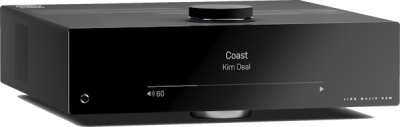
|
| |||||||||||||||


Product info
| • Product Name: |
Majik DSM
|
| • Date of Introduction: | April 2025
|
|
| |
| • Type: | Network music player
with integrated pre/power amp |
|
|
- Features
- • Digital streaming via Bluetooth, Wi-Fi, USB, Airplay & Airplay2 support
- • ARM-Linux hardware
- • Connect TV via HDMI e-ARC
- • Exakt system
- • DSD (256) playback Support
- • On-board Class-D Amplification
- • Configurable Moving Magnet Turntable input stage
- • Configurable Moving Coil Turntable input stage
- • Source Unity Gain option
- • Space Optimisation
- • Stereo, with optional Subwoofer playback
Initial Configuration
The Majik DSM makes installation simple. It's a one-box system: just add loudspeakers or headphones to start enjoying your music.
Before installation
Make sure that you have:
- A mains power socket with a stable supply of 100–120 V or 200–240 V (RMS), 50–60 Hz.
- A network connection to your broadband router. You may need a wired (Ethernet) connection for the initial setup and configuration. After that, you can unplug the cable and use Wi-Fi instead, if you prefer. The Majik DSM uses either a wired or a Wi-Fi connection, never both: while an Ethernet cable is connected, it ignores Wi-Fi.
- A suitable HDMI cable from your TV's HDMI ARC or eARC socket. It should not be too long, and should be certified to the correct specification.
 Linn recommend using Premium High Speed Certified HDMI cables for an optimal experience.
- Adequate ventilation around the product.
- A suitable position for the Majik DSM: see positioning information.
Unpacking
- Remove the Majik DSM from the packing and check you have all the accessories.
System Design
The Majik DSM is an integrated network player: it has a built-in amplifier, so you only need to add loudspeakers. It also supports Exakt, so you can use it with either:
- Passive loudspeakers, connected to its own or external power amplifier, with an optional subwoofer connected to Sub Out.
- Exakt products, such as ExaktBoxes or Exakt loudspeakers, connected by Exakt Link.
Back panel wiring
The Majik DSM uses a Linn Class-D amplifier, with a gain of 20 dB. Most other Linn amplifiers have a gain of 28.6 dB, so the Majik DSM's amplifier is about 8 volume steps quieter at the same volume setting. This is normal, and is why the Majik DSM's amplifier shouldn't be mixed with other Linn amplifiers when bi-amping.
- Power Amplifier outputs: These are CLASS-D amplifier outputs and speakers should ONLY be connected/disconnected when the product in is Sleep state or powered OFF.
- Some Electrostatic speakers may require a modification to work with Linn Class-D amplifier. Please refer to the speaker manufacturers website for information.
- The Linn Class-D power amplfiers have a slightly lower gain than other Linn power amplifiers, (original Majik/Akurate..). If you are going to Bi-Amp a pair of speakers then we would recommend lowering the gain on the attached Power Amplfiers
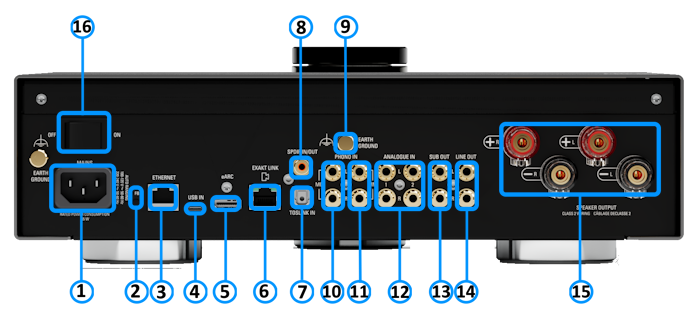
- MAINS INPUT - To connect to the mains electricity supply.
- FALLBACK - To put the device into Fallback mode (used when reprogramming)
- ETHERNET - To connect to a network (100Base-T)
- USB-C socket - To connect to a PC/MAC for Class 2.0 PCM Asynchronous USB Audio playback
- HDMI eARC: connects to your TV's HDMI eARC or ARC socket, so you can play TV sound through the Majik DSM. Stereo audio only.
- Exakt Link: connects to Exakt devices, such as ExaktBoxes, Exakt loudspeakers and the Urika II.
- Optical digital input (Toslink): connects sources with Toslink (optical) digital outputs.
- Digital input or output (S/PDIF, RCA): connects sources with S/PDIF digital outputs, or can be configured as a fixed-volume S/PDIF digital output.
- Phono ground: connects to your turntable's earth (ground) terminal.
- Phono input, MC (RCA): connects a turntable with a moving coil (MC) cartridge.
- Phono input, MM (RCA): connects a turntable with a moving magnet (MM) cartridge.
- Analogue input (RCA, line level): connects sources with RCA analogue outputs, such as a CD player.
- Sub Out (RCA, line level): connects to a subwoofer, for stereo bass reinforcement.
- Analogue output (RCA, variable level): connects to an external power amplifier, if you want to use one.
- Loudspeaker outputs: connect directly to a pair of loudspeakers.
- Power switch: mains power switch.
Analogue and phono inputs
- Analogue input:input range selectable: 1, 2 or 4 V RMS; 50 kΩ input impedance
- Analogue and phono inputs are converted to digital at 192 kHz / 24-bit.
- Phono input gain can be adjusted in Manage Systems.
- Phono input, MM: 47 kΩ, 100 pF input impedance; 67 mV RMS at 1 kHz; gain +40 dB.
- Phono input, MC: 100 Ω, 470 pF input impedance; maximum input 5.5 mV RMS at 1 kHz; gain +54 dB.
Outputs
- Analogue output (RCA): 2 V RMS, 300 Ω; volume controlled. To make it fixed level, you must disable the volume control, which also disables the built-in power amplifier.
- Loudspeaker outputs: maximum 100 W per channel into 4 Ω, or 50 W per channel into 8 Ω.
- Exakt Link: for Exakt products set up for stereo or 2.1 channel playback.
HDMI
- HDMI 2.0, for higher-quality audio from your TV.
Linn recommend using Premium High Speed Certified HDMI cables for an optimal experience.
USB input
- USB Audio Class 2. Supported sample rates: 44.1, 48, 88.2, 96, 176.4 and 192 kHz.
Digital inputs
- Supported sample rates: 32, 44.1, 48, 88.2, 96, 176.4 and 192 kHz.
- The S/PDIF socket can be configured in Manage Systems as a 2-channel S/PDIF digital output, at up to 192 kHz:
- The output is fixed volume.
- It carries the front left and right channels only, even when playing surround audio.
Sub-Woofer operation
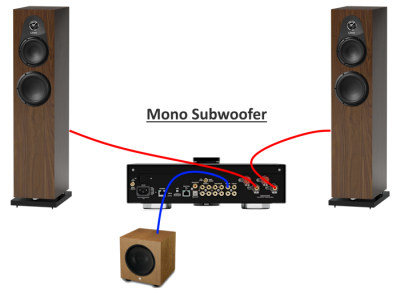
|
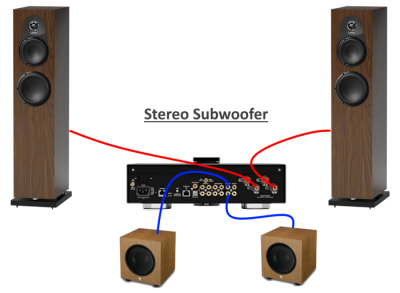
|
Sub Out only works with the loudspeaker outputs or the line outputs. It doesn't work with Exakt loudspeakers, or loudspeakers driven through ExaktBoxes. For an Exakt system, use an ExaktBox Sub instead.
Sub Out adds a subwoofer to stereo playback. The main loudspeakers are fed from the Linn DSM's loudspeaker outputs (or line outputs), and Sub Out carries the subwoofer signal, using a filter that you can set up in Manage Systems. Sub Out only works when the Linn DSM's volume control is enabled.
Why Sub Out doesn't work with Exakt: Exakt delays the signal to the main loudspeakers by 45 ms. Sub Out doesn't apply the same delay, so the subwoofer would play 45 ms ahead of the main loudspeakers, and they wouldn't be in time with each other. The ExaktBox Sub works within the Exakt system, so it stays in time.
- In Manage Systems - Output options
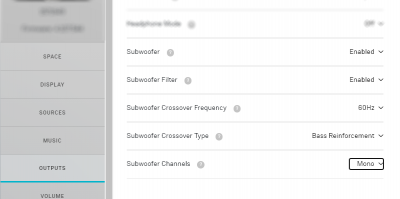
- Subwoofer
- Options:
- * ENABLED to enable these back panel outputs.
- * DISABLED to disable these back panel outputs.
- Options:
- Subwoofer Filter
- Enabled SUBOUT L+R set by crossover frequency 60Hz, 80Hz, 120Hz .
- Disabled SUBOUT L+R crossover frequency 1kHz, the LHC/RHC audio is flat.
- Subwoofer Crossover Frequency
- If Subwoofer filter is enabled:
- 60 Crossover frequency 60Hz
- 80 Crossover frequency 80Hz
- 120 Crossover frequency 120Hz
- If Subwoofer filter is enabled:
- Subwoofer Crossover Type
- Bass redirect Audio above the Subwoofer Crossover Frequency frequency is sent to the F+R channels. (Audio below this frequency is redirected to the SUBOUT outputs.)
- Bass Reinforcement Audio to the F+R channels is as a flat response.
- Subwoofer Channels
- Mono L+R subwoofer combined into one output.
- Stereo separate LHC and RHC subwoofer outputs
- Notes
- Does NOT work with DSD playback
- The output level is solely controlled by the Linn DSM volume control. Any Sub trim should be performed at the subwoofer.
Download App
- Linn App
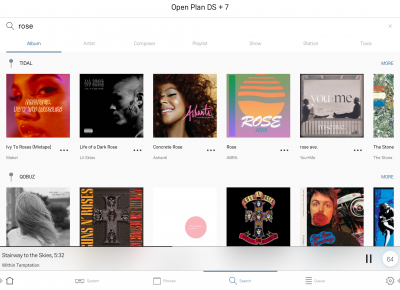
Linn DS/DSM is best controlled using the Linn mobile app

or

Setup and changes
Configuring your Linn DS/DSM player/Speakers etc:
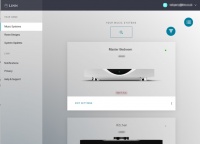
Before you do anything you will need to have a Linn Account. This is a simple process that can only be performed using the Linn App.
Details on how to create your Linn Account and how to use Manage systems can be found in the Manage Systems page.
Space Optimisation
- Linn Space Optimisation is a digital room-correction and acoustic modelling technology built into all Linn network music players and systems. It removes the unwanted distorting effects of your listening environment to reveal cleaner music.
How It Works
- Acoustic Modelling: Instead of using a calibration microphone, it uses mathematical and physical modelling to analyse how your speakers and room interact.
- Room Parameters: Scan your room using LinnDAR or enter your room dimensions, construction materials, ceiling shapes, and features like windows, doors, and furnishings into a web tool.
- Speaker Matching: Select your specific speaker model from a large database (supporting hundreds of models from both Linn and third-party brands).
- Low-Frequency Control: It targets frequencies below 80 Hz where room boundaries and dimensions cause energy peaks, muddy bass, and prolonged decay, cutting down that distortion.
- Practical vs. Ideal Placement: It allows you to place your speakers in practical positions for your living space while making them sound as though they are sitting in their acoustically ideal locations.
Detailed setup instructions are available HERE.
Bluetooth & Wifi
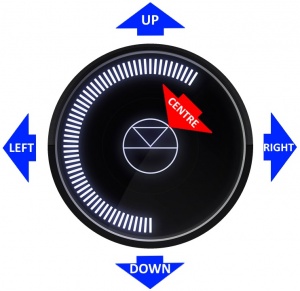
Setting up Bluetooth or Wi-Fi using the top dial
- 1. With the Selekt DSM out of Sleep mode
- 2. Press dial UP to enter the Service menu
- 3. Scroll UP/DOWN to highlight "Connect"
- 4. Press RIGHT to select this menu
- 5. Scroll UP/DOWN to highlight the desired option and RIGHT to select
- Wi-Fi (WPS): put your router into WPS discovery mode for auto-pairing of the Selekt DSM
- Wi-Fi (Reset): to clear any previous Wi-Fi settings, or
- Bluetooth Pair: configure your Bluetooth device for pairing before selecting
- Press LEFT to cancel Service menu
Alternative Wi-Fi Setup Method via Web Browser
- 1. With the Linn DSM out of Sleep mode and cable/LAN connections disconnected.
- 2. Go to the Wireless settings on your device (e.g. iPad)
- 3. Find the Selekt DSM on the list of available networks. It will be called <XYX> DSM - <serial number>
- 4. Select this as the wireless network
- 5. Now open a web browser on your device and type "https://setup.linn.co.uk" in the address bar
- 6. The Selekt DSM Wi-Fi Setup page should now be displayed
- 7. Select the Wi-Fi network you want to connect to
- 8. Enter the passkey for the Wi-Fi network
- 9. Click on 'Set Network'
Note: If you cannot get any page from "https://setup.linn.co.uk", this may be due to added security on your phone/tablet. Check that the:
- VPN is disabled on your phone or tablet
- Go to Settings > WiFi > Select the Unsecured Network. Then tap the “i” next to that Wi-Fi network you’re trying to log in to and toggle OFF both “Auto-Join” and “Auto-Login.”
- Disable Location Services for Wi-Fi System Services for iPhone/iPad
- Go to Settings > Privacy > Location Services iOS system services for location and privacy settings
- Tap on System Services near the bottom of this page
- Locate "Wi-Fi Networking" or "Networking & Wireless" and toggle it OFF
- Retry the connection to "https://setup.linn.co.uk"
- This is extra network security and recommend that it is turned back ON after setting up the Linn DSM.
This will now allow your Alexa/Google Home to play music on the Majik DSM
Wifi can also be setup using Manage_Systems
<br
Using the Linn Majik DSM
Front panel & dial operation
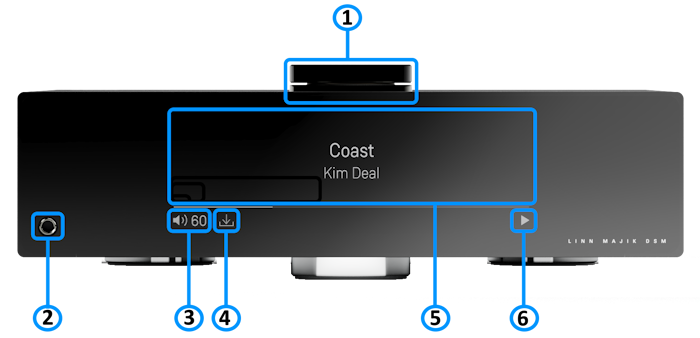
Front panel controls and indicators. Select one to jump to its description:
- 1. Control dial: main control dial and switch interface
- 2. Headphone socket
- 3. Volume and mute indicators
- 4. Software update available indicator
- 5. Media information: the source name, track name or radio station you are on
- 6. Transport information: play, stop, pause, buffering or no network
1. Control dial
Go into sleep mode
Press and hold the centre of the dial for about 2 seconds, until the volume indicator starts to go down.
Wake from sleep mode
Press the dial up, down, left, right or in the centre.
Select a source
- Press the dial down to show the list of sources.
- Scroll up or down to the source you want.
- Press right to select it, or left to cancel.
Play, stop, pause or mute
Quickly press the centre of the dial. What it does depends on the source:
- Radio: play or stop.
- Playlist: play or pause.
- Other sources: mute or unmute.
Previous or next track or preset
Quickly press the dial left or right to move to the previous or next playlist track or radio station.
Volume
Turn the dial clockwise to turn the volume up, and anti-clockwise to turn it down. The lights around the dial show the current volume.
Linn DSM information and settings
All of these are in the Service menu. Wake the Linn DSM from sleep mode first, then press the dial up to open the Service menu. To leave any menu, press left.
Software version and updates
- Scroll up or down to Software Update.
- Press right to select it.
Properties (room name, device name, IP address and so on)
- Scroll down to Properties, and press right to select it.
- Scroll down to Device, and press right to select it.
Settings (balance, lip sync, surround volumes and so on)
- Scroll down to Settings.
- Press right to select it.
All of these are in the Service menu. Wake the Linn DSM from sleep mode first, then press the dial up to open the Service menu. In any menu, scroll with up and down, press right to select, and press left to go back.
My Majik DSM has a RED Linn symbol on the dial, what does this mean?
 If you do not have a live network/LAN connection on the Majik DSM the Linn symbol on the dial will go red.
- Note: If your network cable is plugged in and your network/LAN is alive then check that you have not accidentially plugged the network/LAN cable plugged into the "ETHERNET" socket and NOT the "Exakt link" socket.
 After a live network/LAN connection is made, the LINN symbol on the dial will turn white after 5-10 seconds.
I get a flashing Linn icon on the volume dial, what does this mean?

- This means that the Majik DSM is in :
- Searching for Exakt speakers after being woken from Sleep (typically only flashes for a couple of seconds after waking from Sleep)
- or
- FALLBACK mode : Fallback is a state that means that the product is waiting for a software update. To stop this flashing, either:
What does the shimmering dial mean?

This is to show that the Majik DSM is starting up after a mains power on. It will typically do this in 30–45 seconds, but if the Linn Majik DSM is performing a software update, this may take a little longer.
What does a dim/bright dial mean?

This is to show when the Majik DSM is in Mute mode.
2. Headphone socket
A 6.3 mm (¼ inch) stereo headphone socket.
Note: if the volume control is disabled in Manage Systems, the headphone socket is disabled too.
3. Volume and mute indicators
Shows the current volume level, and whether the sound is muted.
4. Software update available
Shows that a software update is available for your Majik DSM.
- The update is not compulsory, just an indication that an update is available.
- A Software update is performed by:
- the dial settings to do a Software update,
- Press the UPPER part of the dial. The front panel display will now show System options.
- Press the LOWER part of the dial to highlight "SOFTWARE UPDATE"
- Press the RIGHT part of the dial to select this option.
- If a Software update is available you will see the agree to update message and pres the RIGHT part of the dial to select this option.
- The update is not compulsory, just an indication that an update is available.
- Manage Systems - Software Updates,
- IR handset or Linn App.
- Instructions on how to do this update are listed HERE
5. Media information
Press the i button on the IR remote handset to wake the display, then press it again to scroll through the information available.
- When playing from a playlist, this is typically the artist, album and codec. The lower bar shows the position in the track.
- When playing a radio source, this shows the information provided by the radio station, and the codec.
6. Transport information
- Shows the Play
 / Stop
 / Pause
 / Buffering
 symbols to show the current transport state.
- Shows the Play
- This area is blank when a local input, such as HDMI, is selected.
- If the no network symbol
 appears, the Majik DSM has lost its network connection. When the connection returns, the display goes back to its previous state.
Controlling your Linn DS/DSM using an infrared handset
To control your Linn DS/DSM you can you the infra-red handset supplied with product as well as the Linn App. This can be downloaded & installed
The infra-red handset supplied has;-
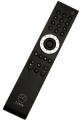
* Volume control, Mute
* Input control with PIN selection
* Radio station selection using the handset joystick,
* Playlist navigation using the handset joystick,
* Transport control (Play, Stop, Pause, Skip & Search) &
* Music information.
The Technical Specifications of the IR handset can be found HERE
Control of the Linn DS/DSM using a PC/MAC/Tablets & Phones
These manuals should only be used as a basic guide for what the buttons can do. We would recommend just using the App/Software and only using the guide if you are having difficulty or want to see what more features are available.
- Linn app for iPhone/iPad/Mac -:This is a Linn DS control software for Android phone, Android tablets, iPhone, iPad and M-Series Mac and replaced Kazoo.
- Spotify Connect Manual - How to play Spotify on a Linn DS/DSM
- Roon - "The music player for music lovers" control interface
FEATURES
USB Stream

Setting up and using The Linn DSM and Windows / Mac / iPhone / iPad.
Bluetooth receiver

Bluetooth specification
Paring Bluetooth devices using Linn DSM PIN button operation
Tidal

Setting up and using Tidal with the Linn DS/DSM and Linn App
Qobuz

Setting up and using Qobuz with the Linn DS/DSM and Linn App
Calm Radio

Setting up and using Calm Radio with the Linn DS/DSM and Linn App
Spotify Connect

Setting up and using Spotify Connect with the Linn DS/DSM
Roon

Setting up Roon to work with the Linn DS/DSM
Deezer

Setting up and using Deezer with the Linn DS/DSM and Linn App
AirPlay

Using AirPlay with the Linn DS/DSM
Amazon Music

Setting up and using Amazon Music with the Linn DS/DSM and Linn App
Presto Music

Setting up and using Presto Music with the Linn DS/DSM and Linn App
Airplay 2

Using AirPlay 2 with your Linn DS/DSM
HDMI-2

Using HDMI 2.0 with the Linn DSM Help with any HDMI issues
HDMI-ARC

Using HDMI ARC with the Linn DS/DSM Help with any HDMI issues
HDMI-eARC

Using HDMI eARC with the Linn DS/DSM Help with any HDMI issues
DSD

Using DSD with the Linn DS/DSM
DAC Technology
The DAC on Majik DSM/5 is the same DAC as Selekt standard DAC, this has precision clocking and up sampling
General products manuals and information
Top Of Page Index
Controlling the product User Guide
Product setup:Manage Systems user manual
Third Party Software Copyright
FAQs
 Frequently asked questions
• FAQs for all Linn players • Wi-Fi FAQs • Common FAQs • Troubleshooting • Technical specifications
Linn Majik DSM (2025 variant) FAQ's
Input/Outputs
Is the output level of the Majik DSM/5 different from other Linn players?
The RCA line output on the Majik DSM/5 has the same output level as other Linn network players.
However, its power amplifier is about 8 dB quieter (8 volume steps) than Linn Chakra amplifiers and earlier Majik DSMs. This is why, when bi-amping, you shouldn't mix the Majik DSM/5's power amplifier with external amplifiers.
Can I add a subwoofer directly to the power amplifier outputs on the Majik DSM/5?
Usually not. The Majik DSM/5's power amplifier is a Class-D amplifier with bridged outputs: the black (negative) loudspeaker terminal carries the audio signal, and is not connected to earth.
On most subwoofers, the "high-level" (speaker-level) input connects the black terminal to earth. Connecting one of these to the Majik DSM/5's loudspeaker terminals may damage both products. Only use a high-level input if the subwoofer manufacturer confirms it works with bridged (Class-D) amplifiers.
If your Linn player has a Sub Out socket (for example, the Majik DSM /5, Selekt DSM Edition and Selekt Classic DSM /1), use that instead: it's a line-level subwoofer output, designed for this.
Can I connect electrostatic loudspeakers, such as Martin Logan, to the Majik DSM/5?
Possibly not without a modification. The Majik DSM/5 uses Class-D power amplifiers, which are designed for the load of a standard moving-coil loudspeaker. Electrostatic loudspeakers present a very different load, which can make the amplifier unstable and sound poor. Check with your loudspeaker manufacturer, as some offer a modification to solve this.
Can I connect Digital Speakers to the Majik DSM/5?
- Yes, you can connect loudspeakers that support 192K SPDIF connections to the Linn Majik DSM. This output will also support Space Optimisation, but NOT volume control on this connection.
- In Manage Systems, setting the:
- 1. Outputs > SPDIF Mode into Output &
- 2. Outputs > Digital Output mode into 192K Post EQ will add Space Optimisation to this output.
This allows digital speakers, with their own volume controls, to be connected to this SPDIF socket
How should I set the phono stage input level?
- This is set up under Manage Systems > Sources and click on either MM, MC or Phono input.
- As a general rule of thumb, the phono stage input level should not be less than 4x the specified cartridge output level.
- For example, a cartridge with a specified output level of 0.25mV would require a Phono (MC) input setting of 1.2mV rms
- If this setting is too low, then it can result in audible distortion
General operation
How do I use the top dial on the Majik DSM?
Go into sleep mode
Press and hold the centre of the dial for about 2 seconds, until the volume indicator starts to go down.
Wake from sleep mode
Press the dial up, down, left, right or in the centre.
Select a source
- Press the dial down to show the list of sources.
- Scroll up or down to the source you want.
- Press right to select it, or left to cancel.
Play, stop, pause or mute
Quickly press the centre of the dial. What it does depends on the source:
- Radio: play or stop.
- Playlist: play or pause.
- Other sources: mute or unmute.
Previous or next track or preset
Quickly press the dial left or right to move to the previous or next playlist track or radio station.
Volume
Turn the dial clockwise to turn the volume up, and anti-clockwise to turn it down. The lights around the dial show the current volume.
Linn DSM information and settings
All of these are in the Service menu. Wake the Linn DSM from sleep mode first, then press the dial up to open the Service menu. To leave any menu, press left.
Software version and updates
- Scroll up or down to Software Update.
- Press right to select it.
Properties (room name, device name, IP address and so on)
- Scroll down to Properties, and press right to select it.
- Scroll down to Device, and press right to select it.
Settings (balance, lip sync, surround volumes and so on)
- Scroll down to Settings.
- Press right to select it.
All of these are in the Service menu. Wake the Linn DSM from sleep mode first, then press the dial up to open the Service menu. In any menu, scroll with up and down, press right to select, and press left to go back.
How to get my Alexa to Play on the Majik DSM
- You need to set up the Majik DSM as Bluetooth speakers for the Majik DSM.
- This will then allow you to select your Music to play back on the Majik DSM, as well as the volume of the Music.
Can I plug my Exakt speakers or Linn Exaktbox into this Majik DSM
- Yes, you can connect either an Exaktbox or Exakt loudspeakers
Why does the Majik DSM/4 or /5 should quieter than other Majik DSM's with the same volume level?
- The new Majik DSM/4 has a lower gain than other Linn Power Amplifiers, e.g. Majik C2100, 20dB against 28dB. This means that you have to raise the new Majik DSM by 8 volume steps to have the same output levels.
Can I plug my USB drive/stick into the USB socket to play Music
No:

Type: USB-B socket, asynchronous
- USB Audio Class 2 endpoint, supporting sample rates from 44.1 kHz up to 384 kHz on the Klimax DSM/3. Check the Technical Specifications sheet for your Linn DSM's capabilities.
- The USB socket accepts audio from a computer or mobile device. It cannot read music files from USB storage.
- Connect this socket to a Windows 7/8/10/11 PC, a Mac, or the USB-C socket of an iPhone or iPad,1 and the Linn DSM acts as a sound card for that device.2
- DSD audio is usually converted to PCM by the computer before it is sent over the USB cable to the Linn DSM.
Notes
- 1 For setup instructions, see Using the USB-C connection with iPhone and iPad.
- 2 The Linn DSM plays the audio in the format the computer's sound driver sends.
- On a Mac: after selecting the Linn DSM as the sound output, open Audio MIDI Setup to choose the audio format.
- On a Windows PC: [confirm the driver guidance for each Windows version].
Supporting products:
Can I play music from a USB drive or memory stick plugged into the Linn DSM?
No. The Linn DSM cannot play music from a USB hard drive or USB memory stick. It does not recognise USB storage as a music source.
To play music stored on a USB drive, copy it to (or connect the drive to) a UPnP media server on your local network, such as a NAS or a computer running media server software. The Linn DSM can then play it over the network.
Can I connect Electrostatic loudspeakers, such as Martin Logan, to the Majik DSM/5?
- As the Majik DSM/5 uses Class-D power amplifiers then the Majik DSM/4 power amplifier is dependent on the inductive/capacitive load then the usual loading of Electrostatic loudspeakers may cause poor sounding instability.
- Check with your speaker manufacturer for any solutions using Class-D amplifiers
Can I keep the headphones plugged into and control when they are enabled?
- Yes you can with the "Star key Held Action" configured in Manage Systems - REMOTE CONTROL tab. When this is set to "Headphone mode" , and you have configured the OUTPUTS - Headphone Mode - ON or OFF. Pressing, AND HOLDING, the IR handset * button will allow you to toggle between the heapdhones and speakers using the IR handset.
How do I control the BALANCE on the Majik DSM
- This is another function of the "Star key Held Action". That is, Press, and HOLD the IR handset * button, (beside the 0 button), for a couple of seconds you can perform a pre-programmed operation.
- In Manage Systems REMOTE CONTROL tab, you can programme this action to either
- • None: Do nothing
- • Heaphone Mode: Toggle the Headphone output if set to ON or OFF in the Outputs tab.
- • BALANCE: Adjust the Balance, using the joystick UP/DOWN buttons.
- • LIP SYNC: Adjust the Lip-Sync, using the joystick UP/DOWN buttons or
- • DISPLAY BRIGHTNESS: Adjust the display Brightness , using the joystick UP/DOWN buttons.
- Note: Only ONE of these actions can be programmed to the Star button, so use wisely.
My Majik DSM has a RED Linn symbol on the dial, what does this mean?
- If you do not have a live network/LAN connection on the Majik DSM the Linn symbol on the dial will go red.
- Note: If your network cable is plugged in and your network/LAN is alive then check that you have not accidentially plugged the network/LAN cable plugged into the "ETHERNET" socket and NOT the "Exakt link" socket.
- After a live network/LAN connection is made, the LINN symbol on the dial will turn white after 5-10 seconds.
I get a flashing Linn icon on the volume dial, what does this mean?
- This means that the Majik DSM is in :
- Searching for Exakt speakers after being woken from Sleep (typically only flashes for a couple of seconds after waking from Sleep)
- or
- FALLBACK mode : Fallback is a state that means that the product is waiting for a software update. To stop this flashing, either:
What does the shimmering dial mean?
This is to show that the Majik DSM is starting up after a mains power on. It will typically do this in 30–45 seconds, but if the Linn Majik DSM is performing a software update, this may take a little longer.
What does a dim/bright dial mean?
This is to show when the Majik DSM is in Mute mode.
General Linn DS/DSM/HUB Wi-Fi 
The Wi-Fi module used with the Linn DS/DSM/HUB supports IEEE 802.11a/b/g/n/ac PSK/CCMP 1-CH
This supports both 2.4G & 5G communications.
Wifi History
2.4G
- This was the first Wifi defined in 1997, 802.11b, generally used with 11, or 13 channels depending on your country. Each channel could each supply a data rate of 11MBit/s .
- This data rate was then expanded to 54MBit/s in 2003, with the 802.11g. However, this still used 2.4G and instead of using 1channel to communicate it now uses 3-channels to communicate.This reduced your number of usable channels as other device communicating on a channel next door would now encroach into your channel(s).
- This means that 2.4G band can have a lot of noise and interference. Coupled with fact that this same frequency is used by DECT phones, microwave ovens, Baby monitors, Taxi Radio, Bluetooth.... These can inject a lot if noise and interfere with Wifi streaming link to the Linn DS/DSM/HUB as it may force the LInn product off the Wifi network and it will have to retry the connection, this takes time and may cause your Linn product to keeping muting the Music
5G
- A newer standard, 802.11n, allows usage of both 2.4G and 5G to give an even bigger data rate of up to 600Mbit/s.
- As standards improve the 802.11ac that the Linn DSM/Series3 supports is a data rato of up to 1,300MBit/s.
- 5GHz is a much cleaner radio space with a lot less interence compare with 2.4G. The only negative is a slightly reduced range.
- Some Wireless-Access-Points, WAPs and Router allow you to setup a seperate SSID, (Service Set IDintifier. this is name for a Wi-Fi network.)
Advice on use
We recommend that you configure your Wifi network to have seperate SSID for 2.4G and a different SSID for 5G wifi. Then configure the Linn DSM/Series-3 to only use the 5G network.
This will then allow the music stream to work on a cleaner transport/Wifi and stop any device from interfering with the music that you are listening to.
- There are Apps available to show you what is on your Wifi and your network
Disable Wifi
To totally disable the Wifi, go into the Konfig:About tab and disable the Wi-Fi option.
- NOTE: In the Konfig:WIFI tab, setting to NONE will only disconnect it from any Wifi network. The DSM will still broadcast its presence on the Wifi network.
Wired LAN connections
If you have connected a LAN cable to your Linn DS/DSM/HUB/SERIES3 then this take priority over the Wifi connection. This means that the Wifi connection is still on but ignored when a there is a live connection on the products LAN socket.
When the LAN connection is removed then the connection returns to Wifi.
Top Of Page Index
Troubleshooting
For information on: troubleshooting, Surround options, "Ripping" Cd's , Exakt system then this next section will provide the information that you need:
Technical Specifications
| Overview |
| |||||||||||||||||||||||||||||||||||||||||||||||||||||||||||||||||
|---|---|---|---|---|---|---|---|---|---|---|---|---|---|---|---|---|---|---|---|---|---|---|---|---|---|---|---|---|---|---|---|---|---|---|---|---|---|---|---|---|---|---|---|---|---|---|---|---|---|---|---|---|---|---|---|---|---|---|---|---|---|---|---|---|---|---|
| Dimensions | Height 114 mm × width 350 mm × depth 350 mm (4.49 × 13.8 × 13.8 inches) | |||||||||||||||||||||||||||||||||||||||||||||||||||||||||||||||||
| Weight | 5.7 kg (12.6 lb) | |||||||||||||||||||||||||||||||||||||||||||||||||||||||||||||||||
| Mains supply voltage | Auto-ranging:
| |||||||||||||||||||||||||||||||||||||||||||||||||||||||||||||||||
| Supported file types | FLAC, WAV, MP3, AAC, AIFF/AIFC, ALAC, OGG/Vorbis, WMA, DSD64, DSD128 and DSD256 (DSF and DFF) | |||||||||||||||||||||||||||||||||||||||||||||||||||||||||||||||||
| Audio sample rates | 7.35, 8, 11.025, 12, 14.7, 16, 22.05, 24, 29.4, 32, 44.1, 48, 88.2, 96, 176.4, 192 and 384 kHz | |||||||||||||||||||||||||||||||||||||||||||||||||||||||||||||||||
| Word depths | 16 to 24 bits | |||||||||||||||||||||||||||||||||||||||||||||||||||||||||||||||||
| Control protocol | Compatible with UPnP™ media servers and UPnP™ AV 1.0 control points | |||||||||||||||||||||||||||||||||||||||||||||||||||||||||||||||||
| Sources |
Local network (UPnP media servers), internet radio, Tidal, Qobuz, Calm Radio, Spotify Connect, NetAux, Airplay 2, Presto Music, Amazon Music, Roon, Deezer | |||||||||||||||||||||||||||||||||||||||||||||||||||||||||||||||||
| Inputs | ||||||||||||||||||||||||||||||||||||||||||||||||||||||||||||||||||
| Ethernet | 1 × 100Base-T (RJ45) | |||||||||||||||||||||||||||||||||||||||||||||||||||||||||||||||||
| Wi-Fi | 1 × Wi-Fi, IEEE 802.11a/b/g/n/ac (PSK/CCMP) | |||||||||||||||||||||||||||||||||||||||||||||||||||||||||||||||||
| Bluetooth | 1 × Bluetooth 4.2. Audio is sent using SBC encoding. Not compatible with Google Cast. | |||||||||||||||||||||||||||||||||||||||||||||||||||||||||||||||||
| HDMI | 1 × HDMI eARC | |||||||||||||||||||||||||||||||||||||||||||||||||||||||||||||||||
| Analogue inputs (RCA) | 1 × line level. Input sensitivity selectable: 1, 2 or 4 V RMS. Input impedance 50 kΩ. | |||||||||||||||||||||||||||||||||||||||||||||||||||||||||||||||||
| Phono input (MM) | 1 × moving magnet. Maximum input 67 mV RMS at 1 kHz; gain +40 dB; input impedance 47 kΩ, 100 pF. | |||||||||||||||||||||||||||||||||||||||||||||||||||||||||||||||||
| Phono input (MC) | 1 × moving coil. Maximum input 5.5 mV RMS at 1 kHz; gain +54 dB; input impedance 100 Ω, 470 pF. | |||||||||||||||||||||||||||||||||||||||||||||||||||||||||||||||||
| Optical digital (Toslink) | 1 × Toslink. Sample rates 32, 44.1, 48, 88.2, 96, 176.4 and 192 kHz. | |||||||||||||||||||||||||||||||||||||||||||||||||||||||||||||||||
| Coaxial digital (S/PDIF) | 1 × S/PDIF. Sample rates 32, 44.1, 48, 88.2, 96, 176.4 and 192 kHz. Nominal input voltage 0.5 V peak. Not available as an input when the socket is configured as an output. | |||||||||||||||||||||||||||||||||||||||||||||||||||||||||||||||||
| USB | 1 × USB Type-C, Audio Class 2. Sample rates 44.1, 48, 88.2, 96, 176.4 and 192 kHz. | |||||||||||||||||||||||||||||||||||||||||||||||||||||||||||||||||
| Outputs | ||||||||||||||||||||||||||||||||||||||||||||||||||||||||||||||||||
| Analogue outputs | All analogue outputs share the same volume control.
Line Output:
Power Amplifier Output:
Headphone Output:
| |||||||||||||||||||||||||||||||||||||||||||||||||||||||||||||||||
| Digital output (S/PDIF) | The S/PDIF socket can be configured as either an input or an output. As an output, it gives a fixed-volume stereo digital signal, or supports digital loudspeakers. Sample rates 32, 44.1, 48, 88.2, 96, 176.4 and 192 kHz. | |||||||||||||||||||||||||||||||||||||||||||||||||||||||||||||||||
| Exakt Link | 1 × Exakt Link, for Exakt products set up for stereo or 2.1 channel playback | |||||||||||||||||||||||||||||||||||||||||||||||||||||||||||||||||
| Aktiv card | Not supported. For an Aktiv system, connect the line output to Majik or Akurate power amplifiers fitted with Aktiv cards. The Majik DSM's own power amplifier output is always full range. | |||||||||||||||||||||||||||||||||||||||||||||||||||||||||||||||||