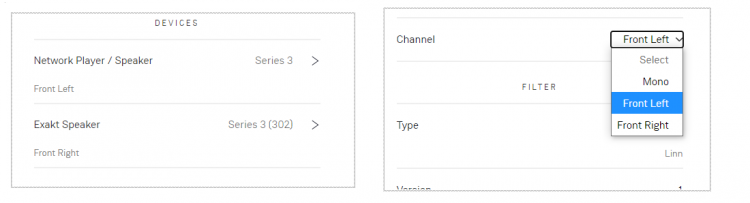
Connect a partner speaker via Exakt Link to create a stereo system
Initial Setup
If you have just received this Linn product then you will be eager to listen to the Music. This section will show you how to unpack it, wire it up, position it and get Music playing...
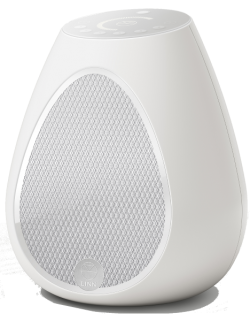
The Series-3 301 speaker can be used alone for Mono playback or with the Series-3 302 speaker wired, using a CAT-5 Exakt-Link cable, for Stereo playback.
Remove the Series-3 (301) from the packing and check you have all of the accessories.
Now place the product you want it to be.
REQUIRED CONNECTION
1. A mains power socket
Fitting/removing the grille
The grille is held on by magnets. To remove the grille, place a fine blade between the grille and product and gently prise/lever the grille off the product. (Please be careful as too much tension can bend the grill.)
Fitting the grill is placing a corner of the grille in the correct position and slowly applying the grille to the speaker.
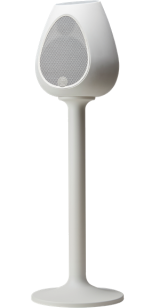
Fitting the Stand
This is a bolt on accessory for the Series3 All-in-one Loudspeaker.
The cables can be hidden through the centre of the stand. Rubber feet, supplied, can be fitted at the bottom of the stand for added cable clearance..
Install instructions:
1. Have all parts ready to assemble, and a clean, soft surface to work on.
2. Turn the stand upside-down and feed the cables you require through the stand. Pull the cables out through the hole provided at the rear of the stand.
3. Gently and carefully place the Series 3 speaker on its head. Line up the hole in the top of the stand with the insert in the cabinet.
a) Take the bolt and washer and start fitting the bolt by hand to ensure you are not cross threading.
b) Tighten the bolt to secure, but take care not to overtighten it, as this could crack the speaker cabinet.
4. Turn the stand the right way up and plug the cables into the connectors. The product is now ready to connect and install
5. Optional rubber bump on feet can be fitted to the base if the stand will be used on a wooden floor, to avoid scratching. Arrange the feet equally spaced around the perimeter.
Wiring
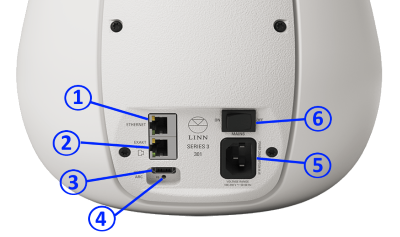
Series3-301 back panel
View Series3-301 connection detail Information of what each connector is and a basic specification of these connectors
Show or hide details
ETHERNET - To connect to a network (100Base-T)- Not required if you are only using Bluetooth and/or Wifi connections
EXAKT LINK - To connect to Exakt compatible devices (Exaktbox, Exakt Speakers, Urika II etc) - to Partner with a Series3-302
HDMI ARC (HDMI) - To connect to a TV Audio Return Channel (ARC) connection
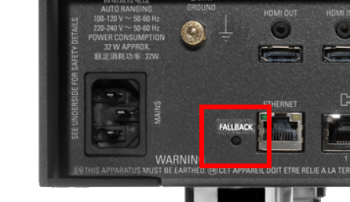
FALLBACK - To put the device into Fallback mode (used when reprogramming)
MAINS INPUT - To connect to the mains electricity supply.
POWER SWITCH - Mains power switch
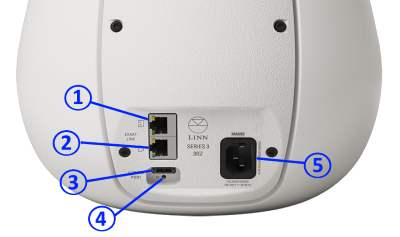
Series3-302 partner backpanel
View Series3-302 partner speaker connection detail Information of what each connector is and a basic specification of these connectors
EXAKT LINK - To connect to Exakt compatible devices (Exaktbox, Exakt Speakers, Urika II etc) - connection to other Exakt-link applicable products. Series3-302 TOP connector links to Series3-301 Exakt socket (lower connector).
SERVICE PORT For Linn service only
FALLBACK - To put the device into Fallback mode (used when reprogramming)
MAINS INPUT - To connect to the mains electricity supply.
Exakt Link
The cables are paired up using OUT > IN style connections.
Any Linn product with these sockets can be linked together.
HDMI-ARC audio only setup
HDMI-ARC only (using the Series 3 as a TV Sound bar)
This setup will allow:
The Series3-301 to receive Mono audio and volume control from the HDMI-ARC connection from the TV. (The Series3 volume buttons will also control the volume)
HDMI-ARC only (using the Series 3 as a Stereo TV Sound bar)
This setup will allow:
The Series3-301 to receive Stereo audio and volume control from the HDMI-ARC connection from the TV. (The Series3 volume buttons will also control the volume)
Pairing a 301 & 302 for use as a stereo pair
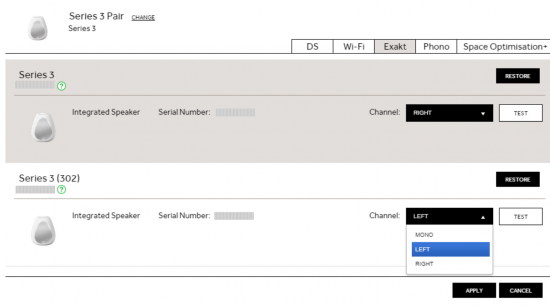
Configure for use with Series3-302 partner speaker
Add/Remove a Partner speaker setup procedure
(This will change the Series3-301 from MONO to STEREO and use the Series3-302 as the other STEREO channel) :
1. Connect or remove the Series3-302 speaker as required:
* Stereo mode:Connect the Series3-302 using an Exakt-link cable to the Series3-302
* Single (mono) mode: Disconnect the Series3-302 Exakt-link from the Series3-302
2. Press and HOLD both buttons & on the Series3-301 until half of the Volume indicator lights illuminate
if you disconnect the Exakt-link or do not have the Mains power going to the Series3-302 speaker and have the previously setup the Series3-301 for Stereo operation then you will only get one channel playback, (left channel only). The Series3-301 will assume that the other speaker still exists and has to be "'configured'" for Mono playback.
Bluetooth only setup
Bluetooth only
This setup will allow:
The Series3-301 as a Mono Bluetooth loudspeaker for your phone, Tablet, Alex Echo, Google Home....
Bluetooth Setup procedure:
1. On the Series3-301, press and HOLD buttons & , until the volume indicator display starts it scan display
2. On your Bluetooth device, setup this up for pairing and look for Linn Series 3.
3. This Bluetooth pairing process is complete when the Series3-301 volume indicators are all illuminated for a few seconds and return back to volume level display.
2. On your Bluetooth device, setup this up for pairing and look for Linn Series 3.
3. This Bluetooth pairing process is complete when the Series3-301 volume indicators are all illuminated for a few seconds and return back to volume level display.
if you disconnect the Exakt-link or do not have the Mains power going to the Series3-302 speaker and have the previously setup the Series3-301 for Stereo operation then you will only get one channel playback, (left channel only). The Series3-301 will assume that the other speaker still exists and has to be "'configured'" for Mono playback.
Wifi wiring & setup
Basic Wifi operation
This setup will allow:
Stream Music, using Wifi, to the Series3 speaker(s).
Optional Bluetooth loudspeaker operation is still available by initial setup of Bluetooth
This is to setup the Wifi connection using the front panel buttons.
WPS WIFI Setup procedure:
1. On your ISP Router, press the WPS button to start the connection process.
* Check your Router manual on how start WPS pairing.
2. On the Series3-301 , press and HOLD buttons & until the volume indicators start moving to show a scan.
6. The Series3 Wifi Setup page should now be displayed (if you get a "..cannot find the server” error then you have not selected to Series3 Wifi channel in point 3&4)
7. Select the Wifi network you want to connect to
8. Enter the passkey for the Wifi network
9. Click on 'Set Network'
Note: If you cannot get any page from "https://setup.linn.co.uk", this may be due to added security on your phone/tablet. Check that the:
VPN is disabled on your phone or tablet
Go to Settings > WiFi > Select the Unsecured Network. Then tap the “i” next to that Wi-Fi network you’re trying to log in to and toggle OFF both “Auto-Join” and “Auto-Login.”
Disable Location Services for Wi-Fi System Services for iPhone/iPad
Go to Settings > Privacy > Location Services iOS system services for location and privacy settings
Tap on System Services near the bottom of this page
Locate "Wi-Fi Networking" or "Networking & Wireless" and toggle it OFF
This is extra network security and recommend that it is turned back ON after setting up the Linn DSM.
Note: To CLEAR/REMOVE any Wifi settings On the Series3-301 , press and HOLD buttons , & for 2 seconds and this will forget your Wifi settings.
Configure for use with Series3-302 partner speaker
Add/Remove a Partner speaker setup procedure
(This will change the Series3-301 from MONO to STEREO and use the Series3-302 as the other STEREO channel) :
1. Connect or remove the Series3-302 speaker as required:
* Stereo mode:Connect the Series3-302 using an Exakt-link cable to the Series3-302
* Single (mono) mode: Disconnect the Series3-302 Exakt-link from the Series3-302
2. Press and HOLD both buttons & on the Series3-301 until half of the Volume indicator lights illuminate
The Linn DS/DSM can be done from many control points at the same time.
Note: Note:from April 2023 : Tidal have removed support for the Linn Kazoo application on ALL platforms. We recommend trying the new Linn app (available on iOS and Android)
Note:from April 2023 : Tidal have removed support for the Linn Kazoo application on ALL platforms. We recommend trying the new Linn app (available on iOS and Android)
Note:from April 2023 : Tidal have removed support for the Linn Kazoo application on ALL platforms. We recommend trying the new Linn app (available on iOS and Android)
Note:from April 2023 : Tidal have removed support for the Linn Kazoo application on ALL platforms. We recommend trying the new Linn app (available on iOS and Android)
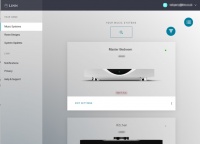
Web-browser App called Manage systems that can also be used on your Tablet:
Before you do anything you will need to have a Linn Account. This is a simple process that can only be performed using the Linn App.
Details on how to create your Linn Account and how to use Manage systems can be found in the Manage Systems page.
Space Optimisation
Linn Space Optimisation is a digital room-correction and acoustic modelling technology built into all Linn network music players and systems. It removes the unwanted distorting effects of your listening environment to reveal cleaner music.
How It Works
Acoustic Modelling: Instead of using a calibration microphone, it uses mathematical and physical modelling to analyse how your speakers and room interact.
Room Parameters: Scan your room using LinnDAR or enter your room dimensions, construction materials, ceiling shapes, and features like windows, doors, and furnishings into a web tool.
Speaker Matching: Select your specific speaker model from a large database (supporting hundreds of models from both Linn and third-party brands).
Low-Frequency Control: It targets frequencies below 80 Hz where room boundaries and dimensions cause energy peaks, muddy bass, and prolonged decay, cutting down that distortion.
Practical vs. Ideal Placement: It allows you to place your speakers in practical positions for your living space while making them sound as though they are sitting in their acoustically ideal locations.
6. The Series3 Wifi Setup page should now be displayed (if you get a "..cannot find the server” error then you have not selected to Series3 Wifi channel in point 3&4)
7. Select the Wifi network you want to connect to
8. Enter the passkey for the Wifi network
9. Click on 'Set Network'
Note: If you cannot get any page from "https://setup.linn.co.uk", this may be due to added security on your phone/tablet. Check that the:
VPN is disabled on your phone or tablet
Go to Settings > WiFi > Select the Unsecured Network. Then tap the “i” next to that Wi-Fi network you’re trying to log in to and toggle OFF both “Auto-Join” and “Auto-Login.”
Disable Location Services for Wi-Fi System Services for iPhone/iPad
Go to Settings > Privacy > Location Services iOS system services for location and privacy settings
Tap on System Services near the bottom of this page
Locate "Wi-Fi Networking" or "Networking & Wireless" and toggle it OFF
2. On your Bluetooth device, setup this up for pairing and look for Linn Series 3.
3. This Bluetooth pairing process is complete when the Series3-301 volume indicators are all illuminated for a few seconds and return back to volume level display.
. Primarily the outer ring is the volume level indicator.
This also has other indications:
⊕ Initial startup/power on, the full volume ring will pulse slowly. This indicates that the Series3 is either
⁃ Starting up, this typically takes 20-40seconds, or
⁃ Doing a software update. This should take less than 10minutes (If this takes longer then double check that you have Ethernet cable plugged into the LAN socket and NOT the Exakt socket )
⊕ Press any of the Favourite/PIN buttons, the volume indicator will illuminate beside this button to show that it has been selected
Bluetooth scan in progress
WiFi scan in progress
11. Linn icon
Show or hide details
Normal operation with the Series 3 playing music
Linn symbol has a lower brightness level the Series3 speakers are MUTED
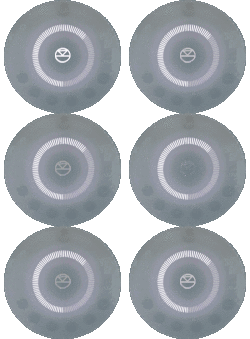
Linn symbol flashing shows that the Series 3 searching for a partner Series3 speaker
If you do not have a live Wifi/network/LAN connection to the Series 3 then the Linn symbol on the dial will go red. If you select the HDMI-ARC input or Bluetooth to the Series 3 speaker this red light will go out
If your network cable is plugged in and your network/LAN is alive then check that you have the network/LAN cable plugged into the LAN socket and NOT the Exakt socket.
Control of the Linn DS/DSM using a PC/MAC/Tablets & Phones
These manuals should only be used as a basic guide for what the buttons can do. We would recommend just using the App/Software and only using the guide if you are having difficulty or want to see what more features are available.
These guides may show some features that are not available, or not have not been configured to work in your system. If you're required additional information, then please contact your Retailer or Linn Support Site
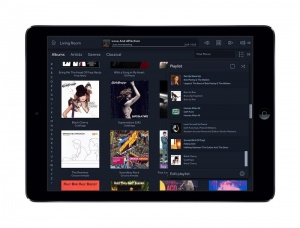
Linn app for iPhone/iPad/Mac -:This is a Linn DS control software for Android phone, Android tablets, iPhone, iPad and M-Series Mac and replaced Kazoo.
Exakt is Linn's system for keeping music digital for as long as possible. In a traditional hi-fi system, the signal is converted to analogue early on, then passes through cables, amplifiers and passive crossovers that each add noise and distortion. With Exakt, the signal stays digital all the way to the loudspeaker, where the crossover is done digitally, and the conversion to analogue happens at the last moment, just before the amplifiers driving each drive unit.
This makes the loudspeaker an intelligent, software-upgradeable product. Exakt can correct for small differences between drive units, and, with Space Optimisation, adapt the sound to your room.
Exakt Link connects your Linn network player to Exakt loudspeakers or ExaktBoxes with a single network cable (Cat 5 or better). This one cable carries up to 8 channels of audio, together with timing information that keeps every channel perfectly in step.
2. On your Bluetooth device, setup this up for pairing and look for Linn Series 3.
3. This Bluetooth pairing process is complete when the Series3-301 volume indicators are all illuminated for a few seconds and return back to volume level display.
caption To select and play CD & Hi-Res (192k / 24 bit) quality stereo music from your Free, Prime & Unlimited Amazon Music accounts. (The availability and playback controls vary depending on your account type)
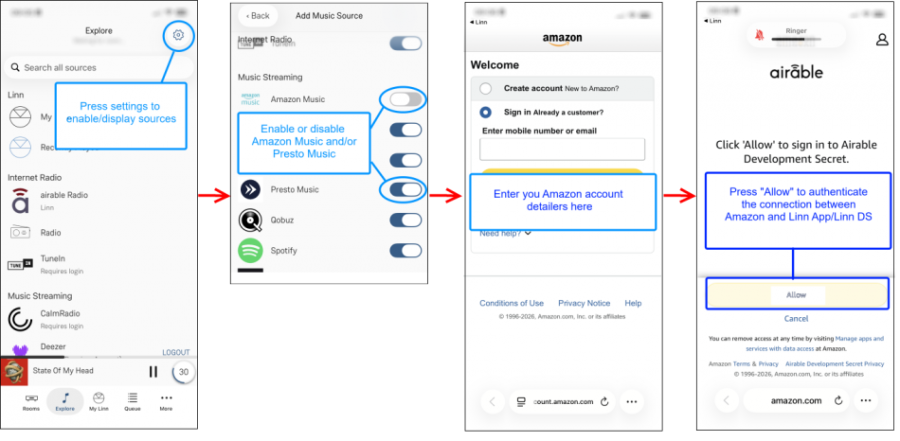
Amazon Music service enabled on Linn App. See below for details open how to enable this service. (Linn DSM MUST have at least Davaar 118 installed first).
Older Linn players with PowerPC (PPC) hardware can't support it: from Davaar 117 firmware onwards, their flash memory is full, and some of the software modules needed aren't compatible with PowerPC hardware.
You can still listen to Amazon Music on an older Linn player by playing it on an ARM-Linux player and sharing it using Songcast. For example, you can play Amazon Music on a Linn Selekt DSM and Songcast it to a Sneaky DS.
If this Linn player isn't already linked to your Amazon account, an Amazon sign-in page opens. Sign in to your Amazon account and approve the link to your Linn player.
Close the settings. Amazon Music now appears on the Explore page.
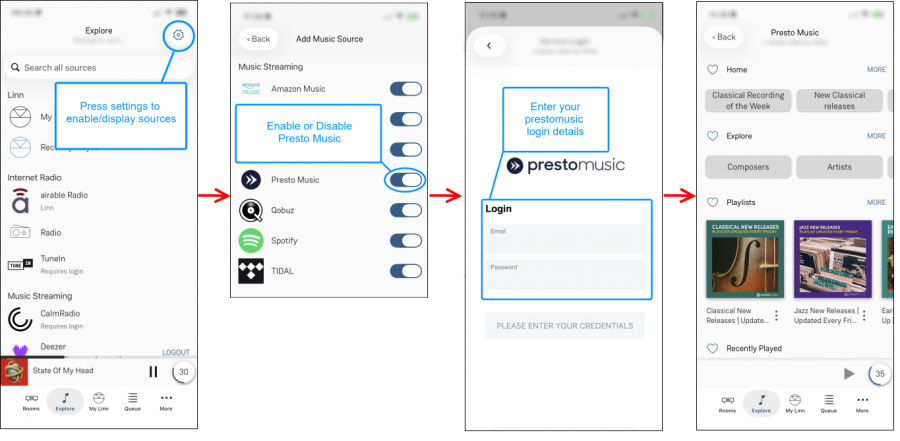
Presto Music service enabled on Linn App. See below for details open how to enable this service. (Linn DSM MUST have at least Davaar 118 installed first).
Older Linn players with PowerPC (PPC) hardware can't support it: from Davaar 117 firmware onwards, their flash memory is full, and some of the software modules needed aren't compatible with PowerPC hardware.
You can still listen to pesto music on an older Linn player by playing it on an ARM-Linux player and sharing it using Songcast. For example, you can play pesto music on a Linn Selekt DSM and Songcast it to a Sneaky DS.
Airplay2 allows you to Group multiple Airplay2 devices (including Linn DS HomePod, Apple TV) to play in sync using iOS, Siri, HomeKit, iTunes desktop (Windows & MacOS)....
Note: From Davaar 108 it will no longer be possible to Songcast an Airplay stream to other Linn products.
Note: MAC's running Tahoe, MacOS 26, has issues with Airplay volume levels being low. This is an Apple issue and not a Linn DS issue.
Products supporting Airplay2 from Davaar 92 (August 2022)
HDMI Audio Return Channel is the audio returned from the same HDMI cable feeding A/V to the television.
This input can ONLY be used with a television. If any other HDMI source is connected to this input, then no audio will occur. (The HDMI ARC communication is different to standard HDMI communications)
This HDMI ARC input is declared as a separate input on the Linn DSM/HUB control. This can be set to automatically switch to this HDMI-ARC input when you have just switched on your television. More information on how to set this up are in the Linn App
General limitations with ARC are that it doesn't communicate with the playback device, in this case the Linn DSM, what Surround formats that it supports, if any. You need to check within the TV setup that the HDMI-ARC connection will only output in a format/codec that the Linn DSM will support. (2-ch/stereo PCM for a standard Linn DSM/HUB and 5.1ch Surround sound for one with a Linn Surround module).
Can I use the Series3 speakers in a Surround system?
The Series3-302 is an Exakt loudspeaker. This will connect, via a CAT-5 Exakt-link cable, to a Linn DSM.
ARC - Audio Return Channel information
ARC setting on your Television vary from manufacturer to manufacturer. So please double check your TV setup manual.
Common issues for the lack of ARC audio:
1. The standard Linn DSM can only playback stereo audio. If the TV is set to output Dolby Digital or other Surround format then the Linn DSM will not play this audio and stay silent.
> Make sure the audio output is set to "STEREO"'
> If you are using an built-in service to the TV, such as Netflix, Amazon Prime etc, that you control from the TV handset then try a standard aerial TV channel or an external Satellite receiver and find out if you get any audio back from these TV sources.
2. The TV audio setup may be conflicting with itself.
> If possible do an "AV RESET" or equivalent on your TV, then setup for Audio format - Stereo and CEC-enabled (CEC can go by different names AnyNet+, Veiralink, SimpLink, Sony Bravia Sync,RIHD, Kuro Link..... etc. Check what your TV call it)
> In the worst case the simplest solution is to do a FACTORY DEFAULT/RESET on the TV. There may be a conflicting hidden setting that is causing all these issues, a Factory default will clear this and allow a fresh connection.
3. You are connected to the wrong socket on your TV.
> Check the Linn DSM HDMI output is connected to the TV socket that states "ARC"
4. Sony TV's and SKY-Q: It has been reported that this configuration can cause lack of ARC audio. When it does work,sometimes there is a crack/bang noise from the speaker when the system is put to Sleep/Standby.
> The solution is to disable HDMI control on the SKY-Q box and power cycle all of the products. (This is primarily an issue between Sky-Q and Sony Tv's communications)
5 Playstation5 (PS5): This can confuse the TV and what it is controlling the volume of, (the Linn DSM or PS5).
> The solution is In the PS5 setting go into HDMI > Enable HDMI Device Link > Off .
Common issues for the lack of ARC audio periodically muting:
1. Due to the introduction of eARC, some TV have this implements in different ways. The solution is:
> if your Linn DSM has the "eARC Mode" option in then turn this OFF
> If your TV has the option to disable the eARC functionality, then also turn this OFF
General Linn DS/DSM/HUB Wi-Fi
The Wi-Fi module used with the Linn DS/DSM/HUB supports IEEE 802.11a/b/g/n/ac PSK/CCMP 1-CH
This supports both 2.4G & 5G communications.
Wifi History
2.4G
This was the first Wifi defined in 1997, 802.11b, generally used with 11, or 13 channels depending on your country. Each channel could each supply a data rate of 11MBit/s .
This data rate was then expanded to 54MBit/s in 2003, with the 802.11g. However, this still used 2.4G and instead of using 1channel to communicate it now uses 3-channels to communicate.This reduced your number of usable channels as other device communicating on a channel next door would now encroach into your channel(s).
This means that 2.4G band can have a lot of noise and interference. Coupled with fact that this same frequency is used by DECT phones, microwave ovens, Baby monitors, Taxi Radio, Bluetooth.... These can inject a lot if noise and interfere with Wifi streaming link to the Linn DS/DSM/HUB as it may force the LInn product off the Wifi network and it will have to retry the connection, this takes time and may cause your Linn product to keeping muting the Music
5G
A newer standard, 802.11n, allows usage of both 2.4G and 5G to give an even bigger data rate of up to 600Mbit/s.
As standards improve the 802.11ac that the Linn DSM/Series3 supports is a data rato of up to 1,300MBit/s.
5GHz is a much cleaner radio space with a lot less interence compare with 2.4G. The only negative is a slightly reduced range.
Some Wireless-Access-Points, WAPs and Router allow you to setup a seperate SSID, (Service Set IDintifier. this is name for a Wi-Fi network.)
Advice on use
We recommend that you configure your Wifi network to have seperate SSID for 2.4G and a different SSID for 5G wifi. Then configure the Linn DSM/Series-3 to only use the 5G network.
This will then allow the music stream to work on a cleaner transport/Wifi and stop any device from interfering with the music that you are listening to.
There are Apps available to show you what is on your Wifi and your network
Disable Wifi
To totally disable the Wifi, go into the Konfig:About tab and disable the Wi-Fi option.
NOTE: In the Konfig:WIFI tab, setting to NONE will only disconnect it from any Wifi network. The DSM will still broadcast its presence on the Wifi network.
Wired LAN connections
If you have connected a LAN cable to your Linn DS/DSM/HUB/SERIES3 then this take priority over the Wifi connection. This means that the Wifi connection is still on but ignored when a there is a live connection on the products LAN socket.
When the LAN connection is removed then the connection returns to Wifi.
Common FAQ's
How do I Update, or recover, the software on a Linn DS/DSM
This procedure is not difficult. The first step is finding out which software/firmware you are using to minimise the steps required.
Up to > Davaar 98, then use Konfig to update the Linn DS/DSM to the latest software…
From Davaar99+ then you will need to use the Linn App or IR handset (See point1 below)
KONFIG will ONLY update to Davaar 104.
If you have updated the Linn DS/DSM using Linn App this will be the latest Davaar version. Ignore this Konfig update.
When you open Konfig this will only show the update as Davaar 104. This may be an earlier version of Davaar than currently installed on your Linn DS/DSM, (probably by Linn App). We recommend that you double-check the current Davaar version installed on your Linn DS/DSM before updating using Konfig
To check what version of Software you are running on your Linn DSM, you can either:
1. Use the IR Handset
On the REM 022 use the SHUFFLE key, Press and HOLD this key for 2 seconds
On the REM 020 use the # key, Press and HOLD for 2 seconds,
On older products: early Majik, Akurate, early Klimax and Kiko:
* If this action states, "Your Software is up-to-date" or "Software update available...." then you are running Davaar99 or higher.
* If there is an update available, you will be able to authorise the Linn DS/DSM by pressing the the joystick UP then joystick RIGHT buttons.
* If this states anything else, then you are on Davaar 97 or lower
On newer products: New Majik, Any Selekt DSM & new Klimax DSM:
This will show "Device" on the front panel display. Hit the RIGHT cursor button and this will show you the product information including the software version. (Check point 2, below, on how to decode this version.)
If there is an update available, you will be able to perform this update by following the instructions on the Linn DS/DSM screen.
2: Use Konfig and select your Linn DS/DSM. The Software version is structured as a Software family(4=Davaar) :
Major Release version, (this is the key number to use) : Minor version of software (Ignore this just now)
4:99.491 relates to 4=Davaar, 99=Major software version, 491=Minor version. Therefore, is Davaar-99
Note:Konfig can still be used for these actions, it must still be used as a stepping stone to the latest Linn DS/DSM software.
3. Open Manage Systems and the Firmware is listed on the product configuration page (top right). The Firmware version is decoded in the same manner as the Konfig setup.
Up to Davaar 97
To update, using Konfig and your current Linn DS/DSM firm is Davaar 97 or lower
1.Start Konfig (after ensuring you have latest version)
a) Go into KONFIG Settings and check that Konfig is set to the same network as your Linn DS/DSM.
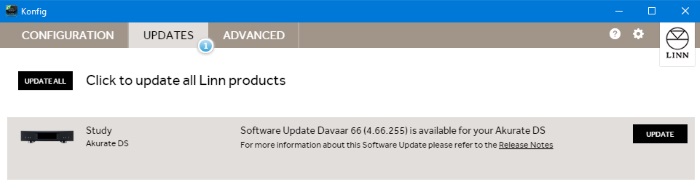
2. Click on the UPDATES tab. If there is a software update for your Linn DS/DSM it will be listed after clicking UPDATES. If there is no firmware update available for the Linn DS/DSM, then it will not be listed under this tab.
Note: on the Selekt DSM & new Majik DSM they will need to be power cycled and wait approx 30 minutes before checking the Konfig UPDATES tab.
3. Select the UPDATE button against the Linn DS/DSM you want to update.
a) A message will appear on the Konfig screen stating the major changes that this software update may incur. (This will be dependent on your present version of software loaded into the Linn DS/DSM)
b) If you would like to continue with this update then scroll down to the bottom of the message and select UPDATE.
c) For your Privacy we ask if you agree to collect Anonymous data on usage of the Linn DS. This will aid any fault reporting and also any activity to help Linn enhance the software and product operation.
d) Select I AGREE or more options to change what information Linn Products Ltd can receive.
4. Konfig will download the firmware update and proceed to updating the selected Linn DS/DSM player.
5. Once complete you will see an Update Completed Successfully message and your DS player will be re-started
6. Update complete
If you encounter any problems, please contact your Linn Specialist or Contact Linn.
From Davaar 99 onwards
To UPDATE, using Linn App, and your current Linn DS/DSM is Davaar 99 or higher
Linn Ds/DSM software updates using Linn App
The Linn DS/DSM software update, and Linn Account information is no longer kept via a PC/Laptop. It is now on the internet Cloud.
The instruction below tell the Linn DS/DSM to access the Cloud stored firmware, and do the update itself.
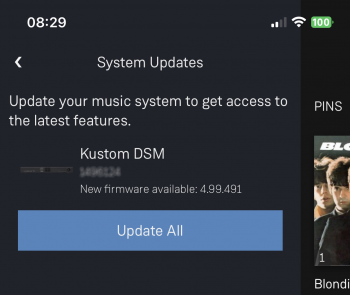
1. Click on the icon and if there are any updates for your Linn DS/DSM you will see:
2. Press the > and this will open the product list.
As an update is available, STOP ANY MUSIC PLAYING ON YOUR LINN DS/DSM BEFORE pressing the UPDATE button
Tap the Update All to initiate the update of all Linn DS/DSM products shown in the list.
Please be patient as this can typically take between 10–30 minutes to update depending on the complexity of the update.
3. If, after 60 minutes, the DS has not finished its update, then it may be stuck in update mode and unresponsive. If this has happened, then we recommend doing a recovery. For information on how to do this, see Product recovery of a Linn DS/DSM
NOTE
The Software update procedure is built in the following steps:-
1. First step is to DOWNLOAD the software update. During this time, the Linn DS/DSM is fully operational. You can still listen to Music, change volume etc. If you wake up the display, you will see what is downloading. This download can take between 10–30 minutes BEFORE the Linn DS/DSM is updated.
2. After the update, the Linn DS/DSM will reboot and install this update. This will typically take between 5–15 minutes. Depending on the product, this will produce a shimming dial, a flashing, or lightening flash on the front panel display.
3. The final reboot will bring the product back to lift and ready for use.
We recommend that you do NOT power off the Linn DS/DSM until this is complete. I.e. wake up the display and check that is not download and the Linn DS/DSM does NOT have a shimmering dial, flashing dot/lightening flash of it display.
To RECOVER, using Linn App, and your current Linn DS/DSM is Davaar 99 or higher
Video instructions
Written instructions
Note: This is only valid for Linn DS/DSM that have already been loaded with Davaar 99, or higher, firmware (from approx April 2023).
If, for any reason, the update process has failed, (for example, you have left this UPDATE running for 1-2 hours and the Linn DS appears to be stuck), we would suggest doing the following:
1. Power OFF the Linn DS/DSM and disconnect any EXAKT speakers or Exaktboxes
2. Power ON the Linn DS/DSM and press the FALLBACK recessed button on the back of the Linn DS/DSM.
(This sometime has the FB label beside a recessed button near the Linn DS/DSM Ethernet socket.)
This should bring a lightening flash symbol on the Linn DS/DSM display.
3 Open the Linn App, click on the icon, this will proceed to the Recovery page
4:Press the > icon and this will open the product list of products awaiting a RECOVERY.
if there is no "System Recovery" option, then either the Linn App is on the wrong network or the Linn DS/DSM is NOT running Davaar99 or higher firmware. Use Konfig software to recover this Linn DS/DSM.
5: Press the RECOVER button to start the recovery process of this Linn DS/DSM
The button should now state "Recovering" and this may take between 5-60 minutes to complete.
6. After a few minutes, go back to the HOME page, (ignore the recovering button message as this may not have refreshed itself)
Your Linn DS/DSM has been recovered and may have been reset back to its factory default setting. I.e. It will be called the "Main Room"
Note: Kustom DSM's will not show as a room(s), but are available to be added to your Linn Account in the next step...
7. Within the Linn App, go into the Settings
a) Click on the Linn Account.
b) click on the Add/Remove products.
c) Scroll down the list of products and search for "Main Room" or Kustom DSM. Double check that the serial number listed matches your Linn DS/DSM serial number and hit the + to add it to your Linn account.
8. Reconnect any Exakt speakers or Exaktboxes if you had disconnected then in step 1.
9. Proceed to Manage_Systems to rename and set up your Linn DS/DSM
To update, using an IR handset, and your current Linn DS/DSM is Davaar 99 or higher
Use the IR Handset
On older products, early Majik, Akurate, early Klimax and Kiko,
On the REM 022 use the SHUFFLE key, Press and HOLD this key for 2 seconds
On the REM 020 use the # key, Press and HOLD for 2 seconds,
With older products, early Majik, Akurate, early Klimax and Kiko, If there is a software update it will tell you to press the IR handset UP arrow followed by the RIGHT arrow. The update will now start.
On newer products: New Majik, Any Selekt DSM & new Klimax DSM:
On the IR Handset, or Dial, press the UP joystick key. This will open the setup menu
On the IR Handser, or Dial, press the DOWN joystick key a few times and press the RIGHT joystick key. If there are any software updates on this page it will then give you instructions on how to update the product.
Music formats
What audio formats do the DS players support?
DS products support
FLAC Up to 192k 24bit
WAV
AIFF
AIFC
MP3
AAC
WMA (lossy)
OGG VORBIS
OGG FLAC
ALAC (Apple Lossless) upto 192K 24bit (If these ALAC files were generated by an early version of dBpowerAmp the Linn DS will not recognise these. Transcode these files to ALAC using the latest version of dBPowerAmp to fix this.)
DSD - limited to some products in a certain configuration. Check DSD Support for more informaiton
DRM protected files cannot be played on the DS products
Why does Linn recommend FLAC?
FLAC is a free open format. It is non-proprietary, which means your music collection is safeguarded for the future, can be played through any open digital music player, and is not tied to a particular manufacturer or product. The specification is published for all to see. In contrast, SACD has failed to achieve significant success because it requires proprietary music content and disc players with proprietary hardware inside.
FLAC allows even better than CD quality encoding and decoding. Linn Records provides studio master quality downloads in FLAC, at the same quality as SACD.
FLAC supports metadata, or tags, so that useful information about a piece of music can be stored with the music; for example, album, artist, genre, cover art, sleeve notes, etc. User interfaces can make good use of these tags. Two examples of applications that support tag editing are: Mp3tag (Windows) and Tag (Mac)
Because it is open and free, there are an extensive set of players, tools, transcoders (to convert between other formats and FLAC), tag editors, and other programs for FLAC.
Can the Linn DS/DSM play DSD music?
DSD (Direct Stream Digital) is a high-resolution audio format, used for SACD releases and some high-resolution downloads.
Linn products that play stereo DSD
Linn DS and DSM players with Katalyst DACs, running Davaar 60 firmware or later.
Selekt DSM cartridge slots other than those listed above.
DSD is also not supported from external inputs, such as HDMI, Toslink or USB.
Supported formats
Sample rates: DSD64 (2.8224 MHz) and DSD128 (5.6448 MHz).
DSD256 (11.2896 MHz) is supported only on the Klimax DSM (2020 variant), the Majik DSM (2025 variant) and all Selekt DSM variants.
File formats:
DSF: Sony's format, which supports ID3 tags (track information).
DFF: an older Philips mastering format, also called DSDIFF.
What changes during DSD playback
DSD is passed directly to the DAC, so no digital signal processing can be applied. This means:
Exakt crossovers and Space Optimisation are not applied.
On some DACs, the balance control does not work.
The maximum volume is 80 (unity gain). If your volume is set higher, for example 90, it drops to 80 for DSD tracks and returns to 90 for other tracks.
The volume control must be enabled
If the Linn player's volume control is disabled in Manage Systems, you will hear clicks from the loudspeakers when you press Play or Pause, or when the sample rate changes between tracks.
Music servers
Asset UPnP and MinimServer can also index and serve DSD files to Linn players.
Can I change the audio quality of the TUNEIN Radio
NO, the Linn DS/DSM.HUB only plays the Radio stream provided by TUNEIN.
I can no longer get Linn radio stream, Linn Jazz, Linn Classical, Linn Radio, station
From June 2022 TuneIn have removed these Linn Radio streams from their supported list.
These stations are now available using the radio. For information on how to change your Linn DS/DSM radio to , see airable radio.
Does the Linn DS/DSM players play BBC Radio via TuneIn?
Yes, the Linn DS/DSM/HUB will continue to use TuneIn to access and play the BBC radio stations.
From the 30th September 2019 BBC radio introduced changes to what can access their Radio stations via TuneIn. This is mainly for devices that can support using the BBC Sounds App. The Linn DS products do not support the Sounds App can will continue to have BBC Radio playback rights using TUNEIN.
Select the TuneIn button in Kazoo or Linn App and find the BBC, or any other Radio station you wish to add in selection tree
Press the three dots on the right-hand side of the station and enable/disable the Favourite, (TuneIn > Favourite in Linn App).
Complete
I cannot get any foreign Radio stations, I can only get UK stations
Due to a legal case between TuneIn and Sony Music, Warner Music. on licences. UK radio stations have licences for UK webcasting. However, non-UK based radio stations were not licensed to webcast music within the UK,
This is a TuneIn issue we are waiting for them to resolve. The alternative is to configure the Linn DS/DSM with airable internet radio.
No, the Klimax DS, Akurate DS, Majik DS, Majik DSI, Sneaky Music DS, Sekrit DS, Sneaky DSM, Sekrit DSM and Sekrit DSi are stereo audio only.
Klimax DSM, Selekt DSM, Akurate DSM & Majik DSM can play multi-channel audio from their HDMI inputs if they are using Davaar55 or later software.
Upgrading software
How do I upload new software into the Linn DS/DSM
There are many ways to do this, depending on the software version already installed on your Linn DS. For details on how to do it, see How to upgrade DS software
Physical Input/Outputs
Can I play music from a USB drive or memory stick plugged into the Linn DSM?
No. The Linn DSM cannot play music from a USB hard drive or USB memory stick. It does not recognise USB storage as a music source.
To play music stored on a USB drive, copy it to (or connect the drive to) a UPnP media server on your local network, such as a NAS or a computer running media server software. The Linn DSM can then play it over the network.
How do I add Music to play on Linn DS
If your Music is on a CD then this must be RIPPED from the CD first.
If you are using a PC or MAC you can use software listed in Ripping software
The "Ripped" Music can be held on the PC/MAC of on a Network attached Storage device/NAS. The NAS is the better option as this is a low power device that can be left on all of the time.
The PC/MAC/NAS requires UPnP Media Server software to share the Music for the Linn DS/DSM to play.
Will downloaded music play on the DS players?
Yes, so long as it is not protected by Digital Rights Managemant (DRM) restrictions and is in one of the supported formats, or transcoded to such a format.
Can I Airplay from my Android device?
The newer products with Bluetooth allow Android devices to play on a Bluetooth device, that is, the Linn DSM.
Volume Offset will effectively increase or decrease the volume value compared to the other inputs.
E.g. at value +5 and the volume meter at 57. This will, invisibly, change the volume to 62 on this source only. When you switch back to say Radio or Qobuz this will return the actual volume to 57.
The limits are -15 to +15 volume steps
After Updating to Davaar55 I can only get audio from my Exakt outputs and not the Analogue Out
Check Konfig > Device > "Dual Analogue/Exakt Stereo Output" has been enabled.
If you have declared your Exakt speakers as 'Front Left'/'Front Right' and the analogue outputs to be 'Front Left'/'Front Right' (Stereo). Ensure that this option in Konfig is enabled. The audio in the Exakt outputs will be out of sync by approx 60mS compared to the analogue outputs.
Are the Digital outputs (Toslink/SPDIF) volume controlled?
No, the SPDIF/TOSLINK output are ALWAYS line level output.
The Digital outputs will always produce the front Left & Right of the audio source that is playing on the Analogue or Exakt outputs at Line level volume.
Can I add digital loudspeakers to the Linn DS/DSM?
This depends on the Digital Output mode. On some products, the SPDIF Input can be changed to an Line output and configured for Post EQ with no volume control.
General Q's
Can I stop the kids from playing with the front panel buttons?
Yes on of the Majik & Akurate DS/DSM/HUB. If you go into Manage Systems > Display settings you can define "Front Panel buttons" to be OFF. This will stop the front panel buttons from doing anything. You can still control the Linn DS/DSM by IR handset and the Linn App.
(Just remember if you have disabled the front panel buttons and think that the Linn DS/DSM is broken!)
How do I achieve gapless playback for live albums?
To guarantee gapless playback, you will need to rip your music tracks into a lossless format (i.e. FLAC). You must also ensure that you are using ripping software that does not add gaps between tracks when ripping (i.e. DBPoweramp). Most ripping software will offer the option to turn this feature off.
Also make that that you have selected the PLAYLIST input and NOT the UPnPAV input
We currently support pinning of media from Kazoo Server (V4.9.8 onwards) , Tidal, Qobuz, TuneIn, CalmRadio, DS radio presets, and Linn DSM external inputs
This is only applicable with Linn DS/DSM players with Davaar 64 or higher firmware
This currently does NOT support PINs to external pre-amplifier inputs, such as Akurate Kontrol, Kisto etc.
PINs buttons on the Linn IR handset use discrete IR codes and are not used with any other Linn Product control.
PINS for Radio stations are wrongly created with Kazoo V4.13.21, this has been fixed with next version 4.13.22. If you have created a Radio station PIN and it doesn't work, check you have a later version of Kazoo and re-assign this PIN to the correct radio station.
Deezer on the Linn DS/DSM
caption
Deezer support is available in Davaar 82 firmware, or later.
See the Deezer FAQs for Linn DS/DSM for more information and assistance.
Linn Songcast
Songcast is the method of transport for streaming STEREO audio data between a Songcast sender, (Linn DS/DSM, Songcast App), and Songcast receivers, (other Linn DS/DSM players listening to that sender DS - multiroom operation.)
The Songcast stream contains the raw unprocessed music stream, the metadata information for the Music playing and timing information.
The raw music data is the same data as received by the sending Linn DS. This maintains the same music stream is processed by ALL Linn DS players, (sender and receivers).
As this Songcast music stream is untouched this leaves the receiving Linn DS/DSM to do its own volume control.
Volume, Space Optimisation and Exakt processing, if used, are all performed as a final process to minimise any digital processing.
The timing information is used to ensure that the Linn DS/DSM players are in sync with the music sender.
The front panel of the Linn DS/DSM is showing a flashing dot or lightening flash and I cannot see the Linn DS with Linn App or Kazoo
This is the Linn DS/DSM either in "startup" mode or in "Waiting for Software" mode.
"Startup": The flashing dot is the startup mode trying to connect to your ethernet network. This mode will typically occur when you first apply power to the Linn DS/DSM. This will typically take 30-60 seconds and go into standard use mode.
"Waiting for Software": The lightening flash is the Linn DS/DSM waiting or getting a software update.
If you experience any problems getting the Linn DS on an Ethernet network, (dot continuously flashing), try the following options:-
Option1
Power off the EVERYTHING connected to the Ethernet system, (PC, Printers, DS, Routers/DHCP servers).
Leave everything powered off for at least 10 seconds.
Switch everything back on.
Retry the system
You will find that some devices in the system get confused and cause system confusion. The power cycling will do a reset of the system and recover most issues.
Option2
Use fresh Ethernet cables, (replace existing cables).
If the Linn Ds is more than 3M (10ft) from the DHCP/Server. Move the Linn DS right beside the Router/DHCP server and patch using a short Ethernet cable (1M), the Linn DS to the DHCP server/Router
Retry the system.
Option3
Build a completely separate system with only a DHCP/Server and Linn DS.
Retry the system
Some networks only have a limited number of DHCP address’s. If you have already connected some PC’s to this system, your Router/DHCP server can remember these devices, (even though no longer connected) and will not allocate these previously assigned IP addresses to newly connected products. So the case of unplugging one device to free up an IP address for the DS to use will NOT work with most Routers/DHCP servers if there are no free DHCP IP addresses available.
This will give a better idea as to what is causing the problem. (98% of the time, this is due to a local network issue).
If you always get the flashing dot, then the lightening flash symbol, then the Linn DS/DSM needs to be programmed. Either do the RECOVER option or contact your Linn Retailer to get assistance.
Top Of Page Index
For information on: troubleshooting, Surround options, "Ripping" Cd's , Exakt system then this next section will provide the information that you need:






 &
 on the Series3-301 until half of the Volume indicator lights illuminate


 &
 , until the volume indicator display starts it scan display


 &
 until the volume indicators start moving to show a scan.




 Android Kazoo for Android Phone/Tablet download


 Select the Favourite media/PIN# 11 or setup Self configure with button6Self Configure
 Select the Favourite media/PIN# 21 or setup WiFi with button5WPS Wifi Setup
 Select the Favourite media/PIN# 31 or setup Bluetooth with button4Bluetooth Setup
 Select the Favourite media/PIN# 41 or setup Bluetooth with button3Bluetooth Setup
 Select the Favourite media/PIN# 51 or setup WiFi with button2WPS Wifi Setup
 Select the Favourite media/PIN# 61 or setup Self configure with button1Self Configure


 )


 Linn symbol flashing shows that the Series 3 searching for a partner Series3 speaker


 Wifi Specification



 Bluetooth Specification




 presto music Streaming CD and Hi-Res quality music