The Selekt DSM Edition is a product that can take multiple cartridges and modules to allow it to be configured to your requirements. This can be changed and expanded in the future but please ensure that you have informed your Linn Retailer of your initial requirements before purchase.
Considerations before installation, make sure that you have
A mains power socket
Stable mains supply
100-120V rms 50~60Hz,
220-240V rms 50~60Hz
An Ethernet/LAN connection to your broadband Router. (You will need to connect it to a wired network connection to allow setup and configuration. Then you can use the Wifi capabilities of your network to control and stream music to the Selekt DSM)
The HDMI connection from you TV, (and any HDMI source if you have the Selekt HDMI switching module) is not too long and is the correct specification cables.
As the Selekt DSM Edition is modular then these have to be fitted to the Selekt DSM Edition or Selekt DSM. Some of these cartridges/modules are fitted when you order the Selekt product, but check what you have installed first using the Manage Systems webpage
These "cartridges/modules" can be used as upgrades or changes to your product. The Selekt DSM will probably need re-configured by Manage Systems after any cartridge/module changes.
*Selekt single-channel line-out cartridge - Single channel pre-amplifier line level audio cartridge that can be used in Mono playback.Must be used in pairs. However, these can be used in a surround sound channel setup. Only using a pair of Mono cartridges in the Selekt DSM and the remaining surround channels must be assigned to Exaktbox(es) and/or Exakt speakers. MUST BE FITTED WITH A DAC MODULE
*Selekt 2-channel line-out cartridge - 2 channel pre-amplifier line level audio cartridge that can be used in Stereo or assigned a surround sound channel setup. MUST BE FITTED WITH A DAC MODULE
*Selekt 2-channel power amplifier cartridge - 2 channel Power amplifier cartridge that can be used in Stereo, Bi-Amp, Tri-Amped or assigned a surround sound channel setup. MUST BE FITTED WITH A DAC MODULE
It should be noted that information may at times be out of date and should not be used as a current list of what is upgrades available.
Adding more than one cartridge and/or an HDMI switching module on early Selekt DSM's may require a power supply upgrade. Please information can be found by your Linn Retailer at the time of ordering.
Warning: Changing Selekt Cartidge(s) or Module(s).
Applies to: All Selekt DSM variants
To reduce the risk of damage to your Selekt DSM:
The Selekt DSM MUST be disconnected from Mains power supply by BEFORE any cartridge(s) or module(s) are removed/Inserted.
Cartridge configuration tester
Unpacking
Remove the Selekt DSM Editionfrom the packing and check you have all of the accessories.
If you purchased any extra module/cartridge then please make sure that these have been installed correctly BEFORE placing your Selekt DSM Edition into its final location.
The core of the Selekt Edition DSM is the Selekt Edition DSM Hub.
If the Selekt Edition DSM is only to be used with Exakt loudpeakers/Exakboxes you do not require any other modules. (Unless you wish to use the Selekt DSM Edition as a HDMI switcher.
Wiring
This is all dependent on cartridges and modules that are installed in your Selekt DSM Edition.
Note:
An upgrade to the Selekt Power supply may be required to use any new modules.
Power Amplifier outputs: These are CLASS-D amplifier outputs and speakers should ONLY be connected/disconnected when the product in is Sleep state or powered OFF.
Some Electrostatic speakers may require a modification to work with Linn Class-D amplifier. Please refer to the speaker manufacturer's website for information.
The Selekt power amplifiers have a slightly lower gain than other Linn power amplifiers, (original Majik/Akurate..). If you are going to Bi-Amp a pair of speakers, then we would recommend either ALL Selekt Power amplifier cartridges or ALL Selekt Line level cartridges with external amplifiers.
BACKPANELS
Cartridge(s) must be fitted on the order;
Slot#1 the first cartridge,
Slot#2 for the second cartridge, if required and
Slot#3 for the third cartridge, if required.
These channel assigments apply to all two/stereo output cartridges:
Power amplifier, Line Out and Hybrid.
The Organiik MONO cartrdige use the slot number as declared above.
Selekt DSM with two Mono ORGANIK Line-level cartridge backpanel
View Selekt RCA/XLR connection detail Information of what each connector is and a basic specification of these connectors
Click for more....
MAINS INPUT - To connect to the mains electricity supply.
FALLBACK - To put the device into Fallback mode (used when reprogramming)
POWER SWITCH - Mains power switch
ETHERNET - To connect to a network (100Base-T)
HDMI ARC - To connect to a TV Audio Return Channel (ARC) connection
USB-B socket - To connect to a PC/MAC for Class 2.0 PCM Asynchronous USB Audio playback 6
TOSLINK DIGITAL INPUTS5- To connect sources with Toslink digital outputs.
SPDIF DIGITAL INPUTS/OUTPUT5 - To connect sources with SPDIF (RCA) digital outputs or input.
ANALOGUE INPUTS (RCAline level)1 & 2 - To connect sources with RCA analogue outputs.
SUB OUT OUTPUTS (RCAline level) - For Stereo Bass Reinforcement or Redirect when used with Selekt Cartridges
ANALOGUE INPUTS (RCA MM/MC)2 & 3 - To connect a turntable with unbalanced (RCA) outputs.
EXAKT LINK- To connect to Exakt compatible devices (Exaktbox, Exakt Speakers, Urika II)
PHONO GROUND - To connect to a turntable grounding terminal.
14 & 15 MONO RCA/XLR LINE OUTPUTS - (XLR & RCA, variable level)4 - To connect to a power amplifier.
Notes: 1 Analogue inputs: Input range adjustable 1V-4V RMS, 10kΩ impedance 2 with ADC of 192kHz/24bit 3 RCA MM/MC:
MM input impedance 47k, 100pf
MM max voltage (1kHz): 67mV RMS. (Gain +40dB)
MC input impedance 100Ω 470p
MC max voltage (1kHz): 5.5mV RMS (Gain +54dB)
4 Analogue Output:
RCA - 2V RMS, 300Ω
XLR - 4V RMS, 600Ω
5 Digital inputs: 32kHz, 44.1kHz, 48kHz, 88.2kHz, 96kHz, 176.4kHz, 192kHz
SPDIF1 can be converted to a 2-channel SPDIF OUTPUT, audio that will support up to 192KHz via Manage Systems
This output is a fixed volume control output..
Only supports FL/FR channel output. (even if playing Surround audio)
SPDIF2 is ALWAYS a SPDIF INPUT and CANNOT be configured as a SPDIF output.
View Selekt Power Amplifier connection detail Information of what each connector is and a basic specification of these connectors
Click for more....
MAINS INPUT - To connect to the mains electricity supply.
FALLBACK - To put the device into Fallback mode (used when reprogramming)
POWER SWITCH - Mains power switch
ETHERNET - To connect to a network (100Base-T)
HDMI ARC - To connect to a TV Audio Return Channel (ARC) connection
USB-B socket - To connect to a PC/MAC for Class 2.0 PCM Asynchronous USB Audio playback 9
TOSLINK DIGITAL INPUTS (Spdif) - To connect sources with Toslink digital outputs.
SPDIF DIGITAL INPUTS/OUTPUT5 - To connect sources with Spdif (RCA) digital outputs.
ANALOGUE INPUTS (RCAline level)1 & 2 - To connect sources with RCA analogue outputs.
SUB OUT OUTPUTS (RCAline level) - For Stereo Bass Reinforcement or Redirect when used with Selekt Cartridges
ANALOGUE INPUTS (RCA MM/MC)2 & 3 - To connect a turntable with unbalanced (RCA) outputs.
EXAKT LINK- To connect to Exakt compatible devices (Exaktbox, Exakt Speakers, Urika II)
PHONO GROUND - To connect to a turntable grounding terminal.
POWER AMPLIFIER OUTPUTS6 ,7 & 8 - To connect directly to a pair of loudspeakers.
Notes: 1 Analogue inputs: Input range adjustable 1V-4V RMS, 10kΩ impedance 2 with ADC of 192kHz/24bit 3 RCA MM/MC:
MM input impedance 47k, 100pf
MM max voltage (1kHz): 67mV RMS. (Gain +40dB)
MC input impedance 100Ω 470p
MC max voltage (1kHz): 5.5mV RMS (Gain +54dB)
5 Digital inputs: 32kHz, 44.1kHz, 48kHz, 88.2kHz, 96kHz, 176.4kHz, 192kHz
SPDIF1 can be converted to a 2-channel SPDIF OUTPUT, audio that will support up to 192KHz via Manage Systems
This output is a fixed volume control output..
Only supports FL/FR channel output. (even if playing Surround audio)
SPDIF2 is ALWAYS a SPDIF INPUT and CANNOT be configured as a SPDIF output.
6 Power Amplifier outputs: These are CLASS-D amplifier outputs and speakers should ONLY be connected/disconnected when the product in is Sleep state or powered OFF. 7 Power Amplifier outputs: Max 100W/4Ω, 50W/8Ω per channel, Gain 20dB
The Selekt power amplifiers have a slightly lower gain than other Linn power amplifiers, (Majik/Akurate..). If you are going to Bi-Amp a pair of speakers, then we would recommend either ALL Selekt Power amplifier cartridges or ALL Selekt Line level cartridges with external amplifiers.
8 Some Electrostatic speakers may require a modification to work with Linn Selekt Class-D amplifier. Please refer to the speaker manufacturer's website for information. 9 USB Supported Sample rates: 44.1, 48, 88.2, 96, 176.4, 192
Sub-Woofer operation
The Sub Out output is only active during stereo playback with internal volume control enabled.
Sub Out is not active during surround playback.
It is not intended for use with Exakt speakers or speakers set up with Exakt filters.
These outputs are to enhance stereo playback on the Selekt DSM Edition or Classic/1 using the Selekt DSM cartridges in passthrough mode for the Front L+R feed and a configurable filter for the Sub Out.
Due to timing issues, the Sub Out should not be used with Exakt speakers or speakers being driven by Exakt filters, as the Exakt filters introduce a 45ms delay relative to the Sub Out. You will need to use the Exaktbox-Sub for this type of setup.
This is for use with Stereo playback only. If you have a Selekt cartridge configured for LFE Surround and your Subwoofer has two inputs, you can fed one input from the LFE output and the other Sub-woofer input from the SUBOUT output.
Subwoofer
Options:
* ENABLED to enable these back panel outputs.
* DISABLED to disable these back panel outputs.
Subwoofer Filter
Enabled SUBOUT L+R set by crossover frequency 60Hz, 80Hz, 120Hz .
Disabled SUBOUT L+R crossover frequency 1kHz, the LHC/RHC audio is flat.
Subwoofer Crossover Frequency
If Subwoofer filter is enabled:
60 Crossover frequency 60Hz
80 Crossover frequency 80Hz
120 Crossover frequency 120Hz
Subwoofer Crossover Type
Bass redirect Audio above the Subwoofer Crossover Frequency frequency is sent to the F+R channels. (Audio below this frequency is redirected to the SUBOUT outputs.)
Bass Reinforcement Audio to the F+R channels is as a flat response.
Subwoofer Channels
Mono L+R subwoofer combined into one output.
Stereo separate LHC and RHC subwoofer outputs
Notes
Only works with Stereo playback
Only works correctly when the FL+FR speakers are from the Selekt Cartridge(s). It does not work reliably with Exakt connected loudspeakers.
Does NOT work with DSD playback
The output level is solely controlled by the Linn DSM volume control. Any Sub trim should be performed at the subwoofer. If the volume control is disabled then this output is also disabled.
Option for Subwoofer operation in both Stereo and Surround Playback
If you have a Subwoofer with TWO Line inputs, you can:
1. Set up the Selekt Cartridge, or Exaktbox, for Surround LFE channel.
3. Connect the Surround LFE channel to one input of the Subwoofer
4. Connect the Selekt Edition or Classic/1 Subwoofer SubOut, L or R, to another input of the Subwoofer.
This will give you the subwoofer operation in Stereo playback and Surround LFE channel playback playing surround.
Example:
Single Amp, Bi-Amp and Tri-Amp configurations
These are examples of wiring a PASSIVE system in different Amplifier configurations:
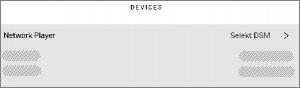
In Linn AccountManage systems go into the GENERAL tab and open the "Network Player" page. Finally, go to Change Configuration and select the STEREO PASS-THROUGH loudspeaker;
Each Selekt power amplifier output drives each loudspeaker crossover channel separately.
Any shorting links/bridging strip across the loudspeaker back panel MUST be removed according to the amplifier/speaker wiring. Please refer to a Linn Retailer to ensure that this is done correctly
Single Amp
With Single power amplifier cartridge (with required DAC module) and single wired speakers
Bi-Amp
With two Selekt Power amplifier cartridges in a Bi-Amp configuration.
The speakers bridging links have to be removed to all one amplifier to directly drive the loudspeaker drive unit.
If no HDMI cartridge is fitted then the Selekt DSM will automatically set up each amplifier with a Left + Right channel on each Amplifier cartridge.
Any shorting links/bridging strip across the loudspeaker back panel MUST be removed according to the amplifier/speaker wiring. Please refer to a Linn Retailer to ensure that this is done correctly
Tri-Amp
With three Selekt Power amplifier cartridges in a Tri-Amp configuration.
The speakers bridging links have to be removed to all one amplifier to directly drive the loudspeaker drive unit.
If no HDMI cartridge is fitted, then the Selekt DSM will automatically set up each amplifier with a Left + Right channel on each Amplifier cartridge.
Any shorting links/bridging strip across the loudspeaker back panel MUST be removed according to the amplifier/speaker wiring. Please refer to a Linn Retailer to ensure that this is done correctly
Notes:
This is NOT an Exakt digital crossover. All Selekt Power Amplifier/Line-level outputs are FULL range.
No HDMI Switching module is required for this setup.
In ALL setups, each Selekt Power Amplifier/Line-level Cartridge requires it OWN DAC module.
That is,
Two Selekt Power amplifier cartridges require TWO DAC modules,
Three Selekt Power Amplifier cartridges require THREE DAC modules.
Do NOT mixSelekt power amplifier cartridges and Selekt Line-Level cartridges for Bi-Amp/Tri-Amp/Quad-Amp... system This is due to the Selekt integrated power amplifier having a lower gain than any other Linn amplifier. Therefore, the feeds to loudspeaker inputs from the Selekt power amplifier and external power amplifier will be mismatched in volume.
Exakt crossover for Exakt 2-way and 3-way speakers using Selekt cartridges
The Selekt DSM has Stereo 3-Way Exakt Engine. This allows you to use the Selekt DSM as 2-way or 3-way Exakt Crossover
In Linn AccountManage systems go into the GENERAL tab and open the "Network Player" page. Finally go to Change Configuration and select the required loudspeaker;
These are examples of wiring a Exakt Crossover system in different Amplifier configurations:
The loudspeaker must be made Externally Exakt and any shorting links/bridging strip across the loudspeaker back panel MUST be removed according to the amplifier/speaker wiring. Please refer to a Linn Retailer to ensure that this is done correctly
Notes:
The loudspeakers MUST be configured for Exakt operation.
Check the Manage Systems - General for the connection information, >
This will work with both Line Level and Power Amplifier Selekt cartridges.(Check the cartridge notes on mixing both types of cartridges in the same Selekt DSM)
No HDMI Switching module is required for this setup.
Do NOT mixSelekt power amplifier cartridges and Selekt Line-Level cartridges for Bi-Amp/Tri-Amp/Quad-Amp... system This is due to the Selekt power amplifier having a lower gain than other Linn amplifier. Therefore, the feeds to loudspeaker inputs from the Selekt power amplifier and external power amplifier will be mismatched in volume.
HDMI ARC - THIS CONNECTION IS NOT USED WHEN AN HDMI SWITCHING MODULE HAS BEEN FITTED. The HDMI ARC has been moved to the HDMI Switching moduleHDMI OUT socket
EXAKT LINK- To connect to Exakt compatible devices (Exaktbox, Exakt Speakers, Urika II etc). This means that you not limited to only use these cartidges to output to speakers. You can also use Exakt speakers and/or Exakboxes.
Notes: 1 Each cartridge can be run with Organik, Standard and or Katalyst DAC Module. (If using Organik DAC then ALL Selekt Modules MUST have Organik DAC cartidges) 2 Each cartridge shares the same volume control. That is, change the Selekt DSM volume and all cartridges outputs change to this volume. 3 Analogue Output:
RCA - 2V rms, 300Ω
XLR - 4V rms, 600Ω
4 Power Amplifier outputs: These are CLASS-D amplifier outputs and speakers should ONLY be connected/disconnected when the product in is Sleep state or powered OFF. 5 Power Amplifier outputs: Max 100W/4Ω, 50W/8Ω per channel, Gain 20dB
The Selekt power amplfiers have a slightly lower gain than other Linn power amplifiers, (Majik/Akurate..).
If you are going to Bi-Amp a pair of speakers then we would recommend either ALL Selekt Power amplifier cartridges or ALL Selekt Line level cartridges with external amplifiers.
In Surround mode the gain offset can be adjusted on seperate channels to adjust for this offset.
6 Some Electrostatic speakers may require a modification to work with Linn Selekt Class-D amplifier. Please refer to the speaker manufacturers website for information. 7 Adding the HDMI Switching module will DISABLE the onboard HDMI-ARC socket. HDMI-ARC will now work from the HDMI Switch module HDMI OUT socket
Selekt Edition DSM & Selekt Classic DSM/1
View Selekt Edition 5.1ch Surround connection detail Information of what each connector is and a basic specification of these connectors
Click for more....
COMBINED OUTPUT Cartridge (RCA & 4mm)1,2,4,5 & 6 - To connect to a Centre loudspeaker and two RCA socket to connect to Subwoofer(s)
HDMI ARC - THIS CONNECTION IS NOT USED WHEN AN HDMI SWITCHING MODULE HAS BEEN FITTED. The HDMI ARC has been moved to the HDMI Switching moduleHDMI OUT socket
EXAKT LINK- To connect to Exakt compatible devices (Exaktbox, Exakt Speakers, Urika II etc). This means that you not limited to only use these cartidges to output to speakers. You can also use Exakt speakers and/or Exakboxes.
SUB OUT THIS CONNECTION IS ONLY USED IS STEREO PLAYBACK. IT DOES NOT WORK IN SURROUND FORMATS
Notes: 1 Each cartridge can be run with Organik, Standard and or Katalyst DAC Module. (If using Organik DAC then ALL Selekt Modules MUST have Organik DAC cartidges) 2 Each cartridge shares the same volume control. That is, change the Selekt DSM volume and all cartridges outputs change to this volume. 3 Analogue Output:
RCA - 2V rms, 300Ω
XLR - 4V rms, 600Ω
4 Power Amplifier outputs: These are CLASS-D amplifier outputs and speakers should ONLY be connected/disconnected when the product in is Sleep state or powered OFF. 5 Power Amplifier outputs: Max 100W/4Ω, 50W/8Ω per channel, Gain 20dB
The Selekt power amplfiers have a slightly lower gain than other Linn power amplifiers, (Majik/Akurate..).
If you are going to Bi-Amp a pair of speakers then we would recommend either ALL Selekt Power amplifier cartridges or ALL Selekt Line level cartridges with external amplifiers.
In Surround mode the gain offset can be adjusted on seperate channels to adjust for this offset.
6 Some Electrostatic speakers may require a modification to work with Linn Selekt Class-D amplifier. Please refer to the speaker manufacturers website for information. 7 Adding the HDMI Switching module will DISABLE the onboard HDMI-ARC socket. HDMI-ARC will now work from the HDMI Switch module HDMI OUT socket
The Linn DS/DSM can be done from many control points at the same time.
Note: from April 2023 : Tidal have removed support for the Linn Kazoo application on ALL platforms. We recommend trying the new Linn app (available on iOS and Android)
from April 2023 : Tidal have removed support for the Linn Kazoo application on ALL platforms. We recommend trying the new Linn app (available on iOS and Android)
from April 2023 : Tidal have removed support for the Linn Kazoo application on ALL platforms. We recommend trying the new Linn app (available on iOS and Android)
from April 2023 : Tidal have removed support for the Linn Kazoo application on ALL platforms. We recommend trying the new Linn app (available on iOS and Android)
6. The Selekt DSM Wi-Fi Setup page should now be displayed
7. Select the Wi-Fi network you want to connect to
8. Enter the passkey for the Wi-Fi network
9. Click on 'Set Network'
Note: If you cannot get any page from "https://setup.linn.co.uk", this may be due to added security on your phone/tablet. Check that the:
VPN is disabled on your phone or tablet
Go to Settings > WiFi > Select the Unsecured Network. Then tap the “i” next to that Wi-Fi network you’re trying to log in to and toggle OFF both “Auto-Join” and “Auto-Login.”
Disable Location Services for Wi-Fi System Services for iPhone/iPad
Go to Settings > Privacy > Location Services iOS system services for location and privacy settings
Tap on System Services near the bottom of this page
Locate "Wi-Fi Networking" or "Networking & Wireless" and toggle it OFF
This is extra network security and recommend that it is turned back ON after setting up the Linn DSM.
Wifi can also be setup using the Konfig App below
Configuring your Linn DS/DSM player/Speakers etc:
Web-browser App called Manage systems that can also be used on your Tablet:
Before you do anything you will need to have a Linn Account. This is a simple process and can only be performed using the Kazoo App or Linn App.
Details on how to create your Linn Account and how to use Manage systems can be found in the Manage Systems page.
Space Optimisation
Linn Space Optimisation is a digital room-correction and acoustic modelling technology built into all Linn network music players and systems. It removes the unwanted distorting effects of your listening environment to reveal cleaner music.
How It Works
Acoustic Modelling: Instead of using a calibration microphone, it uses mathematical and physical modelling to analyse how your speakers and room interact.
Room Parameters: Scan your room using LinnDAR or enter your room dimensions, construction materials, ceiling shapes, and features like windows, doors, and furnishings into a web tool.
Speaker Matching: Select your specific speaker model from a large database (supporting hundreds of models from both Linn and third-party brands).
Low-Frequency Control: It targets frequencies below 80 Hz where room boundaries and dimensions cause energy peaks, muddy bass, and prolonged decay, cutting down that distortion.
Practical vs. Ideal Placement: It allows you to place your speakers in practical positions for your living space while making them sound as though they are sitting in their acoustically ideal locations.
2. CONTROL DIAL - Main control dial and switch interface
Click for more....
GO INTO SLEEP:
Press the dial CENTRE and continue to press the CENTRE (approx 2seconds) until the volume indicator dial starts to decrease.
BRING OUT OF SLEEP:
Press any of the UP/DOWN/LEFT/RIGHT or CENTRE of the dial.
SOURCE SELECT
Press the dial DOWN to list the inputs available menu
Scroll UP/DOWN the selection.
Press RIGHT to select source or LEFT to cancel selection menu
PLAY/STOP/PAUSE- MUTE/UNMUTE
A quick press of the dial CENTRE will toggle between PLAY and STOP/PAUSE
(Radio-PLAY/STOP, Playlist-PLAY-PAUSE).
(Other sources-Mute/Unmute).
TRACK/PRESET PREV/NEXT
A quick press of the dial LEFT/RIGHT jump to Playlist tracks or Radio stations.
Volume
Rotate dial clockwise to increase volume, anti-clockwise to reduce volume. The dial indicators will tell you the present volume.
LINN DSM INFORMATION
Software version
With the Linn DSM out of Sleep mode
Press dial UP to enter Service menu
Scroll UP/DOWN to highlight "Software Update"
Press RIGHT to select or LEFT to cancel Service menu
Linn DSM "Properties" (Room name, device name, IP address etc)
Press dial UP to enter Service menu
Scroll DOWN to highlight "Properties"
Press RIGHT to select Properties
Scroll DOWN to highlight "Device"
Press RIGHT to select Device
Linn DSM "Settings" (Balance, Lipsync, Surround volumes etc)
Press dial UP to enter Service menu
Scroll DOWN to highlight "Settings"
Press RIGHT to select or LEFT to cancel Settings menu
Note: Cancel any previous menus by pressing LEFT key.
SURROUND TRIM
With the Selekt DSM out of Sleep mode
Press dial UP to enter Settings menu
Press RIGHT to select or LEFT to cancel Settings menu
Scroll UP/DOWN to highlight "Surround"
Press RIGHT to select or LEFT to cancel Surround menu
Select a the channel and trim with UP/DOWN
My Selekt DSM has a RED Linn symbol on the dial, what does this mean?
If you do not have a live network/LAN connection on the Selekt DSM the Linn symbol on the dial will go red.
If your network cable is plugged in and your network/LAN is alive then check that you have the network/LAN cable plugged into the LAN socket (#3 on the back panel diagram) and NOT the Exakt socket (#10 back panel diagram).
After a live network/LAN connection is made the LINN symbol on the dial will turn white after 5-10 seconds.
I get a flashing Linn icon ON and OFF within the volume dial, what does this mean?
This means that the Selekt DSM is in :
Searching for Exakt speakers after being woken from Sleep (typically only flashes for a couple of seconds after waking from Sleep)
or
FALLBACK mode : Fallback is a state that means that the product is waiting for a software update. To stop this flashing either:
Power cycle (Switch Mains Off for 10seconds and then switch mains On) and leave the Selekt DSM to startup for approximately 1min.
or
Use the Linn App to upload software in to the Linn Selekt DSM. Check >HERE< for more information.
i get a pulsing Linn icon within the volume dial, what does this mean?
This shows that the Selekt DSM is in PAUSE mode. (This can only be seen on Playlist and streaming service sources, such as Qobuz, Tidal etc. It will not occur on Radio station playback.)
What does the shimmering dial mean?
This is to show that the Selekt DSM is starting up after a mains power on.
It will typically do this in 30–45 seconds, but if the Linn Selekt DSM is performing a software update, this may take a little longer.
What does a dim/bright dial mean?
This is to show when the Selekt DSM is in mute mode.
3. Volume level & Mute indicators
Click for more....
To show the current volume value and mute condition.
4. Software update available
Click for more....
This is your Selekt DSM telling you that a software update is available.
The update is not compulsory, just an indication that an update is available.
A Software update is performed by:
the dial settings to do a Software update,
Press the UPPER part of the dial. The front panel display will now show System options.
Press the LOWER part of the dial to highlight "SOFTWARE UPDATE"
Press the RIGHT part of the dial to select this option.
If a Software update is available you will see the agree to update message and pres the RIGHT part of the dial to select this option.
Instructions on how to do this update are listed HERE
5. Media information - This will show the source name/track name/radio station that you are on.
Click for more....
Using the IR handset i button to wake up and further presses allow you to scroll through the display available.
On the Playlist this is typically Artist, Album & codec information. The lower bar will show the track position information
On a Radio source, this will show the information provided by the radio station and the codec information
......
6. Transport information
Click for more....
Shows the Play / Stop / Pause / Buffering symbols to show the current transport state.
(This is blank when a local input, such as HDMI, is selected)
if an image appears, this indicates no network. After the network is re-established, this will go back to its last transport or blank state.
7. Headphone socket
Click for more....
1/4in - 6.3mm Stereo headphone socket. This socket is mounted on the side of the Selekt DSM Edition.
When a plug is inserted into this socket, then this will mute the loudspeakers. However, you can also use the IR handset * key, press and hold, to re-enable the speakers even with the headphones still plugged in.
Note: When the Volume control is DISABLED, using Manage Systems, this Headphone socket is also DISABLED
Controlling your Linn DS/DSM using and infrared handset
Top Of Page Index
To control your Linn DS/DSM you can you the infra-red handset supplied with product as well as the Linn App, Kazoo. This can be downloaded & installed
The infra-red handset supplied has;-
* Volume control, Mute
* Input control with PIN selection
* Radio station selection using the handset joystick,
* Playlist navigation using the handset joystick,
* Transport control (Play, Stop, Pause, Skip & Search) &
* Music information.
The Technical Specifications of the IR handset can be found HERE
Lipsync Adjustment
You can set that input having the Video option within the Konfig and define default delays for each type of playback device. (i.e. delays for TV, Projector, Satellite etc)
In Konfig/Manage systems, this is set up in the
Sources tab,
Select the inputs(s)
"Delay Mode" to "Video Sync"
To select adjust the lip sync values, use the left/right navigation keys to adjust the delay.
The Linn DSM will then show, on its front panel display, the current lip sync delay time
Note:
The minimum lip sync values are governed by the system products.
These manuals should only be used as a basic guide for what the buttons can do. We would recommend just using the App/Software and only using the guide if you are having difficulty or want to see what more features are available.
These guides may show some features that are not available, or not have not been configured to work in your system. If you're required additional information, then please contact your Retailer or Linn Support Site
Bluetooth Specification
Reception of Bluetooth Audio:
Series 3, Selekt DSM, Majik DSM (2020 variant) & Klimax DSM (2020 variant) implements Bluetooth v4.2
Audio is transferred using SBC encoding
This is not natively compatible with Google cast.
Tidal
Tidal
Click for more....
Tidal This will work with Linn DS/DSM products running Davaar23 firmware. This can be updated using the Manage Systems webpage.
To create and add Tidal tracks to a Linn DS/DSM playlist, you require Linn App
Tidal is supported in countries listed HERE on the Tidal website
Spotify Connectcan now be used on Linn products using firmware Davaar59 (Aug 2017) or later firmware. (That is, if your Linn Majik DSM has had a software update after Aug 2017 then you can use Spotify connect)
This allows you to select and play your Spotify music on your Linn DS/DSM players and use the internal volume control on the Linn DS/DSM.
To connect your Spotify account to the Linn Majik DSM :
On your control device, iPad/Android/PC/MAC etc, connect to the same computer network as your Linn DS/DSM
Start your Spotify app, (if it is already open then close the App, wait a few seconds, and open the App)
Now check the Spotify Speakers icon to find your Linn DS. (In some cases you may have to power cycle your Linn Majik DSM before this is seen)
Select your Linn product, and you can now play to the Linn Majik DSM from the Spotify account and control the Linn Majik DSM volume.
This is web controlled and if your Linn Majik DSM has already been paired with your Spotify account you will be able to control even if you are not on the same ethernet network.(So be careful that if you accidentally select the Linn Majik DSM as a Spotify speaker and put the volume up high, and you are not at home)
September 2025:We do intend to support Spotify Lossless: This requires non-trivial firmware changes, also involving third-parties, so we don't have fixed timescales for the work completing.
Future Notes:
Spotify does NOT support lossless for all Linn hardware variants; Linn DS/DSM variants, which were launched before the Selekt DSM (in 2018), cannot be updated to Spotify lossless due to hardware limitations. However, they will still support Spotify Connect.
(Click HERE for a list of the product groups before and after 2018 variants.)
If you have a Linn DS/DSM that supports Spotify Lossless, this will still Songcast/share the Spotify lossless to ANY other Linn DS/DSM
Currently, a solution for Spotify lossless on the Linn DSM's, or Amazon Music for older products, you can use a WiiM media streamer .
This can also be used for other unsupported services such as CHROMECAST, Tidal Connect..., but check if your WiiM variant supports your service firstWiiM Support .
This setup will play at the quality of your Linn DSM – playback uses the Linn DSM’s audio clock, meaning that jitter from the source device’s clock will be removed.
Note: This will ONLY work with Linn DSM, not a Linn DS.
Plug a TOSLINK optical cable from the WiiM media streamer SPDIF OUT digital output directly into a Linn DSM TOSLINK digital input, and use the superior audio DAC of the Linn DSM. This will give you the full Spotify lossless, and any other WiiM supported streaming services into the Linn DSM.
Set up of the WiiM for use with the Linn DSM is easy
1. On the WiiM control app, go into Devices, select your WiiM and the select the gear cog on the bottom right, this will bring you into the WiiM setup page.
2. In the Sound submenu:
a).Audio Settings:
i) We would advise turning "Fixed Volume Output:"ON. This will give the Linn DSM full volume control options
ii) Optical Output Resolution: (Spotify Lossless is ONLY 44.1kHz but the higher sample rate will do other Streaming services)
set to "Sample rate:" 192kHz & Bit depth: 24bit for newer products
Linn Streaming: This allows you to share the audio to/from ALL Linn DS/DSM products. But will not allow you to share audio to non Linn Products.
DSD Decoding: This will also allow you to decide, if the Linn DS/DSM has a DAC that supports DSD playback, which products to decode the DSD. Either Roon decoding or Linn DS/DSM direct playback.
All Linn DS/DSM ARE ROON CERTIFIED devices
The Linn DS/DSM requires Davaar63 (May 2018) or later firmware to work with Roon V1.5 and above.(That is, if your Linn DS/DS/HUB has had a software update after May 2018 then you can use Roon)
This allows full hi-res audio, (384k/24bit) playback controlled by the Roon system
Songcast is used to share audio between Linn Products when using Roon. It does not use RAAT (Roon Advanced Audio Transport) for sharing Music, so cannot be set up as a Roon-Ready sharer.
Roon Tested Setup
On Linn DS proxy setups, Linn DS with Linn Kontrol preamplifier connected with RS232, the Roon volume control will not control the Linn Kontrol volume.
A Roon Core is required in your network system to allow Roon to control your Linn DS/DSM.
ENABLE the Linn DS/DSM player in the Roon - Settings - Audio - NETWORKED section.
In the Settings > Setup make sure that the "Subnet of Linn Streaming" is the same as the network that the Linn DS is on. Otherwise, they will not show in the Audio
Control
Primary control is through Roon.
Transport IR is disabled on the Linn DS/DSM when the Roon input is selected from Linn DS firmware release Davaar80 (Nov 2020)
Issues
Roon uses the Linn DS/DSM as a media player, the control interface IS Roon.
• I cannot see any Linn DS in the Audio list...
If you cannot see any Linn DS product in the Audio list then check that with the setup the correct Linn Streaming subnet (network address range).
E.g. if your Linn DS has IP address 192.168.1.34 then its subnet is 192.168.1.0
In the Settings > Setup make sure that the "Subnet of Linn Streaming" is the same as the network that the Linn DS is on. Otherwise, they will not show in the Audio tab. You can find the IP address by pressing the * button on the IR handset
• I am only getting Airplay quality audio from the Linn DS using Roon
In Roon: Settings - Audio setup page, you will have devices listed with "via Linn Streaming" and devices listed with "via Airplay".
Pressing this "ENABLE" button on "via Linn Streaming" will bring this Linn DS player alive.
When you press ENABLE, this will then allow you to rename this Linn DDS; otherwise it will be its default name. E.g. below the "Linn Akurate DSM" - "via Linn Streaming" has been enabled, and I have renamed it "Merlin Lounge".
The Linn DS/DSM products have to be declared as "Roon Tested", networked devices in the Roon Core settings. (The "AIRPLAY" option for the Linn DS/DSM must be disabled within the Roon Core).
Click on the Roon Ready - Enable and give a name to the Linn DS/DSM. (In the example below, this has been named Merlin Lounge)
• I press STOP and the Roon starts playing again...
Transport (play / pause / stop) and Volume can be controlled using Kazoo or Ir handset. Although later versions of Roon will counteract these commands. Only use the Roon controller software to control what is playing.
Linn DS Firmware Davaar80 onwards will disable transport controls whilst on the Roon input of the Linn DS/DSM
• If I select an external source whilst playing Roon, I need to re-select the source to get it playing.
This can be due to a confusion, as the Roon will send a stop command to the Linn DSM as you exit the Roon source. However, as the Linn DSM will probably have changed to this new source, then this new source is stopped by Roon. On external sources, this can only be recovered by selecting another source and going back to the originally selected source.
The solution is to Stop or Pause the Roon source BEFORE you change to a different input on the Selekt DSM.
This can also be reduced by going into Konfig or Manage systems and disabling the "AutoPlay" option.
Deezer
Click for more....
caption This can now be used on Linn products using firmware Davaar82 (July 2021) or later firmware.
To create and add Deezer tracks to a Linn DS/DSM playlist you require the Linn App
This function is NOT available in the Kazoo or Kinsky apps.
Deezer streams from the internet directly to the Linn DS/DSM.
From firmware Davaar 110, Jan 2025, Deezer has been updated to the latest driver.
See the Deezer FAQ's for Linn DS/DSM for more information and assistance.
Amazon Music
Click for more....
caption To select and play CD & Hi-Res (192k / 24 bit) quality stereo music from your Free, Prime & Unlimited Amazon Music accounts. (The availability and playback controls vary depending on your account type)
Amazon Music service enabled on Linn App. See below for details open how to enable this service. (Linn DSM MUST have at least Davaar 118 installed first).
Products using the older PPC (Power_PC) hardware, from firmware Davaar 117, we have reached the capacity, of flash memory size, and incompatible modules for this Power PC hardware and therefore cannot support this service.
(Note: This does not stop you from SONGCASTING from a ARM-Linux_hardware Linn DS/DSM and ANY other Linn DS/DSM. That is, you can SongcastAmazon Music playing on a Linn Selekt DSM to say a Sneaky DS.)
Click HERE for Linn products that support Amazon Music
Presto Music service enabled on Linn App. See below for details open how to enable this service. (Linn DSM MUST have at least Davaar 118 installed first).
Products using the older PPC (Power_PC) hardware, from firmware Davaar 117, we have reached the capacity, of flash memory size, and incompatible modules for this Power PC hardware and therefore cannot support this service.
(Note: This does not stop you from SONGCASTING from a ARM-Linux_hardware Linn DS/DSM and ANY other Linn DS/DSM. That is, you can Songcast pestomusic playing on a Linn Selekt DSM to say a Sneaky DS.)
Click HERE for Linn products that support prestomusic
AirPlay2 is an Apple protocol that allows wireless streaming media.
It is only available in Linn DS products with CORE4, or higher, processors.
The Linn DSM/HUB can take the audio stream via the "NetAux" input.
Airplay2 allows you to Group multiple Airplay2 devices (including Linn DS HomePod, Apple TV) to play in sync using iOS, Siri, HomeKit, iTunes desktop (Windows & MacOS)....
From Linn DS/DSM firmware Davaar 108 this will no longer allow you to Songcast an Airplay stream to other Linn DS/DSM products. . (Airplay2 supports mixing and matching with other Airplay2 devices and not required to Songcast).
Note: MAC's running Tahoe, MacOS 26, has issues with Airplay volume levels being low. This is an Apple issue and not a Linn DS issue.
Products supporting Airplay2 from Davaar 110 (February 2025)
HDMI Audio Return Channel is the audio returned from the same HDMI cable feeding A/V to the television.
This input can ONLY be used with a television. If any other HDMI source is connected to this input, then no audio will occur. (The HDMI ARC communication is different to standard HDMI communications)
This HDMI ARC input is declared as a separate input on the Linn DSM/HUB control. This can be set to automatically switch to this HDMI-ARC input when you have just switched on your television. More information on how to set this up are in the Linn App
General limitations with ARC are that it doesn't communicate with the playback device, in this case the Linn DSM, what Surround formats that it supports, if any. You need to check within the TV setup that the HDMI-ARC connection will only output in a format/codec that the Linn DSM will support. (2-ch/stereo PCM for a standard Linn DSM/HUB and 5.1ch Surround sound for one with a Linn Surround module).
This does NOT support DSD audio
DSD
DSD Playback
Click for more....
Products that will play stereo DSD audio:
Linn DS/DSM players with Katalyst DACs, running firmware from Davaar 60, can play stereo DSD audio files.
All ORGANIK DACs within the Linn DSM can play DSD audio files.
> Only supported in SLOT #1 of the Selekt DSM using aStereo DAC:: Selekt DSM slots 2 & 3 will not play DSD audio.(Exakt crossover and Space Optimisation only work with PCM.audio.)
Or
> Only supported in SLOTS #1 & #2 with Dual Mono ORGANIK DAC's: : Selekt DSM SLOT 3 will not play DSD audio.(Exakt crossover and Space Optimisation only work with PCM audio.)
Majik DSM (2025 variant)
Some important points on DSD playback on the Linn DS/DSM:
DSD audio is ONLY available on the analogue outputs
DSD audio is NOT supported on:
Exakt-link to Exakt speakers or Exaktbox. That is, DSD files will NOT play on Exakt speakers or Exaktboxes.
Slot 3 of any Linn Selekt DSM with Mono ORGANIK DACs
Supports DSD64 (2.8224MHz) and DSD128 (5.6448MHz) sample rates.
DSD256 playback is only supported on
Klimax DSM (2020 variant),
Majik DSM (2025 variant) and
All Selekt variants.
These in the following formats:
DSF - Sony format that supports ID3 tags
DFF - old Philips mastering format (aka DSDIFF)
DSD is NOT supported on external inputs such as HDMI, Toslink or USB
No digital signal processing is possible. This means:
On some DAC's there is NO balance control is possible to DSD audio file playback.
No Space Optimisation is applied to DSD audio file playback
Maximum volume is restricted to 80 (unity gain) on DSD audio file playback. However, if you have raised to volume to a higher level e.g. 90, this higher volume is applied to any tracks that are NOT DSD audio files.
Linn DS/DSM volume control MUST be enabled
If the DSM volume control is disabled you will hear “click”s on the loudspeaker when Play/Pause buttons are pressed or a change in bit-rate on change in tracks
Linn Kazoo Server supports the index and serving of DSD files. Non-indexed DFF files that have no metadata can be browsed by file name using the Kazoo Server Removable drives option.
Asset UPnP server and Minimserver support DSD index and serving to the Linn DS/DSM.
The Selekt DSM allows you to selekt cartridges to meet your requirements:
SELEKT DSM CARTRIDGE - 1Ch LINE OUT
Description:
Each cartridge has ONE line-level audio channel that are sold and fitted in pairs for use in left & right-hand channel playback.
Each channel has a XLR and a RCA output. BOTH can be used simultaneously. That is, both XLR and RCA socket are always live and do not affect each other's performance.
DAC - Mono Digital to Analogue Convertor module option
In a Selekt DSM, you can ONLY use a PAIR of 1 channel cartridges for 2 channel output. Slot3 of the Selekt DSM CANNOT be used.
DAC's are sold separately and ONE DAC module MUST be fitted to this cartridge to get audio from this cartridge.
In this cartridge ONLY the Organik (Level-3) Mono DAC use the higher specification Organik DAC Architecture
Warning: Changing Selekt Cartidge(s) or Module(s).
Applies to: All Selekt DSM variants
To reduce the risk of damage to your Selekt DSM:
The Selekt DSM MUST be disconnected from Mains power supply by BEFORE any cartridge(s) or module(s) are removed/Inserted.
SELEKT DSM CARTRIDGE - 2Ch LINE OUT
Description:
This is a cartridge with 2off line-level audio channels.
Each channel has a XLR and a RCA output. BOTH can be used simultaneously. That is, both XLR and RCA socket are always live and do not affect each other's performance.
DAC - Stereo Digital to Analogue Convertor module options
This will allow you to select the audio performance of this cartridge.
Bridged Class-D amplifier with post-filter feedback using 4mm/Banana/binding post terminals.
Max output power:
100W/channel into 4Ω load,
50W / channel into 8Ω load
THD+N:
0.001%
Dynamic Range
110dB
Gain:
20dB
Note:
An upgrade to the Selekt Power supply may be required to use any new modules.
Power Amplifier outputs: These are CLASS-D amplifier outputs and speakers should ONLY be connected/disconnected when the product in is Sleep state or powered OFF.
Some Electrostatic speakers may require a modification to work with Linn Class-D amplifier. Please refer to the speaker manufacturer's website for information.
The Selekt power amplifiers have a slightly lower gain than other Linn power amplifiers, (original Majik/Akurate..). If you are going to Bi-Amp a pair of speakers, then we would recommend either ALL Selekt Power amplifier cartridges or ALL Selekt Line level cartridges with external amplifiers.
DAC's are sold separately and ONE DAC module MUST be fitted to the cartridge to get audio from this cartridge.
Different DAC's modules can be used with each Selekt Cartridge.
Either
Standard (Level-1) Stereo DAC is the standard DAC.
Bridged Class-D amplifier with post-filter feedback using 4mm/Banana/binding post terminals.
Max output power:
100W/channel into 4Ω load,
50W / channel into 8Ω load
THD+N:
0.001%
Dynamic Range
110dB
Gain:
20dB
Note:
An upgrade to the Selekt Power supply may be required to use any new modules.
Power Amplifier outputs: These are CLASS-D amplifier outputs and speakers should ONLY be connected/disconnected when the product in is Sleep state or powered OFF.
Some Electrostatic speakers may require a modification to work with Linn Class-D amplifier. Please refer to the speaker manufacturer's website for information.
The Selekt power amplifiers have a slightly lower gain than other Linn power amplifiers, (original Majik/Akurate..). If you are going to Bi-Amp a pair of speakers, then we would recommend either ALL Selekt Power amplifier cartridges or ALL Selekt Line level cartridges with external amplifiers.
DAC's are sold separately and ONE DAC module MUST be fitted to the cartridge to get audio from this cartridge.
Different DAC's modules can be used with each Selekt Cartridge.
Either
Standard (Level-1) Stereo DAC is the standard DAC.
The Organik MONO DAC sounds better that the Organik STEREO DAC as the Mono DAC has more Organik flip-flops than the Stereo DAC.
Note: Organik DAC modules CANNOT be mixed with Standard and Katalyst DAC modules in the same Selekt DSM
SELEKT HDMI SWITCHING MODULE
Description:
This is an HDMI-2 switching board with HDMI-ARC connection.
Fitting this module will disable the HDMI-ARC socket that is already inbuilt to the Selekt DSM.
Note: This board was updated in October 2022 and now supports e-ARC.
Linn HDMI 2.0 specification
The HDMI 2.0 specification of products that support this HDMI connection are:
After this module has been installed, please ensure that you are using the HDMI OUT on the Selekt-HDMI-Switch module and not the socket marked HDMI-ARC.
This may require a new power supply to be installed in your Selekt DSM. This will be checked at the time of ordering the Selekt HDMI switching module by your Linn Retailer.
SELEKT UTOPIK POWER SUPPLY
Description:Utopik is our all-new generation of exceptionally efficient and highly responsive switch-mode power supplies for Linn products.
A DAC is a Digital to Analogue Convertor.
This takes a digital signal, (1's & 0's) and converts into analogue signal, ( ). This allows you to feed a digital stream of data and get an analogue signal from it.
DSD file playback on the Linn DS/DSM
Products that will play stereo DSD audio:
Linn DS/DSM players with Katalyst DACs, running firmware from Davaar 60, can play stereo DSD audio files.
All ORGANIK DACs within the Linn DSM can play DSD audio files.
> Only supported in SLOT #1 of the Selekt DSM using aStereo DAC:: Selekt DSM slots 2 & 3 will not play DSD audio.(Exakt crossover and Space Optimisation only work with PCM.audio.)
Or
> Only supported in SLOTS #1 & #2 with Dual Mono ORGANIK DAC's: : Selekt DSM SLOT 3 will not play DSD audio.(Exakt crossover and Space Optimisation only work with PCM audio.)
Majik DSM (2025 variant)
Some important points on DSD playback on the Linn DS/DSM:
DSD audio is ONLY available on the analogue outputs
DSD audio is NOT supported on:
Exakt-link to Exakt speakers or Exaktbox. That is, DSD files will NOT play on Exakt speakers or Exaktboxes.
Slot 3 of any Linn Selekt DSM with Mono ORGANIK DACs
Supports DSD64 (2.8224MHz) and DSD128 (5.6448MHz) sample rates.
DSD256 playback is only supported on
Klimax DSM (2020 variant),
Majik DSM (2025 variant) and
All Selekt variants.
These in the following formats:
DSF - Sony format that supports ID3 tags
DFF - old Philips mastering format (aka DSDIFF)
DSD is NOT supported on external inputs such as HDMI, Toslink or USB
No digital signal processing is possible. This means:
On some DAC's there is NO balance control is possible to DSD audio file playback.
No Space Optimisation is applied to DSD audio file playback
Maximum volume is restricted to 80 (unity gain) on DSD audio file playback. However, if you have raised to volume to a higher level e.g. 90, this higher volume is applied to any tracks that are NOT DSD audio files.
Linn DS/DSM volume control MUST be enabled
If the DSM volume control is disabled you will hear “click”s on the loudspeaker when Play/Pause buttons are pressed or a change in bit-rate on change in tracks
Linn Kazoo Server supports the index and serving of DSD files. Non-indexed DFF files that have no metadata can be browsed by file name using the Kazoo Server Removable drives option.
Asset UPnP server and Minimserver support DSD index and serving to the Linn DS/DSM.
,
Exakt technology has enabled Linn to completely revolutionise the design and manufacture of music systems. Extending the lossless digital signal path further than ever before, Exakt eliminates sources of noise and distortion that exist in the traditional analogue hi-fi chain.
Exakt turns the loudspeaker into an intelligent, connected, software-upgradeable product. This enables a wide range of performance- and personalisation-enhancing capabilities, guaranteeing a performance that eliminates distortion, corrects for variation and is personalised for your home.
Exakt-links connects the Linn DS/DSM to the Exakt speaker/Tunbox via a single CAT5 cable. This single cable will transport 8 channels of audio and sync information to ensure that all channel playback is in perfect timing.
When the cartridge plugs into the Selekt hub, ALL of the connections are digital connections. Each cartridge will take this digital data, provided by the Selekt Hub, and convert in to analogue data, using the DAC module. The output of the DAC module is then passed to the power amplifier or line-out circuitry.
If there isn't a DAC module installed within the cartridge then nothing if fed to the power amplifier or line-out circuity.
Can i mix Standard, Katalyst & Organik DAC in the same Selekt DSM?
There are a number of Rules when using different DAC's and cartridges with the Selekt DSM:
When using two of these Mono cartridges you CANNOT fit/use another cartridge within this Selekt DSM.
DAC's are sold separately and ONE DAC module MUST be fitted to the cartridge to get audio from this cartridge.
Different DAC's modules can be used with each Selekt Cartridge.
Either
Standard (Level-1) Stereo DAC is the standard DAC.
Scroll down to almost the bottom of the page and this will list the cartridges and DACS in each Selekt slot.
This will show the board information with DAC type and the module type in that slot. As well as the software versions & compilers used within this module:
Do I need to have a UTOPIK power supply to use with Organik_DAC
No you can use ANY Selekt DSM power supply. (But it will sound better with the UTOPIK )
I have put two or three cartridges in my Selekt DSM and it doesn't work
Check what DAC modules are fitted to the cartridges. Organik DAC modules CANNOT be mixed with Standard and Katalyst DAC modules in the same Selekt DSM
Update the Selekt DSM to Davaar 69 or higher. This firmware supports multiple cartridge operation
The initial releases the Selekt DSM firmware are only designed to work with one cartridge in slot-1,(closest to the corner). If you add more cartridges (from another Selekt DSM..), or move the cartridge to a different slot then the Selekt will probably not work.
If there is NO HDMI switchboard installed, then it would appear that only one module is fitted and only allow you to define one pair of speakers. This is because the Selekt will be assigning ALL cartridges are Left & Right channels and allowing you to Bi-Amp and Tri-Amp these speakers using all the module attached. (Do the same check as above, to find out what cartridges are installed)
BEFORE an new Selekt cartridges are installed, please ensure that the Selekt DSM is brought up to the latest version of firmware BEFORE fitting these cartridges.
Can I swap cartridges or modules with Selekt DSM in Sleep state
NO
Warning: Changing Selekt Cartidge(s) or Module(s).
Applies to: All Selekt DSM variants
To reduce the risk of damage to your Selekt DSM:
The Selekt DSM MUST be disconnected from Mains power supply by BEFORE any cartridge(s) or module(s) are removed/Inserted.
How do I trim the Surround channel levels?
You need to set up the Space Optimistation for you room first. After this is applied you can then trim each channel with the inbuilt noise generator.
Yes, you can connect loudspeakers that support 192K SPDIF connections to the Linn Selekt DSM. This output will also support Space Optimisation, but NOT volume control on this connection.
In Manage Systems, setting the:
1. Outputs > SPDIF Mode into Output &
2. Outputs > Digital Output mode into 192K Post EQ will add Space Optimisation to this output.
This allows digital speakers, with their own volume controls, to be connected to this SPDIF socket
On initial release with Davaar firmware 65 DSD playback is unsupported. However later versions of Davaar firmware (Davaar 66 onwards, Nov 2018) do support DSD playback.
Works with STEREO Cartridges (Line-level/Power Amplifier, Katalyst/non-Katalyst/Organik) will support DSD playback with Davaar 66+ firmware.
DSD playback will only output on Cartridge #1
USB playback is limited to PCM due to PC/MAC operating system transport.
Inputs/Outputs
Does the HDMI-ARC socket on the Selekt DSM support e-ARC?
No, the socket on the back panel of the any Selekt DSM is just ARC.
If you want an e-ARC connection you will need to add the Selekt HDMI switching module. From Oct 2022 they were upgraded to support e-Arc
How can I connect my headphones to the Selekt DSM?
Selekt DSM Edition
Headphone socket on side of the Selekt
Selekt DSM & Selekt DSM Classic
From firware release Davaar 75 (Jan 2020) SPDIF1 can be converted to an SPDIF output that will support up to 192KHz. This will allow you to connect digital headphones to the Selekt DSM. (You may need to change the Selekt Digital output to a fixed sample rate of 88.2k/96k to get Studio Master audio to play on your headphones)
Note
This output is a fixed volume control output, that is, Volume Up/Down had no effect on this output. This will allow you to turn down the speakers, (on Exakt, line or power amplifers modules), and control the volume using your headphone amplifier volume control .
Can I have both a Line level and Power amplifier module in the Linn Selekt?
Yes, when the various modules are released, you will be able to mix Line Level and Power Amplifier modules if the correct power supply is installed in the Selekt DSM.
Check that your Selekt DSM has the large power supply fitted; otherwise it will not identify that ANY modules have been fitted. (The small power supply is designed for use with the Line-level modules only. Large power supplies are available as a hardware upgrade)
We would not advise using the Selekt Line-level and Selekt Power Amplifier cartridges for the same audio channels. This is due to the Selekt power amplifier has a lower gain than other Linn amplifiers:
e.g. If you are using the Selekt DSM to Bi-Amp (or Tri-Amp) a pair of speakers and:
a Selekt Power Amplifier cartridge to feed one speaker input
a Selekt Line level cartridge with external power amplifier to feed another speaker input
This means the Selekt PA fed speaker will be quieter than the external power amplifier fed speaker.
The Manage Systems webpage will assume that with different cartridge types you will be using this in a surround sound system. This will offer the Exakt software configuration upgrade to allow you to configure these cartridges for Surround channels.
Note:
You may also need a new power supply to deal with the new power requirements.
is the output level of the Selekt DSM different from other Linn DS/DSM's?
The Line RCA output on the Selekt DSM is the same has the same output gain as other Linn DS/DSM products.
However, the Power amplifier is approx. 8dB, (8 volume step), quieter than the Chakra amplifiers and earlier Majik DSM's;
Can I add a subwoofer directly to the Power amplifier outputs on the Selekt DSM?
No,The Selekt DSM power amplifier is a Class-D amplifier and the negative terminal on the power amplifier is NOT connected to earth.
Note The Majik DSM/5 already has Line level Sub outputs to allow a direct line-level analogue feeds for Sub-Woofers
On most subwoofer "High Level" inputs this is connected to earth, and connecting their ground to Selekt DSM negative power amplifier connection may cause damage to both products. Check with the subwoofer manufacturer on how to connect their subwoofers to Class-D amplifiers.
Can I connect Electrostatic loudspeakers, such as Martin Logan, to the Selekt DSM?
As the Selekt DSM uses Class-D power amplifiers then the Selekt DSM power amplifier is dependent on the inductive/capacitive load then the usual loading of Electrostatic loudspeakers may cause poor sounding instability.
Check with your speaker manufacturer for any solutions.
Can I fit another module and have a seperate volume control or a unity gain output?
No, all Selekt modules and Exakt speakers/Exaktbox within the one product share a common volume control.
That is, you CANNOT have different volume controls with ANY single Linn DS/DSM product.
However, you can configure the Selekt DSM change this to an SPDIF output. This will allow the Selekt DSM to output the current audio playback at line-level, i.e. no volume controlled output.
Some customers have purchased a low-cost SPDIF to take this digital signal and convert into analogue and feed to their Tape deck.......
Can I fit another Integrated Amplifier module and Bridge these to increase the Selekt Output power?
No, all Selekt outputs are share the same common Volume control.
However, if the Tape deck has an SPDIF input, you can configure the Selekt DSM change this to an SPDIF output. This will allow the Selekt DSM to output the current audio playback at line-level, i.e. no volume controlled output.
Some customers have purchased a low-cost SPDIF to take this digital signal and convert into analogue and feed to their Tape deck.
I have fitted a HDMI cartridge with Surround module, Can I add a second zone on the Selekt DSM?
With or without the HDMI cartridge the Selekt DSM shares the same volume control to all fitted cartirdges and Exakt products connected to it.
Feeding the left and right audio to another room will have a common same volume control with the main Selekt DSM room. (If do wire this up to share to another zone, when you have a surround source playing only the left/right audio is shared with the other zone. The other Surround channels will NOT be shared with this other zone)
You 'CANNOT Songcast this surround audio to another Linn DS. Songcast only supports Stereo audio and will not share any sources that are playing in Surround mode.
How should I set the phono stage input level?
This is set up under Manage Systems > Sources and click on either MM, MC or Phono input.
As a general rule of thumb, the phono stage input level should not be less than 4x the specified cartridge output level.
For example, a cartridge with a specified output level of 0.25mV would require a Phono (MC) input setting of 1.2mV rms
If this setting is too low, then it can result in audible distortion
If I play a turntable (MM or MC) why do I see "192kHz 24bit PCM" on display ?
All audio that is passed through the Selekt DSM is digitised to allow for Space Optimisation, Songcast to another Linn DS/DSM, Exakt transmission to speakers, etc. The 192kHz, 24bit is the sample rate and bit rate used to convert this into the digital domain.
Note: 192K/24bit is the highest quality audio that the Linn DS/DSM supports.
Can I plug a USB stick into the USB socket of the Selekt DSM
The USB socket on the Linn DSM is ONLY for USB streaming sources:
The Linn DSM is a USB stream player. It does NOT recognise a USB hard drive/USB stick as a Music STREAMING source.
Type: USB-B Asynchronous socket
USB Audio Class 2 endpoint with supported sample rates from 44.1k to 192k
The Linn DSM is a USB stream player. It does NOT recognise a USB hard drive/USB stick as a Music STREAMING source.
Connect this USB socket into a Windows7/8/10/11 PC, MAC or USB-C socket of an iPad/iPhone2 and be a Sound card for these devices.1.
• DSD audio will typically be transcoded to PCM, by the PC/MAC, before transporting down the USB cable to the Linn DSM
Note:
1: The Linn DSM will playback the audio dictated by the PC/MAC sound driver.
On Mac you can go into the Sound Settings, after you select the USB Output, and adjust what audio format is played.
On a Windows PC you will need to get an audio driver that supports higher bit-rates. (For example: Adding a PCI card or module into your PC to get these higher bit-rates)
2: Click HERE for a guide to the setup and using this USB-C connection with iPhone/iPad
How can I get audio from my Macbook/iPad Airplay video to play on the Linn DSM?
THe simplest way to get audio from your Airplay movies is to use teh HDMI-ARC connection from your television. All you do is:
Select the HDMI-ARC input on the Linn DSM source list.
On you PC/MAC select your TV to Airplay your movies and play.
The audio from your Airplay video will automatically be diverted to playback on your Linn DSM.
If the audio is out of sync then you can use the cursor buttons on the IR handset to trim the lipsync.
How can I play my Computer Music on the Selekt DSM?
You can connect the Linn Selekt USB socket, (USB Type-B) to connect to your PC/MAC USB socket. You can then set your sound card to output to the Selekt DSM.
On the Selekt DSM, select the "USB" input. On the PC/MAC, click on the Volume icon on the notification bar and select Linn DSM. The audio from your PC/MAC is now directed to the Selekt DSM as a USB Audio Class 2 endpoint
You have two volume controls for this input: one on the PC/MAC and the other on the Linn Selekt DSM. We would advise leaving the PC/MAC volume at 100% and only adjusting the Selekt DSM volume. This will stop any surprises when you change the Selekt DSM to another input such as Radio and suddenly get an extremely loud radio station.
Is there a DIGITAL/SPDIF output?
From firmware release Davaar 75 (Jan 2020), the coaxial digital output, SPDIF1 ,can be converted to a coaxial digital SPDIF output that will support up to 192KHz.
This is fixed line level with no Space Optimisation.
If you have the Volume control disabled in Manage systems, then this will disable the power amplifier on the Selekt DSM.
Selekt display questions
My Selekt DSM has a RED Linn symbol on the dial, what does this mean?
If you do not have a live network/LAN connection on the Selekt DSM the Linn symbol on the dial will go red.
If your network cable is plugged in and your network/LAN is alive then check that you have the network/LAN cable plugged into the LAN socket (#3 on the back panel diagram) and NOT the Exakt socket (#10 back panel diagram).
After a live network/LAN connection is made the LINN symbol on the dial will turn white after 5-10 seconds.
I get a flashing Linn icon ON and OFF within the volume dial, what does this mean?
This means that the Selekt DSM is in :
Searching for Exakt speakers after being woken from Sleep (typically only flashes for a couple of seconds after waking from Sleep)
or
FALLBACK mode : Fallback is a state that means that the product is waiting for a software update. To stop this flashing either:
Power cycle (Switch Mains Off for 10seconds and then switch mains On) and leave the Selekt DSM to startup for approximately 1min.
or
Use the Linn App to upload software in to the Linn Selekt DSM. Check >HERE< for more information.
i get a pulsing Linn icon within the volume dial, what does this mean?
This shows that the Selekt DSM is in PAUSE mode. (This can only be seen on Playlist and streaming service sources, such as Qobuz, Tidal etc. It will not occur on Radio station playback.)
What does the shimmering dial mean?
This is to show that the Selekt DSM is starting up after a mains power on.
It will typically do this in 30–45 seconds, but if the Linn Selekt DSM is performing a software update, this may take a little longer.
What does a dim/bright dial mean?
This is to show when the Selekt DSM is in mute mode.
Display is showing this icon beside the Volume indicator. What does this mean?
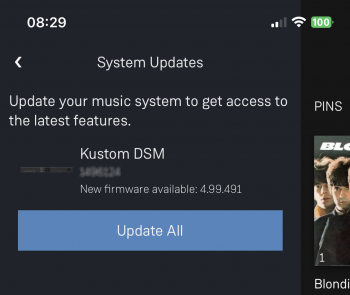
Firmware update is available.
The update is not compulsory, just an indication that an update is available.
A Software update is performed by:
the dial settings to do a Software update,
Press the UPPER part of the dial. The front panel display will now show System options.
Press the LOWER part of the dial to highlight "SOFTWARE UPDATE"
Press the RIGHT part of the dial to select this option.
If a Software update is available you will see the agree to update message and pres the RIGHT part of the dial to select this option.
Instructions on how to do this update are listed HERE
Is it normal that the Selekt DSM display cannot always stay on? Can I adjust the display timeout?
We aimed for an unobtrusive display when idle. The display automatically activates, drawing the user's attention, when there is a change in DSM state to communicate. E.g. changes to volume, source, or track would all cause the display to activate. It is also possible to manually activate the display at any other time by pressing the 'i' (information) button on the handset or by moving towards the Linn DSM, activating its proximity sensor.
What does the message "Incompatible hardware" mean?
You will probably have just fitted an HDMI module to the Linn Selekt DSM. Early Selekt DSMs had power supplies designed to work with specific cartridges only, but as the product has evolved, adding additional modules may require higher rated power supplies to drive the additional hardware. With the above message, the Selekt DSM has identified that the fitted power supply is not suitable to supply all the hardware currently fitted to the Selekt DSM and needs to be updated. The power supply is an easily replaced module that can be updated by Linn Retailers.
Note: MCAS 058/059 can be upgraded to SK CPSU1 or SK CPSU2
Please refer to your Linn Retailer to fit the correct power supply.
With the release of Organik DAC you now have some other configuration issue.Namely the DAC's used and Cartridges used:
Only one type of DAC module can be installed in each cartridge.
2: Open the General tab and scroll to the bottom of the page.
3: Press the RESTORE FACTORY DEFAULTS and leave it to do the update.
4: This action will have removed the Selekt DSM from your Linn Account and you will have to re-attach to your Linn account using the Linn_app.
5. All done.
How do I RECOVER on the Selekt DSM?
You will need to have the Linn App running to do the full RECOVER, plus internet access for the Selekt DSM
This will do a fresh reload of Software and reset all setting to default setting. This action may take some time to perform as it need to download new software packages and install them. Typically, this may take one hour to perform.(This is dependent on your Internet speed and how many software versions need to be installed).
Video instructions
Written instructions
This is only valid for Linn DS/DSM that have already been loaded with Davaar 99, or higher, firmware (from approx April 2023).
If, for any reason, the update process has failed, (for example, you have left this UPDATE running for 1-2 hours and the Linn DS appears to be stuck), we would suggest doing the following:
1. Power OFF the Linn DS/DSM and disconnect any EXAKT speakers or Exaktboxes
2. Power ON the Linn DS/DSM and press the FALLBACK recessed button on the back of the Linn DS/DSM.
(This sometime has the FB label beside a recessed button near the Linn DS/DSM Ethernet socket.)
This should bring a lightening flash symbol on the Linn DS/DSM display.
3 Open the Linn App, click on the icon, this will proceed to the Recovery page
4:Press the > icon and this will open the product list of products awaiting a RECOVERY.
if there is no "System Recovery" option, then either the Linn App is on the wrong network or the Linn DS/DSM is NOT running Davaar99 or higher firmware. Use Konfig software to recover this Linn DS/DSM.
5: Press the RECOVER button to start the recovery process of this Linn DS/DSM
The button should now state "Recovering" and this may take between 5-60 minutes to complete.
6. After a few minutes, go back to the HOME page, (ignore the recovering button message as this may not have refreshed itself)
Your Linn DS/DSM has been recovered and may have been reset back to its factory default setting. I.e. It will be called the "Main Room"
Note: Kustom DSM's will not show as a room(s), but are available to be added to your Linn Account in the next step...
7. Within the Linn App, go into the Settings
a) Click on the Linn Account.
b) click on the Add/Remove products.
c) Scroll down the list of products and search for "Main Room" or Kustom DSM. Double check that the serial number listed matches your Linn DS/DSM serial number and hit the + to add it to your Linn account.
8. Reconnect any Exakt speakers or Exaktboxes if you had disconnected then in step 1.
9. Proceed to Manage_Systems to rename and set up your Linn DS/DSM
Selekt DSM does not produce any sound from the cartridge(s)
Check Selekt configuration
If this is a fresh installation or you have added/changed an Selekt cartridge configuration the check:
DAC Modules:You have NOT using fitted BOTH Organik DACs AND Katalyst or Standard DAC's. The Selekt cartridges can ONLY be:
1. Check that your Selekt DSM is powered on and connected to a network with internet access.
2. In Manage Systems, select your DSM and go into the GENERAL tab.
a) Click on "Selekt DSM" text to go into the configuration box,
b) Scroll down to the bottom of the Network player page and
click on the " RESTORE SPEAKER FACTORY DEFAULTS text
c) After a few moments, a pop-up box will appear, click on the RESTORE
An status box will appear at the bottom of the screen, giving you the status of the upgrade.
3. When it's finished:
a) Power cycle the Selekt DSM
b) Set up the speaker info and see if normal operation has returned.
c) If not, please contact Linn Helpline.
General Linn DS/DSM/HUB Wi-Fi
The Wi-Fi module used with the Linn DS/DSM/HUB supports IEEE 802.11a/b/g/n/ac PSK/CCMP 1-CH
This supports both 2.4G & 5G communications.
Wifi History
2.4G
This was the first Wifi defined in 1997, 802.11b, generally used with 11, or 13 channels depending on your country. Each channel could each supply a data rate of 11MBit/s .
This data rate was then expanded to 54MBit/s in 2003, with the 802.11g. However, this still used 2.4G and instead of using 1channel to communicate it now uses 3-channels to communicate.This reduced your number of usable channels as other device communicating on a channel next door would now encroach into your channel(s).
This means that 2.4G band can have a lot of noise and interference. Coupled with fact that this same frequency is used by DECT phones, microwave ovens, Baby monitors, Taxi Radio, Bluetooth.... These can inject a lot if noise and interfere with Wifi streaming link to the Linn DS/DSM/HUB as it may force the LInn product off the Wifi network and it will have to retry the connection, this takes time and may cause your Linn product to keeping muting the Music
5G
A newer standard, 802.11n, allows usage of both 2.4G and 5G to give an even bigger data rate of up to 600Mbit/s.
As standards improve the 802.11ac that the Linn DSM/Series3 supports is a data rato of up to 1,300MBit/s.
5GHz is a much cleaner radio space with a lot less interence compare with 2.4G. The only negative is a slightly reduced range.
Some Wireless-Access-Points, WAPs and Router allow you to setup a seperate SSID, (Service Set IDintifier. this is name for a Wi-Fi network.)
Advice on use
We recommend that you configure your Wifi network to have seperate SSID for 2.4G and a different SSID for 5G wifi. Then configure the Linn DSM/Series-3 to only use the 5G network.
This will then allow the music stream to work on a cleaner transport/Wifi and stop any device from interfering with the music that you are listening to.
There are Apps available to show you what is on your Wifi and your network
Disable Wifi
To totally disable the Wifi, go into the Konfig:About tab and disable the Wi-Fi option.
NOTE: In the Konfig:WIFI tab, setting to NONE will only disconnect it from any Wifi network. The DSM will still broadcast its presence on the Wifi network.
Wired LAN connections
If you have connected a LAN cable to your Linn DS/DSM/HUB/SERIES3 then this take priority over the Wifi connection. This means that the Wifi connection is still on but ignored when a there is a live connection on the products LAN socket.
When the LAN connection is removed then the connection returns to Wifi.
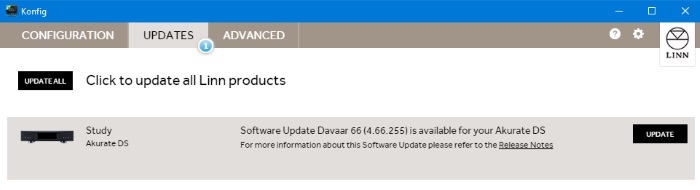
Up to > Davaar 98, then use Konfig to update the Linn DS/DSM to the latest software…
From Davaar99+ then you will need to use the Linn App or IR handset (See point1 below)
KONFIG will ONLY update to Davaar 104.
If you have updated the Linn DS/DSM using Linn App this will be the latest Davaar version. Ignore this Konfig update.
When you open Konfig this will only show the update as Davaar 104. This may be an earlier version of Davaar than currently installed on your Linn DS/DSM, (probably by Linn App). We recommend that you double-check the current Davaar version installed on your Linn DS/DSM before updating using Konfig
To check what version of Software you are running on your Linn DSM, you can either:
1. Use the IR Handset
On the REM 022 use the SHUFFLE key, Press and HOLD this key for 2 seconds
On the REM 020 use the # key, Press and HOLD for 2 seconds,
On older products: early Majik, Akurate, early Klimax and Kiko:
* If this action states, "Your Software is up-to-date" or "Software update available...." then you are running Davaar99 or higher.
* If there is an update available, you will be able to authorise the Linn DS/DSM by pressing the the joystick UP then joystick RIGHT buttons.
* If this states anything else, then you are on Davaar 97 or lower
On newer products: New Majik, Any Selekt DSM & new Klimax DSM:
This will show "Device" on the front panel display. Hit the RIGHT cursor button and this will show you the product information including the software version. (Check point 2, below, on how to decode this version.)
If there is an update available, you will be able to perform this update by following the instructions on the Linn DS/DSM screen.
2: Use Konfig and select your Linn DS/DSM. The Software version is structured as a Software family(4=Davaar) :
Major Release version, (this is the key number to use) : Minor version of software (Ignore this just now)
4:99.491 relates to 4=Davaar, 99=Major software version, 491=Minor version. Therefore, is Davaar-99
Note:Konfig can still be used for these actions, it must still be used as a stepping stone to the latest Linn DS/DSM software.
3. Open Manage Systems and the Firmware is listed on the product configuration page (top right). The Firmware version is decoded in the same manner as the Konfig setup.
Up to Davaar 97
To update, using Konfig and your current Linn DS/DSM firm is Davaar 97 or lower
1.Start Konfig (after ensuring you have latest version)
a) Go into KONFIG Settings and check that Konfig is set to the same network as your Linn DS/DSM.
2. Click on the UPDATES tab. If there is a software update for your Linn DS/DSM it will be listed after clicking UPDATES. If there is no firmware update available for the Linn DS/DSM, then it will not be listed under this tab.
Note: on the Selekt DSM & new Majik DSM they will need to be power cycled and wait approx 30 minutes before checking the Konfig UPDATES tab.
3. Select the UPDATE button against the Linn DS/DSM you want to update.
a) A message will appear on the Konfig screen stating the major changes that this software update may incur. (This will be dependent on your present version of software loaded into the Linn DS/DSM)
b) If you would like to continue with this update then scroll down to the bottom of the message and select UPDATE.
c) For your Privacy we ask if you agree to collect Anonymous data on usage of the Linn DS. This will aid any fault reporting and also any activity to help Linn enhance the software and product operation.
d) Select I AGREE or more options to change what information Linn Products Ltd can receive.
4. Konfig will download the firmware update and proceed to updating the selected Linn DS/DSM player.
5. Once complete you will see an Update Completed Successfully message and your DS player will be re-started
6. Update complete
If you encounter any problems, please contact your Linn Specialist or Contact Linn.
From Davaar 99 onwards
To UPDATE, using Linn App, and your current Linn DS/DSM is Davaar 99 or higher
Linn Ds/DSM software updates using Linn App
The Linn DS/DSM software update, and Linn Account information is no longer kept via a PC/Laptop. It is now on the internet Cloud.
The instruction below tell the Linn DS/DSM to access the Cloud stored firmware, and do the update itself.
1. Click on the icon and if there are any updates for your Linn DS/DSM you will see:
2. Press the > and this will open the product list.
As an update is available, STOP ANY MUSIC PLAYING ON YOUR LINN DS/DSM BEFORE pressing the UPDATE button
Tap the Update All to initiate the update of all Linn DS/DSM products shown in the list.
Please be patient as this can typically take between 10–30 minutes to update depending on the complexity of the update.
3. If, after 60 minutes, the DS has not finished its update, then it may be stuck in update mode and unresponsive. If this has happened, then we recommend doing a recovery. For information on how to do this check >HERE<
NOTE
The Software update procedure is built in the following steps:-
1. First step is to DOWNLOAD the software update. During this time, the Linn DS/DSM is fully operational. You can still listen to Music, change volume etc. If you wake up the display, you will see what is downloading. This download can take between 10–30 minutes BEFORE the Linn DS/DSM is updated.
2. After the update, the Linn DS/DSM will reboot and install this update. This will typically take between 5–15 minutes. Depending on the product, this will produce a shimming dial, a flashing, or lightening flash on the front panel display.
3. The final reboot will bring the product back to lift and ready for use.
We recommend that you do NOT power off the Linn DS/DSM until this is complete. I.e. wake up the display and check that is not download and the Linn DS/DSM does NOT have a shimmering dial, flashing dot/lightening flash of it display.
To RECOVER, using Linn App, and your current Linn DS/DSM is Davaar 99 or higher
Video instructions
Written instructions
This is only valid for Linn DS/DSM that have already been loaded with Davaar 99, or higher, firmware (from approx April 2023).
If, for any reason, the update process has failed, (for example, you have left this UPDATE running for 1-2 hours and the Linn DS appears to be stuck), we would suggest doing the following:
1. Power OFF the Linn DS/DSM and disconnect any EXAKT speakers or Exaktboxes
2. Power ON the Linn DS/DSM and press the FALLBACK recessed button on the back of the Linn DS/DSM.
(This sometime has the FB label beside a recessed button near the Linn DS/DSM Ethernet socket.)
This should bring a lightening flash symbol on the Linn DS/DSM display.
3 Open the Linn App, click on the icon, this will proceed to the Recovery page
4:Press the > icon and this will open the product list of products awaiting a RECOVERY.
if there is no "System Recovery" option, then either the Linn App is on the wrong network or the Linn DS/DSM is NOT running Davaar99 or higher firmware. Use Konfig software to recover this Linn DS/DSM.
5: Press the RECOVER button to start the recovery process of this Linn DS/DSM
The button should now state "Recovering" and this may take between 5-60 minutes to complete.
6. After a few minutes, go back to the HOME page, (ignore the recovering button message as this may not have refreshed itself)
Your Linn DS/DSM has been recovered and may have been reset back to its factory default setting. I.e. It will be called the "Main Room"
Note: Kustom DSM's will not show as a room(s), but are available to be added to your Linn Account in the next step...
7. Within the Linn App, go into the Settings
a) Click on the Linn Account.
b) click on the Add/Remove products.
c) Scroll down the list of products and search for "Main Room" or Kustom DSM. Double check that the serial number listed matches your Linn DS/DSM serial number and hit the + to add it to your Linn account.
8. Reconnect any Exakt speakers or Exaktboxes if you had disconnected then in step 1.
9. Proceed to Manage_Systems to rename and set up your Linn DS/DSM
To update, using an IR handset, and your current Linn DS/DSM is Davaar 99 or higher
Use the IR Handset
On older products, early Majik, Akurate, early Klimax and Kiko,
On the REM 022 use the SHUFFLE key, Press and HOLD this key for 2 seconds
On the REM 020 use the # key, Press and HOLD for 2 seconds,
With older products, early Majik, Akurate, early Klimax and Kiko, If there is a software update it will tell you to press the IR handset UP arrow followed by the RIGHT arrow. The update will now start.
On newer products: New Majik, Any Selekt DSM & new Klimax DSM:
On the IR Handset, or Dial, press the UP joystick key. This will open the setup menu
On the IR Handser, or Dial, press the DOWN joystick key a few times and press the RIGHT joystick key. If there are any software updates on this page it will then give you instructions on how to update the product.
Music formats
What audio formats do the DS players support?
DS products support
FLAC Up to 192k 24bit
WAV
AIFF
AIFC
MP3
AAC
WMA (lossy)
OGG VORBIS
OGG FLAC
ALAC (Apple Lossless) upto 192K 24bit (If these ALAC files were generated by an early version of dBpowerAmp the Linn DS will not recognise these. Transcode these files to ALAC using the latest version of dBPowerAmp to fix this.)
DSD - limited to some products in a certain configuration. Check DSD Support for more informaiton
DRM protected files cannot be played on the DS products
Why does Linn recommend FLAC?
FLAC is a free open format. It is non-proprietary, which means your music collection is safeguarded for the future, can be played through any open digital music player, and is not tied to a particular manufacturer or product. The specification is published for all to see. In contrast, SACD has failed to achieve significant success because it requires proprietary music content and disc players with proprietary hardware inside.
FLAC allows even better than CD quality encoding and decoding. Linn Records provides studio master quality downloads in FLAC, at the same quality as SACD.
FLAC supports metadata, or tags, so that useful information about a piece of music can be stored with the music; for example, album, artist, genre, cover art, sleeve notes, etc. User interfaces can make good use of these tags. Two examples of applications that support tag editing are: Mp3tag (Windows) and Tag (Mac)
Because it is open and free, there are an extensive set of players, tools, transcoders (to convert between other formats and FLAC), tag editors, and other programs for FLAC.
Can the Linn DS/DSM play DSD music?
Products that will play stereo DSD audio:
Linn DS/DSM players with Katalyst DACs, running firmware from Davaar 60, can play stereo DSD audio files.
All ORGANIK DACs within the Linn DSM can play DSD audio files.
> Only supported in SLOT #1 of the Selekt DSM using aStereo DAC:: Selekt DSM slots 2 & 3 will not play DSD audio.(Exakt crossover and Space Optimisation only work with PCM.audio.)
Or
> Only supported in SLOTS #1 & #2 with Dual Mono ORGANIK DAC's: : Selekt DSM SLOT 3 will not play DSD audio.(Exakt crossover and Space Optimisation only work with PCM audio.)
Majik DSM (2025 variant)
Some important points on DSD playback on the Linn DS/DSM:
DSD audio is ONLY available on the analogue outputs
DSD audio is NOT supported on:
Exakt-link to Exakt speakers or Exaktbox. That is, DSD files will NOT play on Exakt speakers or Exaktboxes.
Slot 3 of any Linn Selekt DSM with Mono ORGANIK DACs
Supports DSD64 (2.8224MHz) and DSD128 (5.6448MHz) sample rates.
DSD256 playback is only supported on
Klimax DSM (2020 variant),
Majik DSM (2025 variant) and
All Selekt variants.
These in the following formats:
DSF - Sony format that supports ID3 tags
DFF - old Philips mastering format (aka DSDIFF)
DSD is NOT supported on external inputs such as HDMI, Toslink or USB
No digital signal processing is possible. This means:
On some DAC's there is NO balance control is possible to DSD audio file playback.
No Space Optimisation is applied to DSD audio file playback
Maximum volume is restricted to 80 (unity gain) on DSD audio file playback. However, if you have raised to volume to a higher level e.g. 90, this higher volume is applied to any tracks that are NOT DSD audio files.
Linn DS/DSM volume control MUST be enabled
If the DSM volume control is disabled you will hear “click”s on the loudspeaker when Play/Pause buttons are pressed or a change in bit-rate on change in tracks
Linn Kazoo Server supports the index and serving of DSD files. Non-indexed DFF files that have no metadata can be browsed by file name using the Kazoo Server Removable drives option.
Asset UPnP server and Minimserver support DSD index and serving to the Linn DS/DSM.
Can I change the audio quality of the TUNEIN Radio
NO, the Linn DS/DSM.HUB only plays the Radio stream provided by TUNEIN.
I can no longer get Linn radio stream, Linn Jazz, Linn Classical, Linn Radio, station
From June 2022 TuneIn have removed these Linn Radio streams from their supported list.
These stations are now available using the radio. Click <HERE> for more information on how to change your Linn DS/DSM radio to
Does the Linn DS/DSM players play BBC Radio via TuneIn?
Yes, the Linn DS/DSM/HUB will continue to use TuneIn to access and play the BBC radio stations.
From the 30th September 2019 BBC radio introduced changes to what can access their Radio stations via TuneIn. This is mainly for devices that can support using the BBC Sounds App. The Linn DS products do not support the Sounds App can will continue to have BBC Radio playback rights using TUNEIN.
BBC radio is ONLY available within the UK
Check the BBC Sounds >HELP< section for more information.
How do I add BBC Radio stations to my Presets?
Select the TuneIn button in Kazoo or Linn App and find the BBC, or any other Radio station you wish to add in selection tree
Press the three dots on the right-hand side of the station and enable/disable the Favourite, (TuneIn > Favourite in Linn App).
Complete
I cannot get any foreign Radio stations, I can only get UK stations
Due to a legal case between TuneIn and Sony Music, Warner Music. on licences. UK radio stations have licences for UK webcasting. However, non-UK based radio stations were not licensed to webcast music within the UK,
This is a TuneIn issue we are waiting for them to resolve. The alternative is to configure the Linn DS/DSM with airable internet radio.
If you are using a PC or MAC you can use software listed HERE
The "Ripped" Music can be held on the PC/MAC of on a Network attached Storage device/NAS. The NAS is the better option as this is a low power device that can be left on all of the time.
The PC/MAC/NAS requires UPnP Media Server software to share the Music for the Linn DS/DSM to play.
Will downloaded music play on the DS players?
Yes, so long as it is not protected by Digital Rights Managemant (DRM) restrictions and is in one of the supported formats, or transcoded to such a format.
Can I Airplay from my Android device?
The newer products with Bluetooth allow Android devices to play on a Bluetooth device, that is, the Linn DSM.
Volume Offset will effectively increase or decrease the volume value compared to the other inputs.
E.g. at value +5 and the volume meter at 57. This will, invisibly, change the volume to 62 on this source only. When you switch back to say Radio or Qobuz this will return the actual volume to 57.
The limits are -15 to +15 volume steps
After Updating to Davaar55 I can only get audio from my Exakt outputs and not the Analogue Out
Check Konfig > Device > "Dual Analogue/Exakt Stereo Output" has been enabled.
If you have declared your Exakt speakers as 'Front Left'/'Front Right' and the analogue outputs to be 'Front Left'/'Front Right' (Stereo). Ensure that this option in Konfig is enabled. The audio in the Exakt outputs will be out of sync by approx 60mS compared to the analogue outputs.
Are the Digital outputs (Toslink/SPDIF) volume controlled?
No, the SPDIF/TOSLINK output are ALWAYS line level output.
The Digital outputs will always produce the front Left & Right of the audio source that is playing on the Analogue or Exakt outputs at Line level volume.
Can I add digital loudspeakers to the Linn DS/DSM?
This depends on the Digital Output mode. On some products, the SPDIF Input can be changed to an Line output and configured for Post EQ with no volume control.
General Q's
Can I stop the kids from playing with the front panel buttons?
Yes on of the Majik & Akurate DS/DSM/HUB. If you go into Manage Systems > Display settings you can define "Front Panel buttons" to be OFF. This will stop the front panel buttons from doing anything. You can still control the Linn DS/DSM by IR handset and the Linn App.
(Just remember if you have disabled the front panel buttons and think that the Linn DS/DSM is broken!)
How do I achieve gapless playback for live albums?
To guarantee gapless playback, you will need to rip your music tracks into a lossless format (i.e. FLAC). You must also ensure that you are using ripping software that does not add gaps between tracks when ripping (i.e. DBPoweramp). Most ripping software will offer the option to turn this feature off.
Also make that that you have selected the PLAYLIST input and NOT the UPnPAV input
Linn PINS
What is a PIN, check HERE for more detailed information.
PIN FAQs:
We currently support pinning of media from Kazoo Server (V4.9.8 onwards) , Tidal, Qobuz, TuneIn, CalmRadio, DS radio presets, and Linn DSM external inputs
This is only applicable with Linn DS/DSM players with Davaar 64 or higher firmware
This currently does NOT support PINs to external pre-amplifier inputs, such as Akurate Kontrol, Kisto etc.
PINs buttons on the Linn IR handset use discrete IR codes and are not used with any other Linn Product control.
PINS for Radio stations are wrongly created with Kazoo V4.13.21, this has been fixed with next version 4.13.22. If you have created a Radio station PIN and it doesn't work, check you have a later version of Kazoo and re-assign this PIN to the correct radio station.
Deezer on the Linn DS/DSM
caption This can now be used on Linn products using firmware Davaar82 (July 2021) or later firmware.
To create and add Deezer tracks to a Linn DS/DSM playlist you require the Linn App
This function is NOT available in the Kazoo or Kinsky apps.
Deezer streams from the internet directly to the Linn DS/DSM.
From firmware Davaar 110, Jan 2025, Deezer has been updated to the latest driver.
See the Deezer FAQ's for Linn DS/DSM for more information and assistance.
Linn Songcast
Songcast is the method of transport for streaming STEREO audio data between a Songcast sender, (Linn DS/DSM, Songcast App), and Songcast receivers, (other Linn DS/DSM players listening to that sender DS - multiroom operation.)
The Songcast stream contains the raw unprocessed music stream, the metadata information for the Music playing and timing information.
The raw music data is the same data as received by the sending Linn DS. This maintains the same music stream is processed by ALL Linn DS players, (sender and receivers).
As this Songcast music stream is untouched this leaves the receiving Linn DS/DSM to do its own volume control.
Volume, Space Optimisation and Exakt processing, if used, are all performed as a final process to minimise any digital processing.
The timing information is used to ensure that the Linn DS/DSM players are in sync with the music sender.
The front panel of the Linn DS/DSM is showing a flashing dot or lightening flash and I cannot see the Linn DS with Linn App or Kazoo
This is the Linn DS/DSM either in "startup" mode or in "Waiting for Software" mode.
"Startup": The flashing dot is the startup mode trying to connect to your ethernet network. This mode will typically occur when you first apply power to the Linn DS/DSM. This will typically take 30-60 seconds and go into standard use mode.
"Waiting for Software": The lightening flash is the Linn DS/DSM waiting or getting a software update.
If you experience any problems getting the Linn DS on an Ethernet network, (dot continuously flashing), try the following options:-
Option1
Power off the EVERYTHING connected to the Ethernet system, (PC, Printers, DS, Routers/DHCP servers).
Leave everything powered off for at least 10 seconds.
Switch everything back on.
Retry the system
You will find that some devices in the system get confused and cause system confusion. The power cycling will do a reset of the system and recover most issues.
Option2
Use fresh Ethernet cables, (replace existing cables).
If the Linn Ds is more than 3M (10ft) from the DHCP/Server. Move the Linn DS right beside the Router/DHCP server and patch using a short Ethernet cable (1M), the Linn DS to the DHCP server/Router
Retry the system.
Option3
Build a completely separate system with only a DHCP/Server and Linn DS.
Retry the system
Some networks only have a limited number of DHCP address’s. If you have already connected some PC’s to this system, your Router/DHCP server can remember these devices, (even though no longer connected) and will not allocate these previously assigned IP addresses to newly connected products. So the case of unplugging one device to free up an IP address for the DS to use will NOT work with most Routers/DHCP servers if there are no free DHCP IP addresses available.
This will give a better idea as to what is causing the problem. (98% of the time, this is due to a local network issue).
If you always get the flashing dot, then the lightening flash symbol, then the Linn DS/DSM needs to be programmed. Either do the RECOVER option or contact your Linn Retailer to get assistance.
1. Check that your Selekt DSM is powered on and connected to a network with internet access.
2. In Manage Systems, select your DSM and go into the GENERAL tab.
a) Click on "Selekt DSM" text to go into the configuration box,
b) Scroll down to the bottom of the Network player page and
click on the " RESTORE SPEAKER FACTORY DEFAULTS text
c) After a few moments, a pop-up box will appear, click on the RESTORE
An status box will appear at the bottom of the screen, giving you the status of the upgrade.
3. When it's finished:
a) Power cycle the Selekt DSM
b) Set up the speaker info and see if normal operation has returned.
c) If not, please contact Linn Helpline.
Top Of Page Index
For information on: troubleshooting, Surround options, "Ripping" Cd's , Exakt system then this next section will provide the information that you need:

 Stereo Line-level analogue cartridge
 Stereo Line-level analogue cartridge
 Digital to Analogue Converters
 Approved Control Profile
 Linn recommend using Premium High Speed Certified HDMI cables for an optimal experience.
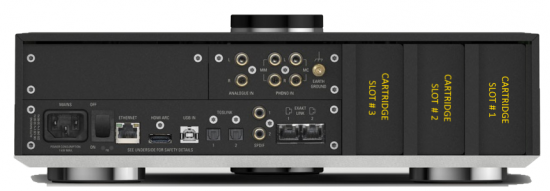
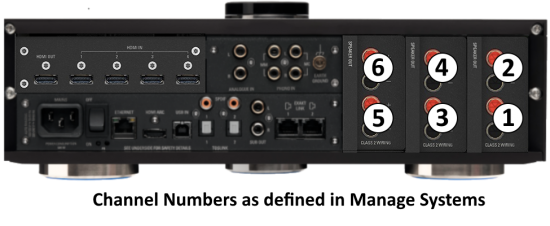
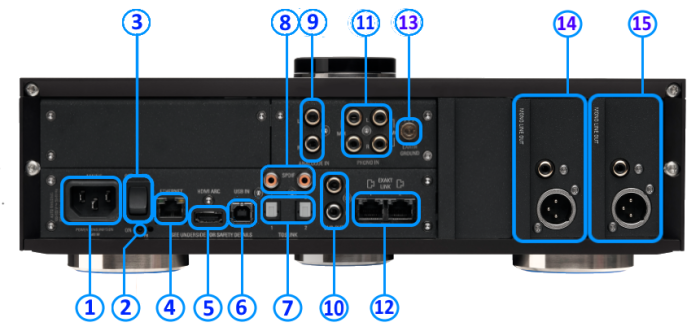
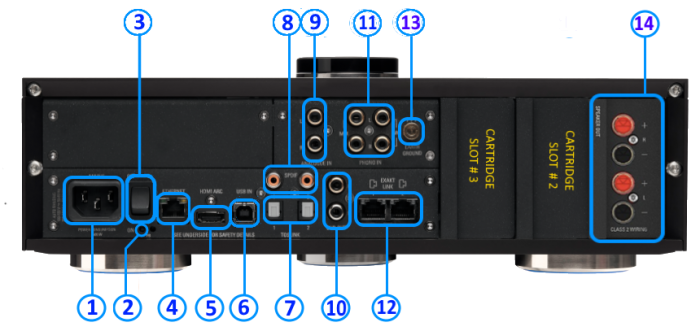
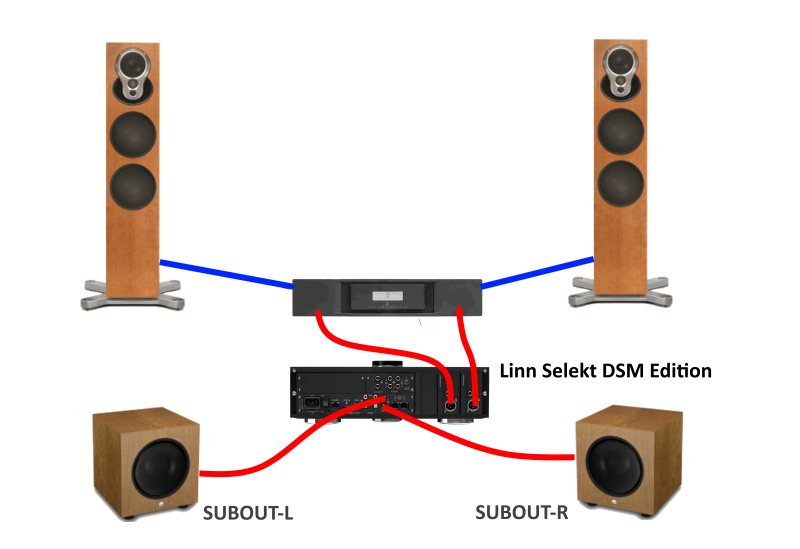 -
- 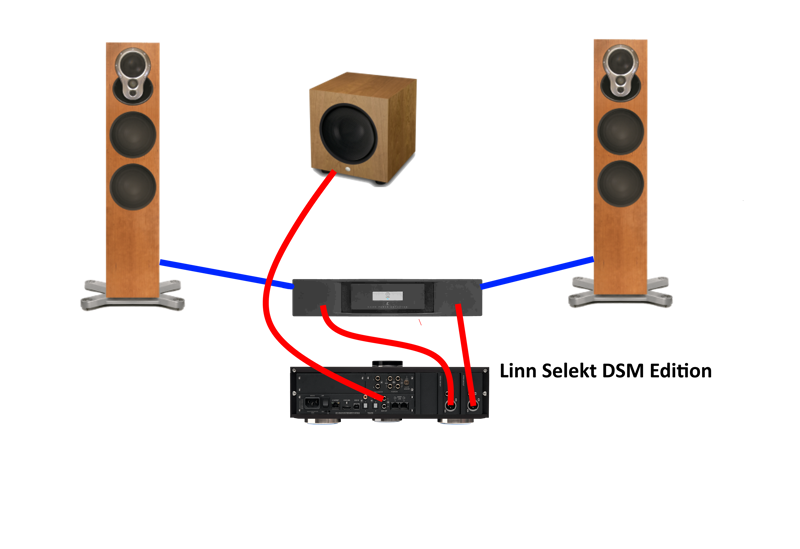
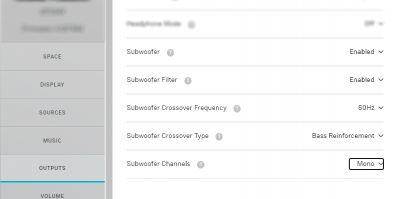
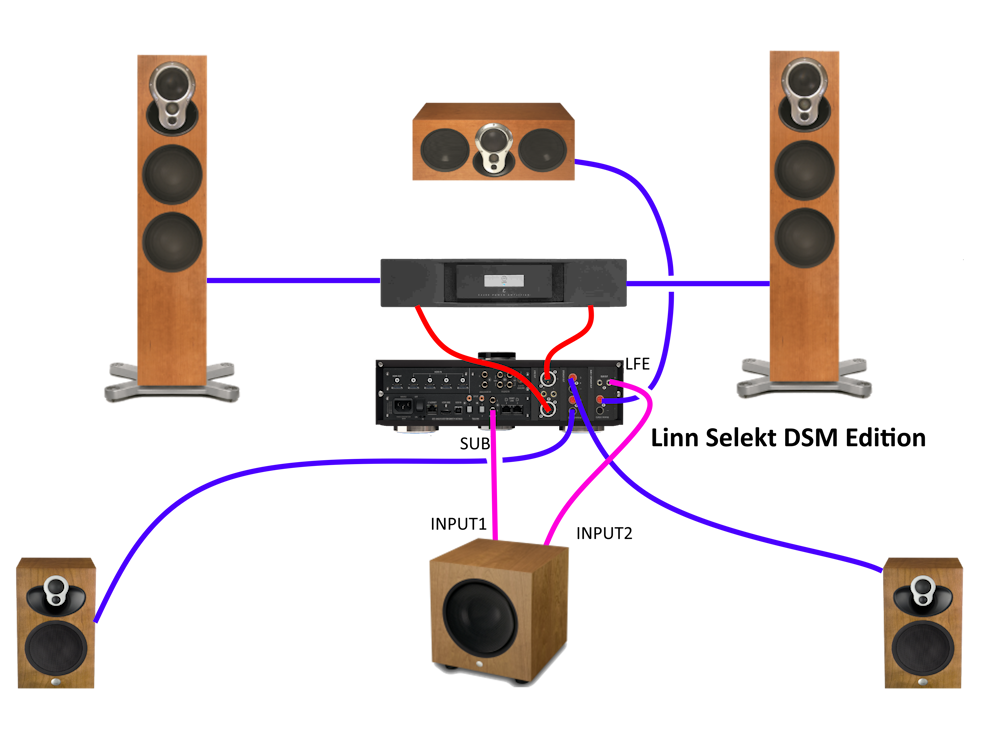
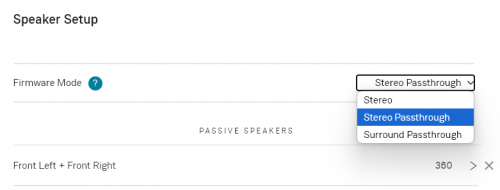
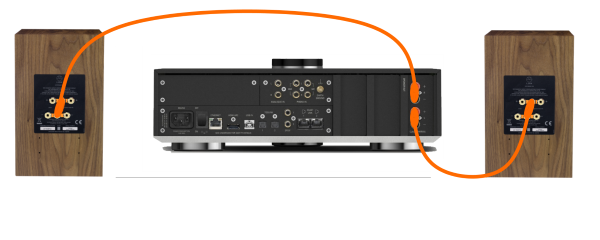
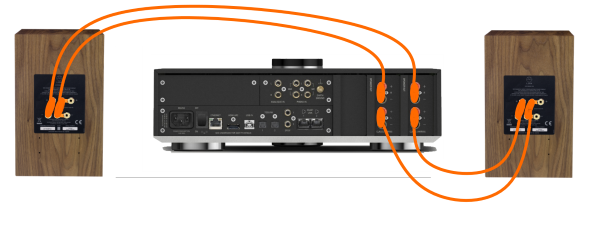
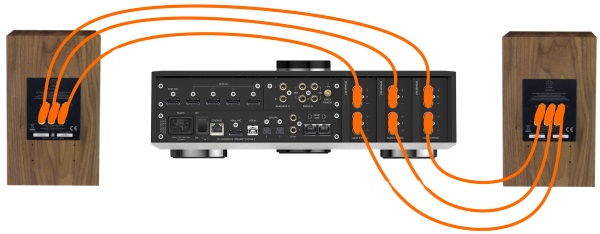
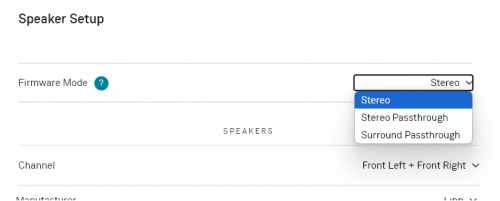
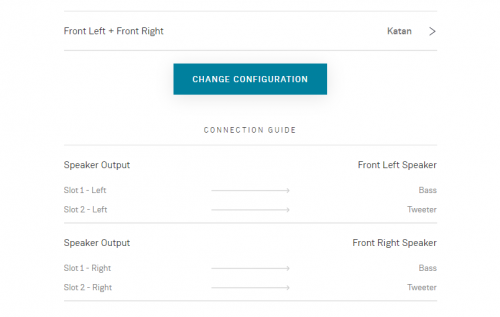

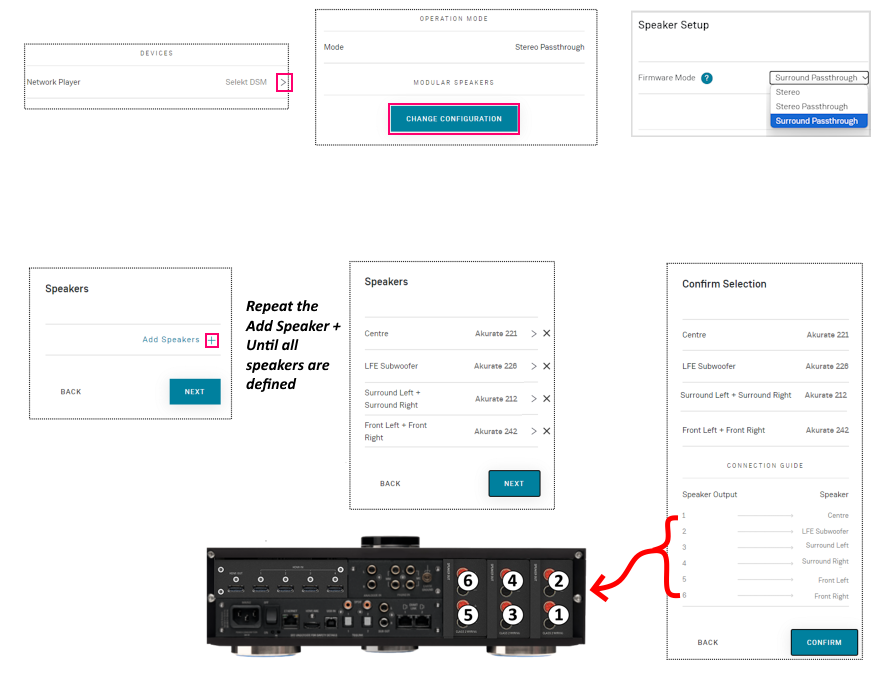
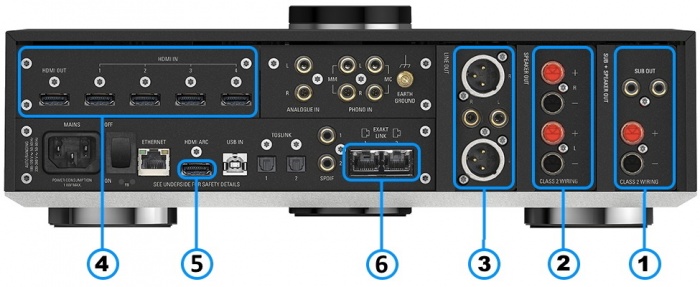
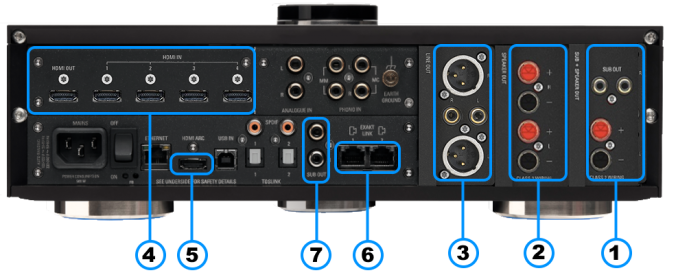
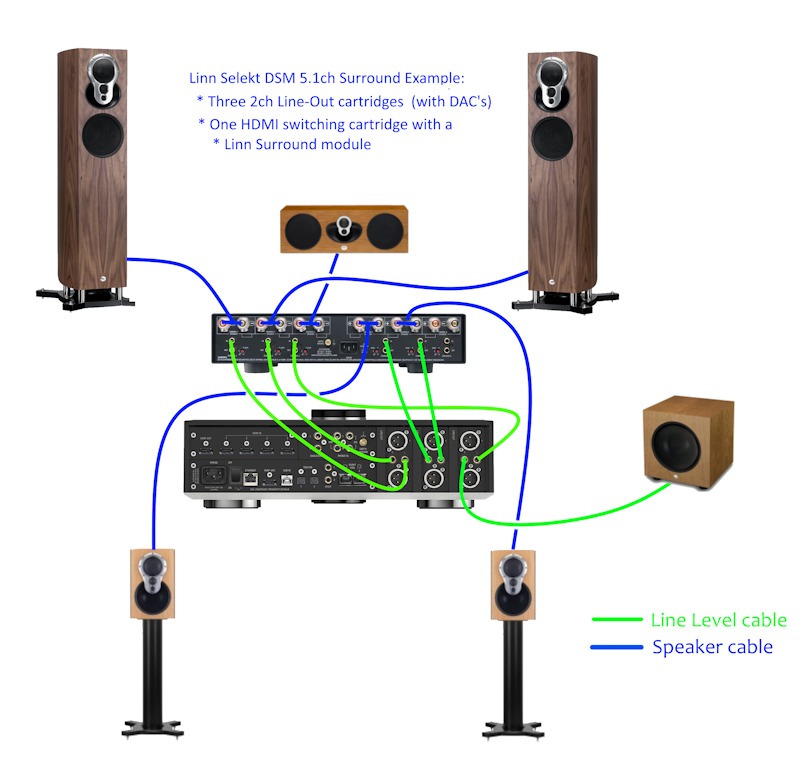
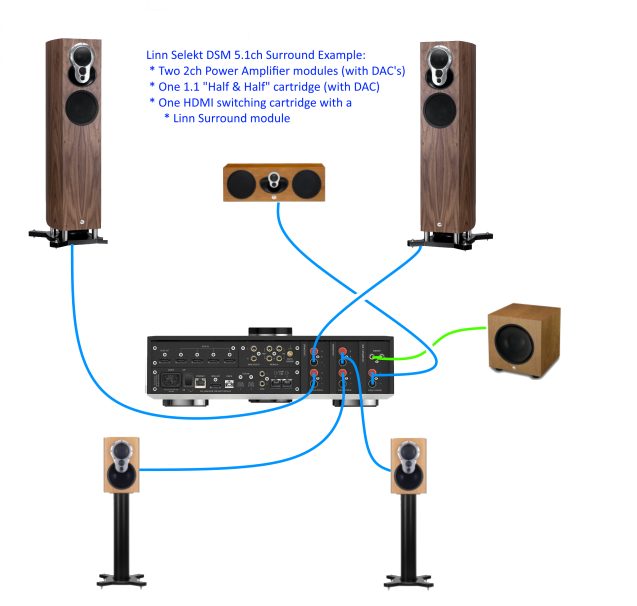
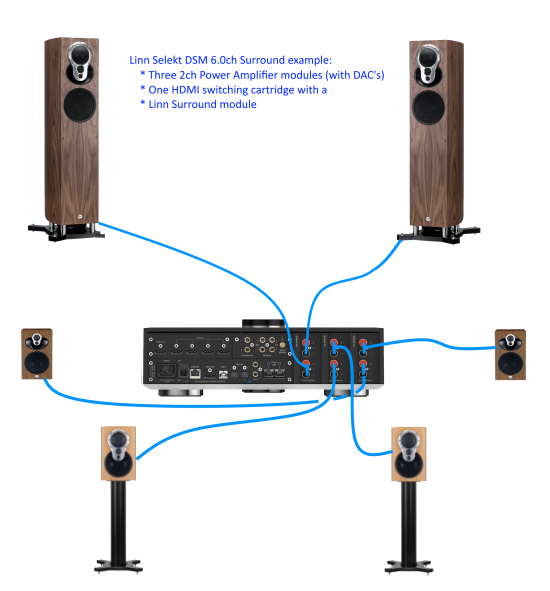
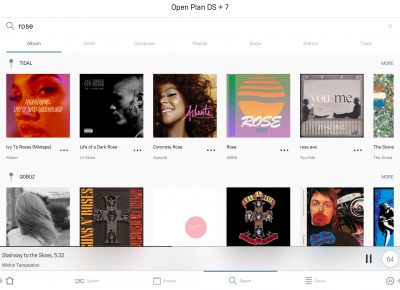



 Android Kazoo for Android Phone/Tablet download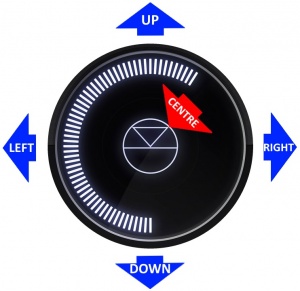
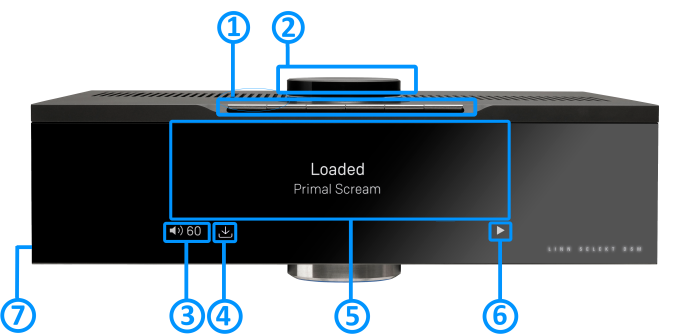
 If you do not have a live network/LAN connection on the Selekt DSM the Linn symbol on the dial will go red.
 After a live network/LAN connection is made the LINN symbol on the dial will turn white after 5-10 seconds.

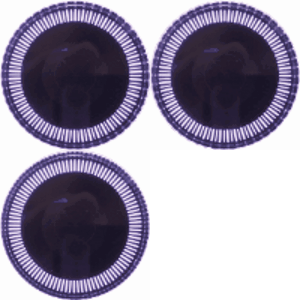
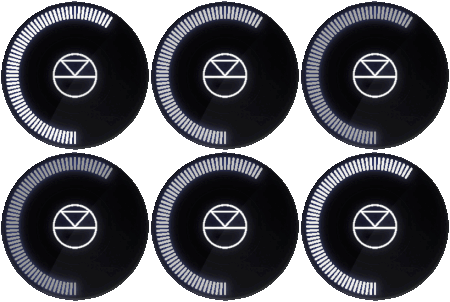
 / Stop
  / Pause
  / Buffering
  symbols to show the current transport state.
 image appears, this indicates no network. After the network is re-established, this will go back to its last transport or blank state.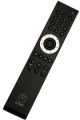


 Click HERE for a guide to the setup and using this USB connection with iPhone/iPad


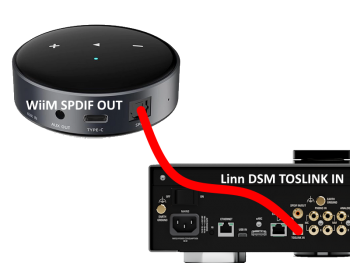


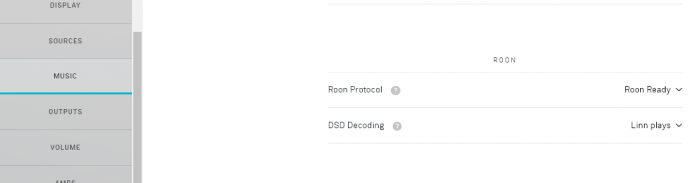

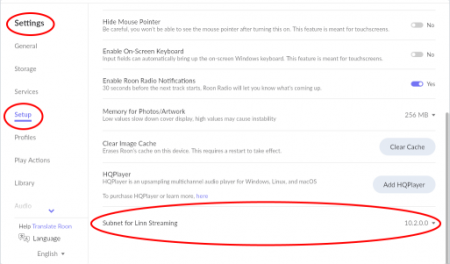
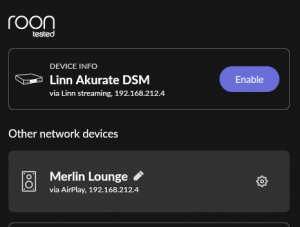
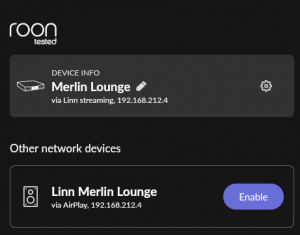






 prestomusic Streaming CD and Hi-Res quality music


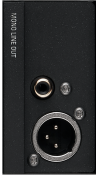
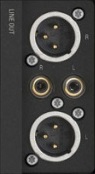
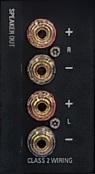
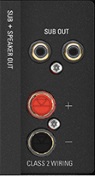
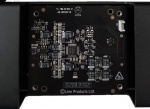

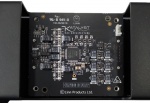

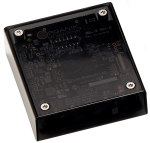
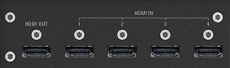

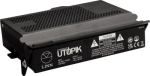
 ). This allows you to feed a digital stream of data and get an analogue signal from it.
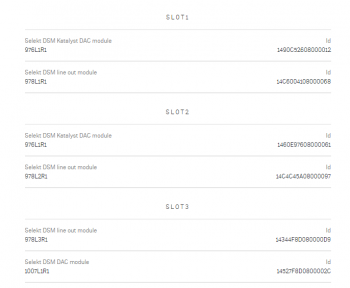
 )
)
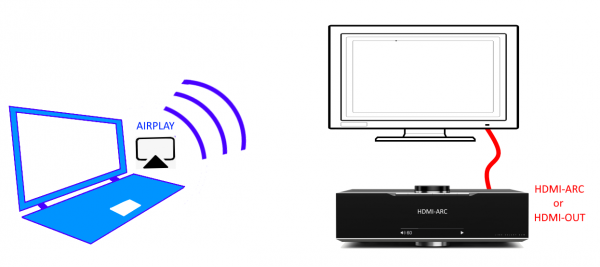
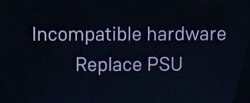
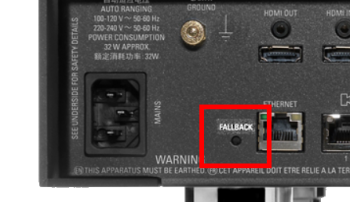

 icon, this will proceed to the Recovery page