3a You may also change the Audio quality that the Linn DS/DSM receives from Tidal in the setup tab.
4 Complete
What audio formats are supported?
Hi-Res FLAC
Up to 192K 24bit FLAC is supported in firmware, Davaar 103 onwards .
From the 15th November 2023, Tidal will start streaming in Hi-Res FLAC, which is supported with a Linn DS/DSM running Davaar 103 or later firmware.
You will also have to check the Manage system setting for Music > Tidal is set for Hi-Res (up to 192k 24bit) :
Note that Tidal Hi-Res streams are too computationally intensive for our earlier products. From Davaar105 they are limited to sample rate of 48KHz (CD quality).
Dolby Atmos
Linn DS/DSM does not currently support Atmos. Tracks will play as Hi-Res FLAC instead.
Tidal streaming issues
I can only play Tidal on one of my Linn DS/DSM's
Check which Tidal Streaming account you have, It is only the Family account that allow multiple Linn DS/DSM to play different Tidal streams at the same time.
Check Tidal Subscription types and simultaneous streaming
If you are playing different Tidal tracks on multiple Linn DS/DSM and Kustom DSM Streamers, you will usually find that this will only Play one track and Stop. You need to have a Family account and assign each Linn DS/DSM its own Tidal account.
Setting up a Tidal account, I get an error “Sorry, no flowId is set up…”.
On Linn App, a red message stating "Connection failed"
This can be the Linn DS may not have internet access or the Tidal Music server is offline.
Press the Logout button, then try to Login again. This will normally fix the issue. If doesn't check:
If you are using a BT Home hub5 check that Smart Setup is turned OFF
On the Linn DS select the Radio input and check that you can get internet Radio from this input. This will tell you if your DS has internet access.
Try power cycling the Linn DS/DSM then retry selecting Tidal Music selection.
It may also be due to your Network Router connecting you to a distant Tidal server. Check that the Router DNS settings are set for Google public DNS
Alternatively, either your local network, or internet/broadband may be struggling with the higher bandwidth of hi-res audio. If drop-outs are frequent, try changing the quality of audio being fetched:
Go into Manage Systems > Your DS/DSM & the Music Tab"
Within the Music tab you will find Tidal, that you can enable/disable and an Audio quality option.
Change the Audio Quality to a lower setting
Move playback to a new track and check whether the frequency of drop-outs has changed (audio quality setting only takes effect when tracks start).
Tidal Audio Quality
Within Linn Account Manage systems section you can change the audio quality of Tidal.
Options available are:
Enabled: To make this Tidal input visible/invisible in your Linn control point.
You can adjust these settings to control the quality of your incoming stream if you have internet issues. If any of these settings are changed then the next Tidal track played will be at the newly selected streaming rate.
Low(96 kbit/s)
High(320 kbit/s)
Lossless (CD quality)
Note: The highest streaming can also be controlled by your Tidal subscription and may only limit you to HIGH(320 kbit/s) on the standard service.
Qobuz
Qobuz can be browsed and played on the Linn DS/DSM using the Linn App or Kazoo app. It needs Davaar 29 firmware or later.
Qobuz
Due to changes in Qobuz login on February 15th 2022 there may be some issues with Qobuz operation.
Qobuz advises that you log out and then relogin to Qobuz on your Kazoo/Linn App to fix this and select your Music
Enable service
This option can be added/removed from the Kazoo selection / Linn App Browse options by:
You may also change the Maximum Audio quality that the Linn DS/DSM receives from Qobuz in the setup tab. (This also depends on your Tidal subscription)
Complete
Linn App will not work with Qobuz
This can be a confused connection. The simple way to rectify this:
1. In Linn App, go to the EXPLORE
a) Logout of Qobuz.
b) Click on settings, (small cogwheel on the top right of the same page), and DISABLE Qobuz using the slider. (this is only temporary)
2. Close the Linn App completely, do not minimise it, totally close it. & power off your Apple/Android that is running the Linn App.
3. Power cycle, the Linn DS/DSM. (This is NOT put into Standby, but switch off the Mains power for at least 10 seconds)
4. Restart your Apple/Android device running Linn App.
5. After Linn DS/DSM has restarted, launch Linn App.
6. In Linn App, go to the EXPLORE
a) Click on settings, (small cogwheel on the top right of the same page), and ENABLE Qobuz using the slider.
b) Login to Qobuz.
Now try and play Qobuz music on the Linn DS/DSM, all should be fixed.
Linn App will not work with Qobuz
Check the Linn DS/DSM firmware version. Qobuz changed its login procedure and this was updated in a Davaar release.
Use Manage System or for some earlier products to update your device firmware.
QOBUZ not streaming Hi-Res quality
The quality of the Music streamed is governed by Qobuz depending on the account that you have with Qobuz. Hi-Res music Qobuz will only work if you have a SUBLIME HIFI or STUDIO account CD quality music if you only have HIFI account or HIFI Classic account MP3 quality music if you only have Basic account or Premium account, this will stream at MP3 quality.
QOBUZ show me tracks but I cannot play them, the PLAY/SKIP button is greyed out
QOBUZ media is licensed. This means that some the Music you have selected in not available for streaming to your country.
You may have purchased the Music and downloaded this Music from Qobuz, but this is not licensed for streaming.
Linn App will not work with QobuzQobuz tracks will only play for 30 secondsks will only play for 30 seconds
Your Qobuz subscription is a FREE subscription. These tracks will only play for 30 secs before moving on to the next track.
I have some Qobuz tracks in my Playlist but the Linn DS will not play them
We suspect you have a FREE Qobuz subscription. Te track links for these free tracks have a limited life and will have expired. The solution is to check that you have a paid Qobuz subscription.
Music dropping out playing Qobuz music
It may also be due to your Network Router connecting you to a distant Qobuz server. Check that the Router DNS settings are set for Google public DNS
If you are more IT literate and have a load-balancing connection dual WAN router, make sure this is set up correctly
< FAQ Streaming Service HOME page
Qobuz Audio Quality
Within the Linn Account Manage SystemsMUSIC section you can change the audio quality of Qobuz.
Options available are:
Enabled: To make this Qobuz stream visible/invisible in Kazoo/Linn App.
You can adjust these settings to control the quality of your incoming stream if you have internet issues. If any of these settings are changed then the next Qobuz track played will be at the newly selected streaming rate.
Low(320 kbit/s)
Lossless(44.1 kHz kbit/s)
Lossless(96 kHz kbit/s)
Lossless(192 kHz kbit/s)
Note: The highest streaming can also be controlled by your Qobuz subscription and may only limit you to Low(320 kbit/s) on the standard service.
Calm Radio
Calm Radio can be browsed and played on the Linn DS/DSM using the Linn App. It requires Davaar 58 firmware or later.
Calm Radio
Enable service
This option can be added/removed from the Kazoo selection / Linn App Browse options by:
Spotify Connect lets you play music from the Spotify app on the Linn DS/DSM and control it with the Linn volume control. It needs Davaar 59 firmware or later.
Spotify Connect
Spotify Connectcan now be used on Linn products using firmware Davaar59 (Aug 2017) or later firmware. (That is, if your Linn DS/DSM has had a software update after Aug 2017 then you can use Spotify connect)
This allows you to select and play your Spotify music on your Linn DS/DSM players and use the internal volume control on the Linn DS/DSM.
To connect your Spotify account to the Linn DS/DSM :
On your control device, iPad/Android/PC/MAC etc, connect to the same computer network as your Linn DS/DSM
Start your Spotify app, (if it is already open then close the App, wait a few seconds, and open the App)
Now check the Spotify Speakers icon to find your Linn DS. (In some cases you may have to power cycle your Linn DS/DSM before this is seen)
Select your Linn product, and you can now play to the Linn DS/DSM from the Spotify account and control the Linn DS/DSM volume.
This is web controlled and if your Linn DS/DSM has already been paired with your Spotify account you will be able to control even if you are not on the same ethernet network.(So be careful that if you accidentally select the Linn DS/DSM as a Spotify speaker and put the volume up high, and you are not at home)
September 2025:We do intend to support Spotify Lossless: This requires non-trivial firmware changes, also involving third-parties, so we don't have fixed timescales for the work completing.
Future Notes:
Spotify does NOT support lossless for all Linn hardware variants; Linn DS/DSM variants, which were launched before the Selekt DSM (in 2018), cannot be updated to Spotify lossless due to hardware limitations. However, they will still support Spotify Connect.
(Click HERE for a list of the product groups before and after 2018 variants.)
If you have a Linn DS/DSM that supports Spotify Lossless, this will still Songcast/share the Spotify lossless to ANY other Linn DS/DSM
Currently, a solution for Spotify lossless on the Linn DSM's, or Amazon Music for older products, you can use a WiiM media streamer .
This can also be used for other unsupported services such as CHROMECAST, Tidal Connect..., but check if your WiiM variant supports your service firstWiiM Support .
This setup will play at the quality of your Linn DSM – playback uses the Linn DSM’s audio clock, meaning that jitter from the source device’s clock will be removed.
Note: This will ONLY work with Linn DSM, not a Linn DS.
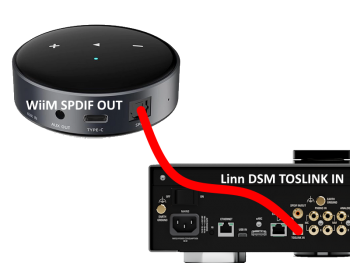
Plug a TOSLINK optical cable from the WiiM media streamer SPDIF OUT digital output directly into a Linn DSM TOSLINK digital input, and use the superior audio DAC of the Linn DSM. This will give you the full Spotify lossless, and any other WiiM supported streaming services into the Linn DSM.
Set up of the WiiM for use with the Linn DSM is easy
1. On the WiiM control app, go into Devices, select your WiiM and the select the gear cog on the bottom right, this will bring you into the WiiM setup page.
2. In the Sound submenu:
a).Audio Settings:
i) We would advise turning "Fixed Volume Output:"ON. This will give the Linn DSM full volume control options
ii) Optical Output Resolution: (Spotify Lossless is ONLY 44.1kHz but the higher sample rate will do other Streaming services)
set to "Sample rate:" 192kHz & Bit depth: 24bit for newer products
Linn Streaming: This allows you to share the audio to/from ALL Linn DS/DSM products. But will not allow you to share audio to non Linn Products.
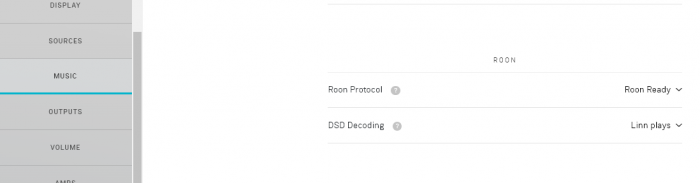
DSD Decoding: This will also allow you to decide, if the Linn DS/DSM has a DAC that supports DSD playback, which products to decode the DSD. Either Roon decoding or Linn DS/DSM direct playback.
All Linn DS/DSM ARE ROON CERTIFIED devices
Requirements:
Davaar 63 firmware. (This can be updated using the Manage Systems webpage).
This allows full hi-res audio, (384k/24bit) playback controlled by the Roon system
Songcast is used to share audio between Linn Products when using Roon. It does not use RAAT (Roon Advanced Audio Transport) for sharing Music, so cannot be set up as a Roon-Ready sharer.
Roon Tested Setup
On Linn DS proxy setups, Linn DS with Linn Kontrol preamplifier connected with RS232, the Roon volume control will not control the Linn Kontrol volume.
A Roon Core is required in your network system to allow Roon to control your Linn DS/DSM.
ENABLE the Linn DS/DSM player in the Roon - Settings - Audio - NETWORKED section.
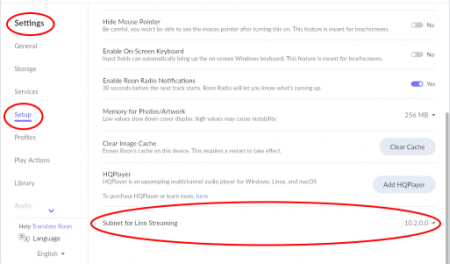
In the Settings > Setup make sure that the "Subnet of Linn Streaming" is the same as the network that the Linn DS is on. Otherwise, they will not show in the Audio
Control
Primary control is through Roon.
Transport IR is disabled on the Linn DS/DSM when the Roon input is selected from Linn DS firmware release Davaar80 (Nov 2020)
Issues
Roon uses the Linn DS/DSM as a media player, the control interface IS Roon.
• I cannot see any Linn DS in the Audio list...
If you cannot see any Linn DS product in the Audio list then check that with the setup the correct Linn Streaming subnet (network address range).
E.g. if your Linn DS has IP address 192.168.1.34 then its subnet is 192.168.1.0
In the Settings > Setup make sure that the "Subnet of Linn Streaming" is the same as the network that the Linn DS is on. Otherwise, they will not show in the Audio tab. You can find the IP address by pressing the * button on the IR handset
• I am only getting Airplay quality audio from the Linn DS using Roon
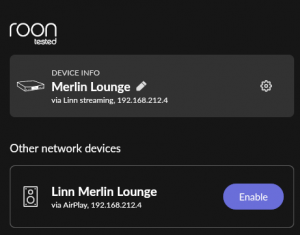
In Roon: Settings - Audio setup page, you will have devices listed with "via Linn Streaming" and devices listed with "via Airplay".
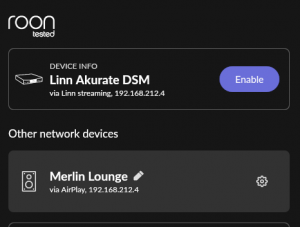
Pressing this "ENABLE" button on "via Linn Streaming" will bring this Linn DS player alive.
When you press ENABLE, this will then allow you to rename this Linn DDS; otherwise it will be its default name. E.g. below the "Linn Akurate DSM" - "via Linn Streaming" has been enabled, and I have renamed it "Merlin Lounge".
The Linn DS/DSM products have to be declared as "Roon Tested", networked devices in the Roon Core settings. (The "AIRPLAY" option for the Linn DS/DSM must be disabled within the Roon Core).
Click on the Roon Ready - Enable and give a name to the Linn DS/DSM. (In the example below, this has been named Merlin Lounge)
• I press STOP and the Roon starts playing again...
Transport (play / pause / stop) and Volume can be controlled using Kazoo or Ir handset. Although later versions of Roon will counteract these commands. Only use the Roon controller software to control what is playing.
Linn DS Firmware Davaar80 onwards will disable transport controls whilst on the Roon input of the Linn DS/DSM
• If I select an external source whilst playing Roon, I need to re-select the source to get it playing.
This can be due to a confusion, as the Roon will send a stop command to the Linn DSM as you exit the Roon source. However, as the Linn DSM will probably have changed to this new source, then this new source is stopped by Roon. On external sources, this can only be recovered by selecting another source and going back to the originally selected source.
The solution is to Stop or Pause the Roon source BEFORE you change to a different input on the Selekt DSM.
This can also be reduced by going into Konfig or Manage systems and disabling the "AutoPlay" option.
Deezer
Deezer can be browsed and played on the Linn DS/DSM using the Linn App. It requires Davaar 110 firmware or later.
To play Deezer on a Linn DS/DSM you need a Deezer subscription and use the Linn App to play your Deezer subscription.
Enable service
This option can be added/removed from the Linn App Browse options by:
select Deezer & login to your Linn App -Deezer account
Complete
Can I play Deezer on any Linn DS/DSM/HUB?
Yes, this can now be used on Linn products using firmware Davaar82 (July 2021) or later firmware. Use Konfig, or with newer designed Linn Products you can use the Linn App - "Update Systems" and Kazoo - "Firmware Updates" options
NOTE: from Linn products firmware update Davaar 110, (Jan 2025), Deezer has been updated to the latest version.
This update will only work with:
Apple - Linn App v4.7.9 onwards
Android - Linn App v4.7.3 onwards
Earlier versions of Linn App will not support this new version of Deezer,.
It's recommended that you reset any existing Deezer Pins to ensure compatibility with the latest version of Deezer
To create and add Deezer tracks to a Linn DS/DSM playlist you require the Linn App
In Linn App Explore I get the message Device Unsupported
NOTE: from Linn products firmware update Davaar 110, (Jan 2025), Deezer has been updated to the latest version.
This update will only work with:
Apple - Linn App v4.7.9 onwards
Android - Linn App v4.7.3 onwards
Earlier versions of Linn App will not support this new version of Deezer,.
It's recommended that you reset any existing Deezer Pins to ensure compatibility with the latest version of Deezer
My Deezer PINs no longer work
NOTE: from Linn products firmware update Davaar 110, (Jan 2025), Deezer has been updated to the latest version.
This update will only work with:
Apple - Linn App v4.7.9 onwards
Android - Linn App v4.7.3 onwards
Earlier versions of Linn App will not support this new version of Deezer,.
It's recommended that you reset any existing Deezer Pins to ensure compatibility with the latest version of Deezer
AIRPLAY
Supported Stream to the NetAux input from iPhone, iPad, Mac or Apple TV, and group with other AirPlay devices.
Airplay
AirPlay is a Apple protocol that allows wireless streaming media.
The Linn DS/DSM/HUB can take the audio stream via the "Netlink" input.
Supported (requires firmware Davaar 108 or later). Stream to the NetAux input from iPhone, iPad, Mac or Apple TV, and group with other AirPlay 2 devices.
Airplay 2
AirPlay2 is an Apple protocol that allows wireless streaming media.
It is only available in Linn DS products with CORE4, or higher, processors.
The Linn DSM/HUB can take the audio stream via the "NetAux" input.
Airplay2 allows you to Group multiple Airplay2 devices (including Linn DS HomePod, Apple TV) to play in sync using iOS, Siri, HomeKit, iTunes desktop (Windows & MacOS)....
From Linn DS/DSM firmware Davaar 108 this will no longer allow you to Songcast an Airplay stream to other Linn DS/DSM products. . (Airplay2 supports mixing and matching with other Airplay2 devices and not required to Songcast).
Note: MAC's running Tahoe, MacOS 26, has issues with Airplay volume levels being low. This is an Apple issue and not a Linn DS issue.
Products supporting Airplay2 from Davaar 110 (February 2025)
caption To select and play CD & Hi-Res (192k / 24 bit) quality stereo music from your Free, Prime & Unlimited Amazon Music accounts. (The availability and playback controls vary depending on your account type)
Amazon Music service enabled on Linn App. See below for details open how to enable this service. (Linn DSM MUST have at least Davaar 118 installed first).
Products using the older PPC (Power_PC) hardware, from firmware Davaar 117, we have reached the capacity, of flash memory size, and incompatible modules for this Power PC hardware and therefore cannot support this service.
(Note: This does not stop you from SONGCASTING from a ARM-Linux_hardware Linn DS/DSM and ANY other Linn DS/DSM. That is, you can SongcastAmazon Music playing on a Linn Selekt DSM to say a Sneaky DS.)
Click HERE for Linn products that support Amazon Music
Presto Music service enabled on Linn App. See below for details open how to enable this service. (Linn DSM MUST have at least Davaar 118 installed first).
Products using the older PPC (Power_PC) hardware, from firmware Davaar 117, we have reached the capacity, of flash memory size, and incompatible modules for this Power PC hardware and therefore cannot support this service.
(Note: This does not stop you from SONGCASTING from a ARM-Linux_hardware Linn DS/DSM and ANY other Linn DS/DSM. That is, you can Songcast pesto music playing on a Linn Selekt DSM to say a Sneaky DS.)
Click HERE for Linn products that support prestomusic

 Webpage under construction










 presto music Streaming CD and Hi-Res quality music
