
FAQ-Streaming Services
General streaming points
|
Streaming services are based on an internet stream. This is a constant stream of data from the internet. if there are any interruptions or low bandwidth, (limited data rate), this can cause the Linn DS/DSM to mute when playing this music stream. If you get muting, (audio cutting in and out), this can be due to high network traffic in your area, business first thing Monday morning, or heavy usage of video broadcast (like football matches). Some ISP's (ISP is your Internet Service Provider, they supply your Broadband connection) will also reduce your bandwidth of certain types of network traffic, typically BitTorrent (P2P). Some ISPs will mistake your Radio stream for a BitTorrent and throttle this network traffic and cause muting of your Internet Radio. Most domestic broadband states am "up to" bits speed of your broadband but does not state a minimum connection speed.(If you do a quick speed test will appear to be OK (this is a burst of data). But the internet Radio is a constant stream of data. Any long breaks/delays in this stream can cause the internet Radio to mute) If you upgrade to a Business broadband (typically only a small amount extra), these will state a MINIMUM broadband bps. So if your area has difficulty in Internet Radio, suggest trying a upgrading your broadband to a Business broadband with a minimum speed of 500kbps, this should reduce/eliminate your internet radio muting. We have had reports that the network settings of the broadband router can cause issues. If you are technically minded, check the DNS settings of your router. We found that Google DNS works best with DNS1 - 8.8.8.8, DNS2- 8.8.4.4. On your Router check that the VoIP is turned off. This is only to save a lot of your bandwidth to Soft phone such as Skype or Face-time and stave other applications from using this bandwidth. Testing your networkCheck Network Applications page to find applications to test your ISP broadband speed.
Chromecast, Tidal Connect...
|
TidalTidal is supported by products running Davaar23 firmware onwards, together with Linn App version 4.4.9 or higher.
Enable service
What audio formats are supported?Hi-Res FLAC
Note that Tidal Hi-Res streams are too computationally intensive for our earlier products. From Davaar105 they are limited to sample rate of 48KHz (CD quality).
Dolby Atmos
Tidal streaming issuesI can only play Tidal on one of my Linn DS/DSM'sCheck which Tidal Streaming account you have, It is only the Family account that allow multiple Linn DS/DSM to play different Tidal streams at the same time. Check Tidal Subscription types and simultaneous streaming If you are playing different Tidal tracks on multiple Linn DS/DSM and Kustom DSM Streamers, you will usually find that this will only Play one track and Stop. You need to have a Family account and assign each Linn DS/DSM its own Tidal account.
Setting up a Tidal account, I get an error “Sorry, no flowId is set up…”.Contact support@tidalhifi.com for more details
On Linn App, a red message stating "Connection failed"This can be the Linn DS may not have internet access or the Tidal Music server is offline.
If points 1 or 2 do not make any difference, please contact support@tidalhifi.com
Music from Tidal is dropping outIt may also be due to your Network Router connecting you to a distant Tidal server. Check that the Router DNS settings are set for Google public DNS Alternatively, either your local network, or internet/broadband may be struggling with the higher bandwidth of hi-res audio. If drop-outs are frequent, try changing the quality of audio being fetched:
Move playback to a new track and check whether the frequency of drop-outs has changed (audio quality setting only takes effect when tracks start).
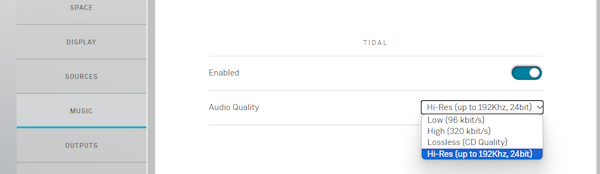
Tidal Audio QualityWithin Linn Account Manage systems section you can change the audio quality of Tidal. Options available are:
|
QobuzDue to changes in Qobuz login on February 15th 2022 there may be some issues with Qobuz operation. Enable service
Linn App will not work with QobuzThis can be a confused connection. The simple way to rectify this:
Now try and play Qobuz music on the Linn DS/DSM, all should be fixed. 
Linn App will not work with Qobuz
QOBUZ not streaming Hi-Res qualityThe quality of the Music streamed is governed by Qobuz depending on the account that you have with Qobuz. QOBUZ show me tracks but I cannot play them, the PLAY/SKIP button is greyed outQOBUZ media is licensed. This means that some the Music you have selected in not available for streaming to your country. Linn App will not work with QobuzQobuz tracks will only play for 30 secondsks will only play for 30 secondsYour Qobuz subscription is a FREE subscription. These tracks will only play for 30 secs before moving on to the next track.
I have some Qobuz tracks in my Playlist but the Linn DS will not play themWe suspect you have a FREE Qobuz subscription. Te track links for these free tracks have a limited life and will have expired. The solution is to check that you have a paid Qobuz subscription.
Music dropping out playing Qobuz musicIt may also be due to your Network Router connecting you to a distant Qobuz server. Check that the Router DNS settings are set for Google public DNS If you are more IT literate and have a load-balancing connection dual WAN router, make sure this is set up correctly
Qobuz Audio QualityWithin the Linn Account Manage Systems MUSIC section you can change the audio quality of Qobuz. Options available are:
|
Calm Radio |
AIRPLAYiPad/iPhone, cannot find Linn DS in Airplay
IOS10
IOS11/12 cannot find Linn DS in Airplay
 Check Apple for any adviceClick this link https://support.apple.com/en-gb/HT20429 for suggestions by Apple Airplay no audio but MAC states that it is playingOSX 14 Somona
Airplay/Songcast keeps dropping out on not starting on a Wifi connectionThis can be a common problem if the Wifi communications to temperamental. The commands from the iPad/Android are sent but lost because communications noise. REASONS FOR INTERMITTENT OPERATION Bluetooth interfering with WifiBluetooth uses the same frequency range as typically used Wifi channel. Turn OFF BLUETOOTH on your iPad/iPhone and this should improve the Airplay communications. IOS 13 Screen time
Apple devices Wifi settingsrequire the Wifi to be set-up to a specific configuration or it will otherwise start looking for a Wifi signal that does support this configuration
Wifi noiseThis noise can be generated by Microwave ovens, DECT phones, wireless Video repeater, Taxi Radios, neighbours Wifi etc. so we would suggest checking this with wifi scanner software such as Wifi-Analyzer / Insidder / NetSpot / VIStumbler, this can be used to find out who else is broadcast on the same channel are your Wifi and causing interference. If you have DECT phones make sure that they are not close (>2M) to your Router or Wifi devices Routers / Wireless Access PointsSome Routers/WAP devices are very poor with UPnP control, namely Sky and BT. If you have one of these Routers we would suggest adding 'Subnet' Router of one that Linn has tried and works reliably. iPad/iPhone cannot see any DS or LibraryFirst try and do a hard reset of your iPhone/iPad, Press AND HOLD both the HOME key and the power button until the Apple symbol appears on the iPhone/iPad display. then retry Kinksy Wifi Setting checkIf you still have issues it has been found that updates to the Apple operating system (IOS 5.1.0) have been found to cause wireless communications issues for any Apple software. We have found that your Wifi device should be setup with SSID name - A single word with unique name. Encryption Mode: * WPA3 Personal, WPA2/WPA3 Transitional or WPA2 Personal (AES) for Wireless authentication * AES : Wireless encryption Channel width: 2,4GHz band - 20 MHz 5/6 GHz band - any bandwidth Hidden network - Disabled WMM - Enabled NAT - Enabled Forget the Network' On your iPad, then re-attach it after power cycling the Wifi device (WAP) * DTIM: Apple recommends 3 or greater This should improve all communications to your i-device Apple link Apple link 2 Apple iDevice are not very good at roaming. What this means is if you have Wifi transmitters it will hold on to it last one until the signal is below 1%. SO you could be right beside the other Wifi transmitter and having issues as the iDevice is still connected to the one furthest away. try switching you Wifi Off (or use Flight mode), wait a few seconds and switch on Wifi, this will hopefully jump to the stronger signal. Check the Router settingsIt has been reported that Routers with QOS enabled will cause problems. Disable QOS on the Router to see if this improves communications Apple link 3 Check Internet connectionsIOS6 appears to check if there is internet access, if it cannot find internet access it will start searching for a WiFI connection with Internet. This jumping around Wifi connections can cause poor communication with the Kinsky software. On the iPad/iPhone turn ON flight mode, then re-enable the Wifi connection. This will stop the iPad/iPhone from searching for Internet access. (This does not affect Browser access to the internet on the iPad/iPhone, only stops the iPad/iPhone for check for software updates) App checkOther apps running in your iPad/iPhone can cause some issues. Try restarting your iPad/Android and use Kinsky before starting any other apps. This will tell you if any other App is causing a problem.
|


|
|
