Difference between revisions of "Template:INFO:SPOTIFY CONNECT"
m |
m |
||
| (5 intermediate revisions by the same user not shown) | |||
| Line 1: | Line 1: | ||
| − | [[file:Spotify-icon-22.png | 50px |left]] | + | [[file:Spotify-icon-22.png | 50px |left|link=https://open.spotify.com/?]] |
:<span class="plainlinks">[https://www.spotify.com/uk/connect/ <u>Spotify Connect</u>] </span>can now be used on Linn products using firmware Davaar59 (Aug 2017) or later firmware. (That is, if your {{{1}}} has had a software update after Aug 2017 then you can use Spotify connect)<br> | :<span class="plainlinks">[https://www.spotify.com/uk/connect/ <u>Spotify Connect</u>] </span>can now be used on Linn products using firmware Davaar59 (Aug 2017) or later firmware. (That is, if your {{{1}}} has had a software update after Aug 2017 then you can use Spotify connect)<br> | ||
| − | :This allows you to select and | + | :This allows you to select and play your Spotify music on your Linn DS/DSM players and use the internal volume control on the Linn DS/DSM.<br><br> |
| − | :To connect | + | :To connect your Spotify account to the {{{1}}}: |
| − | ::# On your control device, iPad/Android/PC/MAC etc, connect to the same computer network as | + | ::# On your control device, iPad/Android/PC/MAC etc, connect to the same computer network as your Linn DS/DSM |
::# Start your Spotify app, (if it is already open then close the App, wait a few seconds, and open the App) | ::# Start your Spotify app, (if it is already open then close the App, wait a few seconds, and open the App) | ||
::# Now check the Spotify Speakers icon to find your Linn DS. (In some cases you may have to power cycle your {{{1}}} before this is seen) | ::# Now check the Spotify Speakers icon to find your Linn DS. (In some cases you may have to power cycle your {{{1}}} before this is seen) | ||
| − | ::# Select | + | ::# Select your Linn product, and you can now play to the {{{1}}} from the Spotify account and control the {{{1}}} volume. |
| − | :<p style="padding:20px">This is web controlled and if your {{{1}}} has already been paired with your Spotify account you will be able to control even if you are not on the same ethernet network.(So be careful that if you accidentally select the {{{1}}} as a Spotify speaker and put the volume up high and you are not at home)<br> | + | :<p style="padding:20px">This is web controlled and if your {{{1}}} has already been paired with your Spotify account you will be able to control even if you are not on the same ethernet network.(So be careful that if you accidentally select the {{{1}}} as a Spotify speaker and put the volume up high, and you are not at home)<br> |
</p> | </p> | ||
| − | :Check <u>[[SpotifyConnect | FAQ | + | :Check <u>[[SpotifyConnect | FAQ Spotify Connect]]</u> for more information. |
| + | {{:Spotify_Lossless}} | ||
| + | <!--{{#ifeq: {{{2}}}| CORE4 | 4 | 0 }} | ||
| + | {{#ifeq: {{{2}}}| CORE1 | 1 | 0 }}---> | ||
| + | {{Info:Spotify}} | ||
Latest revision as of 14:30, 17 December 2025

- Spotify Connect can now be used on Linn products using firmware Davaar59 (Aug 2017) or later firmware. (That is, if your {{{1}}} has had a software update after Aug 2017 then you can use Spotify connect)
- This allows you to select and play your Spotify music on your Linn DS/DSM players and use the internal volume control on the Linn DS/DSM.
- To connect your Spotify account to the {{{1}}}:
- On your control device, iPad/Android/PC/MAC etc, connect to the same computer network as your Linn DS/DSM
- Start your Spotify app, (if it is already open then close the App, wait a few seconds, and open the App)
- Now check the Spotify Speakers icon to find your Linn DS. (In some cases you may have to power cycle your {{{1}}} before this is seen)
- Select your Linn product, and you can now play to the {{{1}}} from the Spotify account and control the {{{1}}} volume.
This is web controlled and if your {{{1}}} has already been paired with your Spotify account you will be able to control even if you are not on the same ethernet network.(So be careful that if you accidentally select the {{{1}}} as a Spotify speaker and put the volume up high, and you are not at home)
- Check FAQ Spotify Connect for more information.
|
September 2025:We do intend to support Spotify Lossless:
|
WiiM solution to Spotify Lossless
|As solution for Spotify lossless for Linn DSM's, you can use a WiiM media streamer .
Note: This will ONLY work with Linn DSM, not the Linn DS.
Plug a TOSLINK optical cable from the WiiM media streamer SPDIF OUT digital output directly into a Linn DSM TOSLINK digital input, and use the superior audio DAC of the Linn DSM. This will give you the full Spotify lossless, and any other WiiM supported streaming services into the Linn DSM.
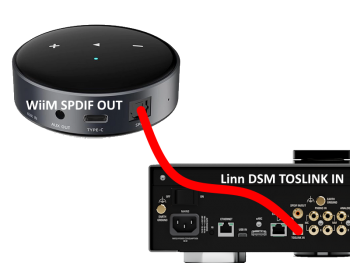
Set up of the WiiM for use with the Linn DSM is easy
- 1. On the WiiM control app, go into Devices, select your WiiM and the select the gear cog on the bottom right, this will bring you into the WiiM setup page.
- 2. In the Sound submenu:
- a).Audio Settings:
- i) We would advise turning "Fixed Volume Output:" ON. This will give the Linn DSM full volume control options
- ii) Optical Output Resolution: set to "Sample rate:" 192kHz & Bit depth: 24bit
- b) .Audio Output:
- i) Change to Optical Out
- a).Audio Settings:
To use the WiiM with the Linn DSM and Spotify:
- 1. Select the TOSLINK input on the Linn DSM
- 2. Open Spotify and Connect to the WiiM *** or the name you have given the WiiM.
- 3. Double check, in your Spotify User profile setting that "Audio Streaming quality" is set to Lossless, Up to 1GB/hr
- 4. Now play Spotify music.
