Difference between revisions of "TroubleShooting:Selekt DSM"
m (→Restore Procedure) |
m (→Selekt DSM does not produce any sound from the cartridge(s)) |
||
| Line 13: | Line 13: | ||
<br><br><br> | <br><br><br> | ||
;If you have the correct orientation of DAC's and cartridge position (see above), try the Restore Procedure... | ;If you have the correct orientation of DAC's and cartridge position (see above), try the Restore Procedure... | ||
| + | |||
| + | ==== Selekt DSM Recovery from No Audio ==== | ||
| + | |||
| + | {{#ev:youtube|4r7wzpToyoo}} | ||
====Restore Procedure==== | ====Restore Procedure==== | ||
| Line 26: | Line 30: | ||
::::click on the "<B> RESTORE SPEAKER FACTORY DEFAULTS</b> text | ::::click on the "<B> RESTORE SPEAKER FACTORY DEFAULTS</b> text | ||
:::c) After a few moments, a pop-up box will appear, click on the <span style="color:#FFF;background:#dc3545;padding:5px;border-radius:1px; "><b>RESTORE</b></span> | :::c) After a few moments, a pop-up box will appear, click on the <span style="color:#FFF;background:#dc3545;padding:5px;border-radius:1px; "><b>RESTORE</b></span> | ||
| − | :::: An status box will appear at the bottom of the screen giving you the status of the upgrade. | + | :::: An status box will appear at the bottom of the screen, giving you the status of the upgrade. |
:3. When it's finished: | :3. When it's finished: | ||
:::a) <b><u>Power cycle</u></b> the Selekt DSM | :::a) <b><u>Power cycle</u></b> the Selekt DSM | ||
| Line 35: | Line 39: | ||
Using <u>{{Plain link | url=https://www.linn.co.uk/uk/support/software-apps | name=Konfig App }}</u> (This is now archived and only to be used when advised by Linn) | Using <u>{{Plain link | url=https://www.linn.co.uk/uk/support/software-apps | name=Konfig App }}</u> (This is now archived and only to be used when advised by Linn) | ||
| − | ;MAKE SURE YOU ARE RUNNING THE LATEST | + | ;MAKE SURE YOU ARE RUNNING THE LATEST VERSION OF KONFIG (V4.37.165 or later) |
<div style="line-height: 2.4em;"> | <div style="line-height: 2.4em;"> | ||
::1. Make sure that your Selekt DSM is powered on and connected to a network with internet access. | ::1. Make sure that your Selekt DSM is powered on and connected to a network with internet access. | ||
::2. In Konfig, select your DSM and go into the {{border|<b> Exakt </b>|width=2px| style2=padding:3px |color=#696969}} or {{border|<b>Speakers</b>|width=2px| style2=padding:3px |color=#696969}} tab. | ::2. In Konfig, select your DSM and go into the {{border|<b> Exakt </b>|width=2px| style2=padding:3px |color=#696969}} or {{border|<b>Speakers</b>|width=2px| style2=padding:3px |color=#696969}} tab. | ||
| − | :::a) In the | + | :::a) In the Speaker's configuration box, click on the <span style="color:#FFFFFF;background:#000080;padding:5px;border-radius:5px; "><b>FALLBACK</b></span> button. This will put the Selekt back plane into fallback mode. |
| − | :::b) After a few moments, a <span style="color:#FFFFFF;background:#000080;padding:5px;border-radius:5px; "><b>RESTORE</b></span> button should appear in the | + | :::b) After a few moments, a <span style="color:#FFFFFF;background:#000080;padding:5px;border-radius:5px; "><b>RESTORE</b></span> button should appear in the Speaker's configuration box. Press this <span style="color:#FFFFFF;background:#000080;padding:5px;border-radius:5px; "><b>RESTORE</b></span> button. |
::::i) If the <span style="color:#FFFFFF;background:#000080;padding:5px;border-radius:5px; "><b>RESTORE</b></span> button does not appear after 60 seconds then quit Konfig. | ::::i) If the <span style="color:#FFFFFF;background:#000080;padding:5px;border-radius:5px; "><b>RESTORE</b></span> button does not appear after 60 seconds then quit Konfig. | ||
::::ii) Re-open Konfig and go back the {{border|<b> Exakt </b>|width=2px| style2=padding:3px |color=#696969}} or {{border|<b>Speakers</b>|width=2px| style2=padding:3px |color=#696969}} tab. The <span style="color:#FFFFFF;background:#000080;padding:5px;border-radius:5px; "><b>RESTORE</b></span> button should now be visible. Press this <span style="color:#FFFFFF;background:#000080;padding:5px;border-radius:5px; "><b>RESTORE</b></span> button. | ::::ii) Re-open Konfig and go back the {{border|<b> Exakt </b>|width=2px| style2=padding:3px |color=#696969}} or {{border|<b>Speakers</b>|width=2px| style2=padding:3px |color=#696969}} tab. The <span style="color:#FFFFFF;background:#000080;padding:5px;border-radius:5px; "><b>RESTORE</b></span> button should now be visible. Press this <span style="color:#FFFFFF;background:#000080;padding:5px;border-radius:5px; "><b>RESTORE</b></span> button. | ||
Latest revision as of 08:04, 18 February 2026
Contents
Selekt DSM does not produce any sound from the cartridge(s)
Check Selekt configuration
- If this is a fresh installation or you have added/changed an Selekt cartridge configuration the check:
- DAC Modules:You have NOT using fitted BOTH Organik DACs AND Katalyst or Standard DAC's. The Selekt cartridges can ONLY be:
- ALL Organik DACs or
- A mixture of Katalyst or Standard DAC's
- A mixture of Organik DACs AND Katalyst or Standard DAC's will produce NO sound and give a front panel warning of Configuration error.
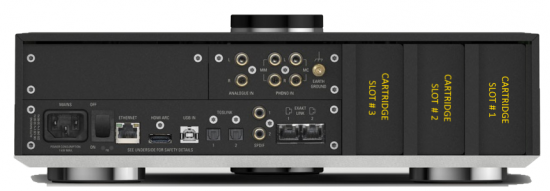
- * Cartridge(s) must be fitted on the order;
- Slot#1 the first cartridge,
- Slot#2 for the second cartridge, if required and
- Slot#3 for the third cartridge, if required.
- If you have the correct orientation of DAC's and cartridge position (see above), try the Restore Procedure...
Selekt DSM Recovery from No Audio
Restore Procedure
Using Manage Systems
- 1. Check that your Selekt DSM is powered on and connected to a network with internet access.
- 2. In Manage Systems, select your DSM and go into the GENERAL tab.
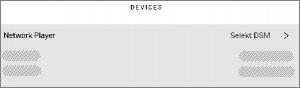
- a) Click on "Selekt DSM" text to go into the configuration box,
- b) Scroll down to the bottom of the Network player page and
- click on the " RESTORE SPEAKER FACTORY DEFAULTS text
- c) After a few moments, a pop-up box will appear, click on the RESTORE
- An status box will appear at the bottom of the screen, giving you the status of the upgrade.
- a) Click on "Selekt DSM" text to go into the configuration box,
- 3. When it's finished:
- a) Power cycle the Selekt DSM
- b) Set up the speaker info and see if normal operation has returned.
- c) If not, please contact Linn Helpline.
Using Konfig App (This is now archived and only to be used when advised by Linn)
- MAKE SURE YOU ARE RUNNING THE LATEST VERSION OF KONFIG (V4.37.165 or later)
- 1. Make sure that your Selekt DSM is powered on and connected to a network with internet access.
- 2. In Konfig, select your DSM and go into the Exakt or Speakers tab.
- a) In the Speaker's configuration box, click on the FALLBACK button. This will put the Selekt back plane into fallback mode.
- b) After a few moments, a RESTORE button should appear in the Speaker's configuration box. Press this RESTORE button.
- i) If the RESTORE button does not appear after 60 seconds then quit Konfig.
- ii) Re-open Konfig and go back the Exakt or Speakers tab. The RESTORE button should now be visible. Press this RESTORE button.
- c) Let it go through the programming steps (there's a progress indicator at the bottom of screen).
- 3. When it's finished:
- a) Power cycle the Selekt (Do NOT use the Reboot option in Konfig).
- b) Set up the speaker info and see if normal operation has returned.
- c) If not, please contact Linn Helpline.
