
Klimax DS / 1
|
Linn Klimax DS / 1 Digital music player 
|
| |||||||||||||||


Product info
| • Product Name: |
Klimax DS/1
|
| • Date of Introduction: | April 2011 - April 2015
|
| Replaced by Klimax DS (Exakt variant) in 2015
| |
| • Type: | Power PC - Digital music player
|
|
|
Hardware Upgrades
- Organik Upgrade
- UTOPIK Power Supply upgrade: Improved power supply
Note: It should be noted that this upgrade information may at times be out of date and should not be used as a current list of what upgrades are available.
Installation basics
Please read the following carefully before installing the unit in your system – your unit may need to be reconfigured by your Linn retailer.
Initial Configuration
- Considerations before installation, make sure that you have
-
- A mains power socket
- Stable mains supply
- 100-120V rms 50~60Hz,
- 200-240V rms 50~60Hz
- a local LAN / Ethernet connection for this product
Installation notes
Please read the following carefully before installing the unit in your system – your unit may need to be reconfigured by your Linn retailer.
Back Panel connections

- MAINS INPUT - To connect to the mains electricity supply.
- POWER SWITCH- For switching the power to the unit on and off
- ETHERNET - To connect to a network (100Base-T)
- RS232 PORTS1 - For connection to Linn source products without ethernet ports.
- FALLBACK - To put the device into Fallback mode (used when reprogramming)
- EARTH GROUND - For connecting the unit to an earthing terminal if no mains earth is available or for joining the earths of other products in the system to improve perfromance in areas of poor/noisy electrical earth conditions.
- UNBALANCED OUT RIGHT, LEFT - To connect to a preamplifier (or power amplifier when internal volume control is enabled) with unbalanced (RCA) analogue inputs.
- BALANCED OUT RIGHT, LEFT - To connect to a preamplifier (or power amplifier when internal volume control is enabled) with balanced (XLR) analogue inputs.
- 1 For RS232 setup examples check HERE
Front Panel Connections

Download App
- Linn App
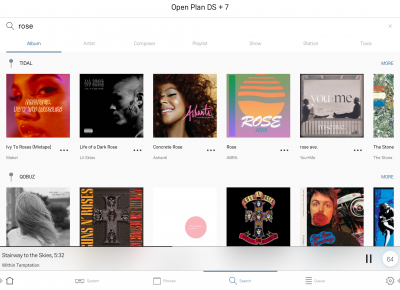
Linn DS/DSM is best controlled using the Linn mobile app

or

Controlling your Klimax DS using an infrared handset
The infra-red handset supplied has;-
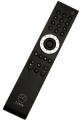
* Volume control, Mute
* Input control with PIN selection
* Radio station selection using the handset joystick,
* Playlist navigation using the handset joystick,
* Transport control (Play, Stop, Pause, Skip & Search) &
* Music information.
Setup and changes
Configuring your Linn DS/DSM player/Speakers etc:
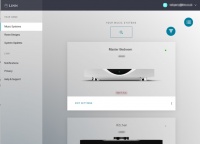
Before you do anything you will need to have a Linn Account. This is a simple process that can only be performed using the Linn App.
Details on how to create your Linn Account and how to use Manage systems can be found in the Manage Systems page.
Space Optimisation
- Linn Space Optimisation is a digital room-correction and acoustic modelling technology built into all Linn network music players and systems. It removes the unwanted distorting effects of your listening environment to reveal cleaner music.
How It Works
- Acoustic Modelling: Instead of using a calibration microphone, it uses mathematical and physical modelling to analyse how your speakers and room interact.
- Room Parameters: Scan your room using LinnDAR or enter your room dimensions, construction materials, ceiling shapes, and features like windows, doors, and furnishings into a web tool.
- Speaker Matching: Select your specific speaker model from a large database (supporting hundreds of models from both Linn and third-party brands).
- Low-Frequency Control: It targets frequencies below 80 Hz where room boundaries and dimensions cause energy peaks, muddy bass, and prolonged decay, cutting down that distortion.
- Practical vs. Ideal Placement: It allows you to place your speakers in practical positions for your living space while making them sound as though they are sitting in their acoustically ideal locations.
Detailed setup instructions are available HERE.
General products manuals and information
Controlling the product User Guide
Product setup:Manage Systems user manual
Third Party Software Copyright
FEATURES
Tidal

Setting up and using Tidal with the Linn DS/DSM and Linn App
Qobuz

Setting up and using Qobuz with the Linn DS/DSM and Linn App
Calm Radio

Setting up and using Calm Radio with the Linn DS/DSM and Linn App
Spotify Connect

Setting up and using Spotify Connect with the Linn DS/DSM
Roon

Setting up Roon to work with the Linn DS/DSM
Deezer

Setting up and using Deezer with the Linn DS/DSM and Linn App
AirPlay

Using AirPlay with the Linn DS/DSM
FAQs
Answers to common questions and problems:
- Linn DS/DSM FAQ: general questions about Linn network music players
- Klimax DS/DSM FAQ: questions specific to Klimax models