
Spotify

Spotify Connect works on Linn network players running Davaar 59 firmware (August 2017) or later. It lets you choose music in the Spotify app and play it on your Linn player, using the Linn player's own volume control.
To connect your Spotify account to your Linn player:
- Connect your phone, tablet or computer to the same network as your Linn player.
- Open the Spotify app. If it's already open, close it completely, wait a few seconds, then open it again.
- Tap the Spotify Connect (devices) icon and look for your Linn player. If it isn't listed, switch the Linn player off at the mains, then on again.
- Select your Linn player. Music now plays on your Linn player, and the Spotify app controls its volume.
Note: once your Linn player is paired with your Spotify account, Spotify can control it from anywhere, even when you're away from your home network. Take care not to select your Linn player by mistake when you're away from home, especially with the volume turned up.
For more information, see the Spotify Connect FAQ.
Spotify Lossless (Linn statement, September 2025)
Linn intends to support Spotify Lossless. This needs significant firmware changes, also involving third parties, so there is no fixed date for it yet.
- Not every Linn player will be able to support Spotify Lossless. Linn network players launched before the Selekt DSM (2018) can't be updated for it because of hardware limits, but they will continue to support Spotify Connect at standard quality. See which Linn players were launched before and after 2018.
- A Linn player that supports Spotify Lossless will be able to share it with any other Linn player using Songcast.
Using a WiiM streamer for Spotify Lossless, Amazon Music and other services
At present, you can get Spotify Lossless on a Linn DSM, or Amazon Music on older Linn players that don't support it directly, by connecting a WiiM media streamer to the Linn DSM's optical input.
A WiiM can also add other services Linn players don't support, such as Chromecast and Tidal Connect. Not every WiiM model supports every service, so check on WiiM Support first.
Music plays at the quality of your Linn DSM: the WiiM sends the digital audio to the Linn DSM, whose DAC converts it using its own audio clock, which removes any jitter from the WiiM's clock.
Note: this only works with a Linn DSM, which has digital inputs. A Linn DS has no digital inputs, so it can't be connected to a WiiM.
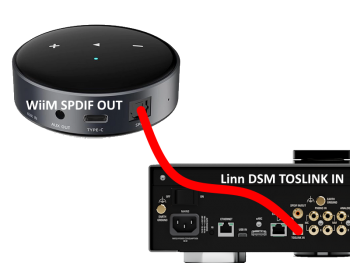
Setting up the WiiM
Connect a Toslink optical cable from the WiiM's SPDIF OUT (optical) socket to a Toslink digital input on your Linn DSM. Then, in the WiiM app:
- Go to Devices, select your WiiM, and tap the settings cog (bottom right) to open the WiiM setup page.
- In the Sound menu, under Audio Settings:
- Turn Fixed Volume Output on. The Linn DSM then controls the volume.
- Set Optical Output Resolution to:
- Sample rate 192 kHz and Bit depth 24-bit for newer Linn players, or
- Sample rate 96 kHz and Bit depth 24-bit for earlier Linn players.
- Under Audio Output, select Optical Out.
Spotify Lossless is 44.1 kHz, but the higher sample rate setting means other streaming services can play at their full quality.
Playing Spotify through the WiiM
- On the Linn DSM, select the Toslink input that the WiiM is connected to.
- In the Spotify app, tap the Spotify Connect (devices) icon and select your WiiM (or the name you gave it).
- In your Spotify settings, check that Audio streaming quality is set to Lossless (up to 1 GB per hour).
- Play your Spotify music.
Playing Amazon Music through the WiiM
- On the Linn DSM, select the Toslink input that the WiiM is connected to.
- In the WiiM app, go to the Browse tab and select Amazon Music under Music Services.
- Sign in with your Amazon Music account.
- In the Amazon Music settings, turn on Amazon Music HD/UHD.
- Play your Amazon Music.