WIP
 Webpage under construction

The information on this page may be incorrect and will be updated before release.
{{#network:}}
WIP/Task list
4,652 total page count
"LinnDocs" - "docs.linn.co.uk" v1.46.2

Test ProductModel
Linn DS Overview
Sandbox
WIP/Front_page_sandbox
WIP/Link page
WIP/Page being build
WIP/top index
WIP/Test Main page
Main_Menu
WIP/Product_type
Upgrades - Organik
Info:Spotify
QRlinks:2026_DUU
WIP:HOME PAGE:WIP_Select Menu
WIP:Multi=tab
wip;SS
ARM
PPC
Pop-up
Selekt-cartridge_options
WIP/Tabber_Power_Amplifier
WIP/Akurate_Speakers
WIP/Majik_Speakers
Tabber Test
WIP/sandbox
WIP/test_create
WIP/Streaming Services
Spotify Connect


- Spotify Connect can now be used on Linn products using firmware Davaar59 (Aug 2017) or later firmware. (That is, if your Linn DS/DSM has had a software update after Aug 2017 then you can use Spotify connect)
- This allows you to select and play your Spotify music on your Linn DS/DSM players and use the internal volume control on the Linn DS/DSM.
- To connect your Spotify account to the Linn DS/DSM :
- On your control device, iPad/Android/PC/MAC etc, connect to the same computer network as your Linn DS/DSM
- Start your Spotify app, (if it is already open then close the App, wait a few seconds, and open the App)
- Now check the Spotify Speakers icon to find your Linn DS. (In some cases you may have to power cycle your Linn DS/DSM before this is seen)
- Select your Linn product, and you can now play to the Linn DS/DSM from the Spotify account and control the Linn DS/DSM volume.
This is web controlled and if your Linn DS/DSM has already been paired with your Spotify account you will be able to control even if you are not on the same ethernet network.(So be careful that if you accidentally select the Linn DS/DSM as a Spotify speaker and put the volume up high, and you are not at home)
- Check FAQ Spotify Connect for more information.
|
September 2025:We do intend to support Spotify Lossless:
|
WiiM solution to Spotify Lossless, Amazon Music, (also ChromeCast, Tidal Connect...)
Currently, a solution for Spotify lossless on the Linn DSM's, or Amazon Music for older products, you can use a WiiM media streamer .
This can also be used for other unsupported services such as CHROMECAST, Tidal Connect..., but check if your WiiM variant supports your service first WiiM Support .
This setup will play at the quality of your Linn DSM – playback uses the Linn DSM’s audio clock, meaning that jitter from the source device’s clock will be removed.
Note: This will ONLY work with Linn DSM, not a Linn DS.
Plug a TOSLINK optical cable from the WiiM media streamer SPDIF OUT digital output directly into a Linn DSM TOSLINK digital input, and use the superior audio DAC of the Linn DSM. This will give you the full Spotify lossless, and any other WiiM supported streaming services into the Linn DSM.
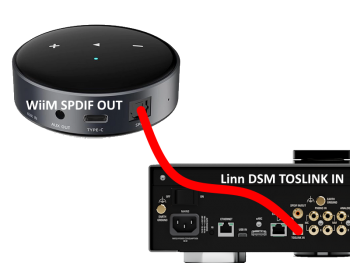
Set up of the WiiM for use with the Linn DSM is easy
- 1. On the WiiM control app, go into Devices, select your WiiM and the select the gear cog on the bottom right, this will bring you into the WiiM setup page.
- 2. In the Sound submenu:
- a).Audio Settings:
- i) We would advise turning "Fixed Volume Output:" ON. This will give the Linn DSM full volume control options
- ii) Optical Output Resolution: (Spotify Lossless is ONLY 44.1kHz but the higher sample rate will do other Streaming services)
- set to "Sample rate:" 192kHz & Bit depth: 24bit for newer products
- or "Sample rate:" 96kHz & Bit depth: 24bit on earlier products
- set to "Sample rate:" 192kHz & Bit depth: 24bit for newer products
- b) .Audio Output:
- i) Change to Optical Out
- a).Audio Settings:
To use the WiiM with the Linn DSM and Spotify:
- 1. Select the TOSLINK input on the Linn DSM
- 2. Open Spotify and Connect to the WiiM *** or the name you have given the WiiM.
- 3. Double check, in your Spotify User profile setting that "Audio Streaming quality" is set to Lossless, Up to 1GB/hr
- 4. Now play Spotify music.
To use the WiiM with the Linn DSM and Amazon Music:
- 1. Select the TOSLINK input on the Linn DSM
- 2. Go to the Browse tab on WiiM app and select Amazon Music from the Music Services section.
- 3. This will open your Amazon login page. Sign in with your Amazon Music account.
- 4. Open Amazon Music Settings and toggle on Amazon Music HD/UHD
- 5. Now play Amazon Music.
- AI Id
{{ProductModel | model=Klimax DSM /3 |release=2020 |predecessor=Klimax DSM /2 |status=current }}
WIP:Kutoms tab
WIP/template test
WIP/Whole_Home
WIP/mw-collapsible
WIP/Test Main page
WIP/Klimax360_Safety
WIP/Control4
Device_Recovery_procedure
How_to_Upgrade_DS_Software
WIP/Tabs
WIP/Tab-Dropdown:shell
WIP/Select Menu
WIP/MAINMENU
Factory_Defaults
WIP/testbase
Auto Generated list
Some pages on Special:Specialpages can be transcluded, such as Special:AllPages, Special:PrefixIndex, Special:NewFiles, Special:NewPages, Special:RecentChanges and Special:RecentChangesLinked.
Page Name = WIP
Base Page name = WIP
Sub Page name = WIP
Categories