Kiko DSM
|
Linn Kiko Integrated digital music player, pre-amplifier and power amplifier 
|
| |||||


Product info
- Product Name: KIKO
- Date of Introduction: July 2012
- Type: Integrated digital music player, pre-amplifier and power amplifier
- Versions: None
- Features
Initial Setup
If you have just received this Linn product then you will be eager to listen to the Music. This section will show you how to unpack it, wire it up, position it and get Music playing...
Unpacking
Remove the Kiko & speakers from the packing and check you have all of the accessories. Now place the product you want it to be. Make sure that you have:
- A mains power socket
- A ethernet/LAN connection to your broadband Router. (The Kiko does not have any inbuilt Wiki capabilty, you need to connect it to a wired network connection first. Then you can use thw Wifi capabilities of your network to control and stream music to the Kiko)
Wiring
Kiko back panel sockets
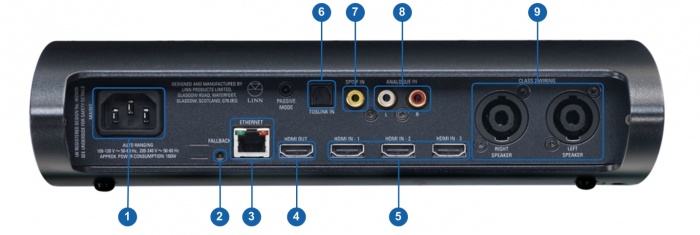
- MAINS INPUT - To connect to the mains electricity supply.
- FALLBACK - To put the device into Fallback mode (used when reprogramming)
- ETHERNET - To connect to a network (100Base-T).
- HDMI OUTPUT - To connect to a display device with HDMI 1.41 inputs.
- HDMI INPUTS - To connect sources with HDMI 1.41outputs
- DIGITAL INPUTS (Toslink) - To connect sources with Toslink (optical) digital outputs.
- DIGITAL INPUTS (Spdif) - To connect sources with Spdif (RCA) digital outputs.
- ANALOGUE INPUTS (RCA, line level)2 & 3 - To connect sources with unbalanced (RCA) analogue outputs.
- SPEAKER OUTPUTS - To connect to Kiko loudspeakers, Neutrik 4 pole connector
1 HDMI 1.4 upto 1080p. HDMI-ARC is NOT supported
2 With ADC of 96kHz/24bit
3 Analogue inputs: Input range adjustable 1V-4V rms, impedance 10kΩ
Connecting to Ethernet
- Plug your Ethernet cable from you Broadband router into Kiko socket number 3, shown above.
Connecting TV, Satellite receivers, DVD players etc
- Connect your TV to the HDMI OUT, Socket 4 above.
- Connect your Blu-Ray, Satellite reciever, camera etc to the remaining HDMI IN sockets, socket group 5 above.
- If you have any audio only sources such a MP3 player, CD players etc they can connect to the respectable sockets 6,7 or 8 shown above.
Connecting the speakers to the Linn Kiko
To insert connect up the speakers into the speaker:
- The cable plug and speaker socket are keyed to prevent plugging incorrectly. Please view the speaker plug and socket to find the correct orientation.
- . Insert plug into socket and twist clockwise until they lock together.
- Repeat the action for connecting the speaker cable to the Linn Kiko. Find the plug key and socket key and insert then twist until it locks.

Disconnecting the speakers from the Linn Kiko
To disconnect the speakers:
- On the plugs you will find a lock slide.
- Pull this slide back and twist the plug anti-lockwise whilst gently pulling the plug out of the socket.

Positioning
- Review the advised Positioning guide to ensure safe and cool operation of the Kiko
- The speaker cables supplied 2M long, your Linn Retailer can make longer/shorter one on request.
Download App
- Linn App
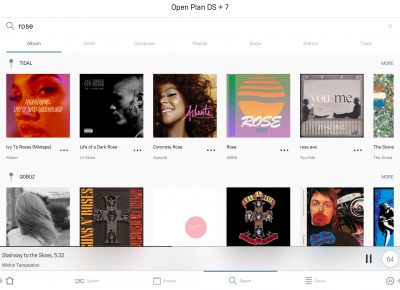
Linn DS/DSM is best controlled using the Linn mobile app

or
- Kazoo App
- Kazoo (Aug 2023 - Ceased all development)
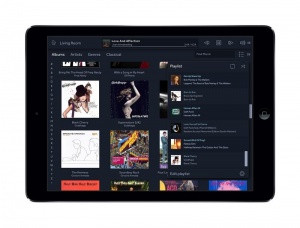
The Linn DS/DSM can be done from many control points at the same time.
Note: from April 2023 : Tidal have removed support for the Linn Kazoo application on ALL platforms. We recommend trying the new Linn app (available on iOS and Android)
- The name of this control App/software is KAZOO..
- Kazoo control App/software is available for

Windows Kazoo software download
| Windows Kazoo download- from April 2023 : Tidal have removed support for the Linn Kazoo application on ALL platforms. We recommend trying the new Linn app (available on iOS and Android)
- Kazoo control App/software is available for

OSX Kazoo download
MAC OSX Kazoo download- from April 2023 : Tidal have removed support for the Linn Kazoo application on ALL platforms. We recommend trying the new Linn app (available on iOS and Android)
 Android Kazoo for Android Phone/Tablet download
- from April 2023 : Tidal have removed support for the Linn Kazoo application on ALL platforms. We recommend trying the new Linn app (available on iOS and Android)
Setup and changes
Configuring your Linn DS/DSM player/Speakers etc:
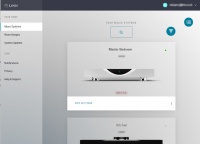
Before you do anything you will need to have a Linn Account. This is a simple process and can only be performed using the Kazoo App or Linn App.
Details on how to create your Linn Account and how to use Manage systems can be found in the Manage Systems page.
Space Optimisation
- Linn Space Optimisation is a digital room-correction and acoustic modelling technology built into all Linn network music players and systems. It removes the unwanted distorting effects of your listening environment to reveal cleaner music.
How It Works
- Acoustic Modelling: Instead of using a calibration microphone, it uses mathematical and physical modelling to analyse how your speakers and room interact.
- Room Parameters: Scan your room using LinnDAR or enter your room dimensions, construction materials, ceiling shapes, and features like windows, doors, and furnishings into a web tool.
- Speaker Matching: Select your specific speaker model from a large database (supporting hundreds of models from both Linn and third-party brands).
- Low-Frequency Control: It targets frequencies below 80 Hz where room boundaries and dimensions cause energy peaks, muddy bass, and prolonged decay, cutting down that distortion.
- Practical vs. Ideal Placement: It allows you to place your speakers in practical positions for your living space while making them sound as though they are sitting in their acoustically ideal locations.
Detailed setup instructions are available HERE.
Using your system
The Kiko has no front panel buttons, only a mains power switch on its side.

- HEADPHONE OUTPUT - To connect to stereo headphones with a 3.5mm input
- AUX SOURCE INPUT - To connect to a stereo audio source with a 3.5mm output
- IR SENSOR - Recieves IR commands
- STANDBY LED
- FRONT PANEL DISPLAY
- POWER SWITCH- Switches the power on/off
Controlling your Linn DS/DSM
To control you Kiko you can you the infra-red handset supplied with product as well as the Linn App, Kazoo that was previously downloaded & installed
Controling your Kiko using an infrared handset
The infra-red handset supplied has;-
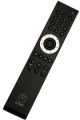
* Volume control, Mute
* Input control with PIN selection
* Radio station selection using the handset joystick,
* Playlist navigation using the handset joystick,
* Transport control (Play, Stop, Pause, Skip & Search) &
* Music information.
Controling your Kiko using a PC/MAC or Tablet
Control of the Linn DS/DSM using a PC/MAC/Tablets & Phones
Initial installation
- Linn App
Linn DS/DSM is best controlled using the Linn mobile app
or
Using the Linn DS/DSM control software
These manuals should only be used as a basic guide for what the buttons can do. We would recommend just using the App/Software and only using the guide if you are having difficulty or want to see what more features are available.
- iPad / iPhone / Android Linn App